Full Page Screenshot
Snipping Tool for Mac: Every Way to Snip a Screenshot on macOS
Guide Kaushik Prasath5 min read

On this page
The snipping tool on a Mac is built into macOS, it just has no icon or name. Press Cmd+Shift+4 and the pointer becomes a crosshair; drag over any part of the screen and the snip is saved to your Desktop. Press Cmd+Shift+5 for a toolbar with every capture option, including a timer and the choice to copy the snip to the clipboard instead of saving it. Here is each shortcut, what it does, and the one thing none of them can do.
The Mac snipping tool shortcuts
| Shortcut | What it captures | Where it goes |
|---|---|---|
| Cmd+Shift+4 | An area you drag | Desktop |
| Cmd+Shift+4, then Space | One window, with its shadow | Desktop |
| Cmd+Shift+3 | The whole screen | Desktop |
| Cmd+Shift+5 | Opens the Screenshot toolbar with all of the above, plus recording | Your choice |
| Cmd+Shift+6 | The Touch Bar, on Macs that have one | Desktop |
Add Ctrl to any of these, for example Ctrl+Cmd+Shift+4, and the snip is copied to the clipboard instead of saved, ready to paste into a message or a document.
How to snip on a Mac, step by step
- Press Cmd+Shift+4.
- Drag the crosshair over the part of the screen you want. The pixel size of the selection shows next to the pointer.
- Let go to capture. A small preview appears in the bottom-right corner for a few seconds.
- Click the preview to mark it up, or leave it and the snip lands on your Desktop as a PNG named "Screenshot" with the date and time.
While dragging, hold Space to move the whole selection, Shift to lock one edge, or Option to resize from the centre. Press Esc to cancel.
Cmd+Shift+5: the Screenshot toolbar
Since macOS Mojave, Cmd+Shift+5 opens a toolbar at the bottom of the screen. From left to right it offers capture of the entire screen, a window, or a selected portion, then recording of the entire screen or a portion. The Options menu is where the useful settings live:
- Save to: Desktop, Documents, Clipboard, Mail, Messages, Preview, or another folder.
- Timer: none, 5 or 10 seconds, for capturing menus that close when you press a key.
- Show Floating Thumbnail: turn the corner preview off if it gets in the way.
- Remember Last Selection: keeps the same box for repeated snips.
- Show Mouse Pointer: includes the cursor in the capture.
The choices stick, so once you set Save to Clipboard here, every Cmd+Shift+4 snip goes to the clipboard too.
Mark up a snip after taking it
Click the floating preview in the corner and the snip opens in a Markup window. The toolbar has a pen, a highlighter, shapes, arrows, text, a signature tool and crop. Click Done to save it. If the preview has already gone, open the saved file in Preview and choose the Markup button (the pen tip in a circle) for the same tools.
Markup has no blur or pixelate. To hide a name or a number in a snip, draw a filled shape over it, or use a blur tool afterwards.
The one thing the Mac snipping tool cannot do
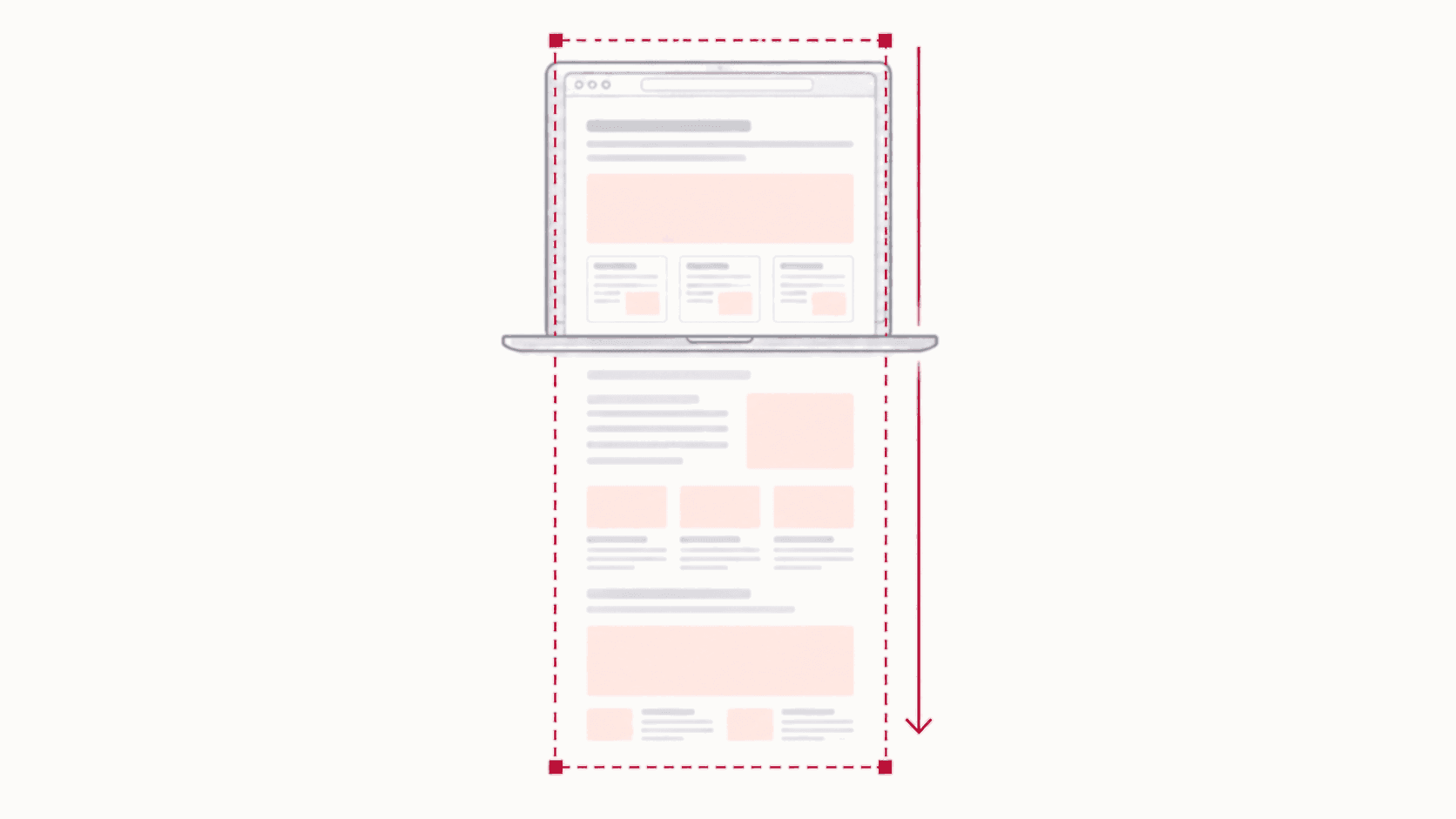
None of the shortcuts can scroll. A snip captures what is on the screen, so a long webpage, a chat thread or a document longer than the window is cut off at the bottom. For a webpage, the browser has to do the capture: the guide to screenshotting a whole page on Mac covers Chrome, Firefox and Safari.
Snipping inside Chrome on a Mac
If what you snip is usually part of a webpage, a browser extension has two advantages over Cmd+Shift+4: the snip contains only the page, never the browser frame around it, and it opens in an editor with blur, arrows, text and crop before you save. In the free Full Page Screenshot extension, click the icon and choose Snip, drag over the region, and export as PNG, JPG, WebP or PDF. The snipping tool for Chrome guide has the full steps, and the same extension captures the whole page when you need more than a snip.
Where Mac screenshots go, and how to change it
By default every snip is saved to the Desktop. To change that, press Cmd+Shift+5, open Options and pick a location under Save to. To change the file type from PNG to JPG, open Terminal and run:
defaults write com.apple.screencapture type jpg
Use png in place of jpg to switch back.
FAQ
Does Mac have a snipping tool?
Yes, but not as an app. The snipping tool on Mac is the set of screenshot shortcuts built into macOS: Cmd+Shift+4 to snip an area, Cmd+Shift+3 for the whole screen, and Cmd+Shift+5 for a toolbar with every option.
How do I snip and copy on a Mac instead of saving a file?
Hold Ctrl with the shortcut: Ctrl+Cmd+Shift+4 copies the snip to the clipboard. Or press Cmd+Shift+5, open Options and set Save to Clipboard, which makes every snip copy instead of save.
How do I snip a single window on a Mac?
Press Cmd+Shift+4, then press Space. The pointer turns into a camera; click the window you want. Hold Option while clicking to leave out the window's shadow.
Can I snip a scrolling page on a Mac?
Not with the built-in shortcuts. Use the browser's own full page capture, or a full page screenshot extension in Chrome, which scrolls the page and stitches it into one image.
Is there a free snipping tool for Mac with blur?
The built-in Markup editor has shapes and a pen but no blur. For a snip of a webpage, a Chrome extension such as Full Page Screenshot includes blur. For an existing image, a browser-based blur and pixelate tool works without installing anything.