 Full Page Screenshot
Visible Area
Captures exactly what is on screen right now. No scrolling, no stitching. Instant snapshot of the current viewport.
Best for: quick captures
Free Forever · Chrome Extension
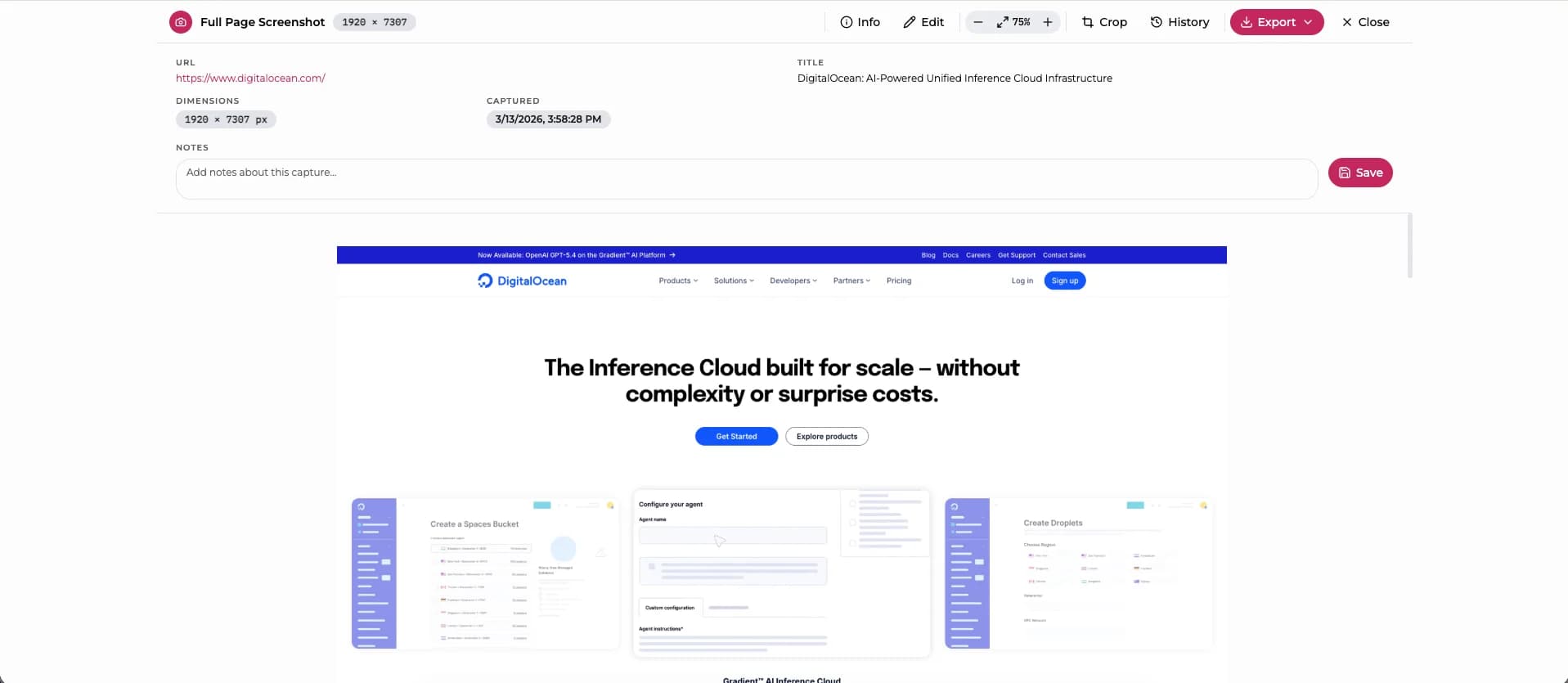
Take a full page screen capture of any website: snap the visible area, snip a region, or scroll-and-stitch the whole page. Every screenshot opens in the built-in editor, ready to annotate and export.
4.8 from 569 ratings · 100,000+ users on the Chrome Web Store
3
Capture modes
7
Annotation tools
4
Export formats
0
Accounts required
Capture Modes
Click the extension icon and choose your capture: the visible screen, a snipped region, or a whole page screenshot. All three modes open in the same built-in editor.
Captures exactly what is on screen right now. No scrolling, no stitching. Instant snapshot of the current viewport.
Best for: quick captures
Drag to draw a selection box over any part of the page. Release to capture just that region with pixel-perfect precision.
Best for: specific regions
One-click full page capture: scrolls through the entire page and stitches every viewport into one seamless image. Up to 40 scroll passes, handles lazy-loaded content.
Best for: entire pages
Beautify & Browser Frames
Beautify wraps a capture in a designed frame: adjustable padding, six background presets, rounded corners, drop shadow. Browser Frames add authentic chrome showing the page's real URL.
Same pixels, presentation-ready. The screenshot itself is never cropped or clipped, because the radius applies to the frame, not the capture.
Backgrounds
Indigo
Ocean
Sunset ✓
Mint
Slate
Paper
Plus adjustable padding, corner radius, and shadow.
Browser Frames
Date Stamps
2026-08-12T14:03:00Z
Stamped into the frame, never onto your capture. Nothing is cropped, clipped, or painted over.
Features
Handles the edge cases other tools ignore: lazy loading, sticky headers, parallax, modals, and pages up to 32,700px tall.
Click the icon and choose: snap the visible area, drag to snip a region, or scroll-and-stitch the full page. All three modes open in the same built-in editor.
Special handling for parallax effects, AOS animations, Squarespace layouts, Notion tables, and Skrollr. Suppresses all CSS transitions during capture.
Cookie banners, popups, and dialogs are automatically detected and dismissed. Fixed headers are pinned. Sticky elements handled gracefully.
Seven annotation tools: select, text, arrows, rectangles, circles, freehand draw, and blur. Full undo/redo with keyboard shortcuts.
PNG, JPG, WebP, PDF. Adjustable quality slider. Custom filenames. Persistent preferences.
PNG
Lossless
JPG
Quality slider
WebP
Best compression
Documents
A grid of all your captures with thumbnails, page titles, URLs, and timestamps. Select multiple, download in bulk, or delete. All in a few clicks. Keeps the 10 most recent by default, adjustable from 1 to 20.
Text stylingNew
Bold, italic, 8–200px. The bundled typeface renders identically everywhere.
Two erasersNew
Object eraser removes a whole annotation in one click; pixel eraser rubs out part of one. Never touches the screenshot underneath.
Unsaved-changes protectionNew
Asks before discarding unsaved annotations, so markup is never lost.
Blur means blurred.
Blur is applied to the exported file, not just the preview. What you redact stays redacted.
card ending in 4242 4242
still blurred in the exported PNG
Capture Accuracy
Scroll-and-stitch is easy to do badly. The capture engine pins what floats, waits for what loads late, and re-checks every seam before it saves.
What the engine handles
How It Works
From click to export in seconds. No learning curve, no account required.
01Three capture options
Click the extension icon and a popup appears with three options: Visible Area, Snip & Capture, or Full Page. Pick one and capture begins immediately.
02Seven built-in tools
Crop, blur sensitive info, draw arrows, add text. Switch between original and edited versions anytime. Full undo/redo with keyboard shortcuts.
03PNG, JPG, WebP, PDF
Download as PNG, JPG, WebP, or PDF. Set quality, name your file, and it remembers your preferences between sessions.
Export & History
Lossless quality
Quality slider
Best compression
Documents
Remembered between sessions
Adjustable scale and quality, custom filenames, and the Settings panel remembers your default format, scale, and annotation style between sessions.
A thumbnail grid of recent captures: reopen in the editor, delete one or many, download in bulk. Auto-cleanup keeps the 10 most recent by default; set it anywhere from 1 to 20.
Full Page Screenshot is a free Chrome extension with three capture modes: snap the visible area for a quick page snapshot, drag to snip any region, or scroll-and-stitch a full webpage screenshot from top to bottom. Whether you need one entire page screenshot of a long article or a website full page screenshot for an audit, it handles lazy-loaded content, sticky headers, and dynamic frameworks like Squarespace and Notion across up to 40 scroll passes. After capture, a built-in editor provides seven annotation tools: text, arrows, shapes, freehand drawing, and blur for redacting sensitive data. Export as PNG, JPG, WebP, or PDF with adjustable quality settings. Built on Chrome's Manifest V3 platform, the extension works entirely offline, collects no user data, requires no account, and is completely free with no premium tiers. Not sure which tool fits your workflow? Our guide to choosing a full page screenshot extension walks through what to look for.
Privacy
Screenshots are captured, edited, and exported entirely on your machine. No account, no upload, no tracking in the extension. It even works offline.
Built and maintained by Kaushik Prasath, an independent developer.
FAQ
Everything you need to know about Full Page Screenshot.
8 common questions answered
Install the Full Page Screenshot extension, then click its icon in your Chrome toolbar. A popup appears with three capture modes. Select Full Page and the extension automatically scrolls through the entire page, captures every section, and stitches them into a single image. The screenshot opens in a built-in viewer where you can edit, crop, and export it.
Use Chrome on your Mac with the Full Page Screenshot extension: click the icon, choose Full Page, and it captures the whole page from top to bottom. macOS shortcuts like Cmd+Shift+4 only capture the visible screen, so the extension is the simplest way to take an entire page screenshot on a Mac.
Full Page Screenshot supports exporting to PNG (lossless quality), JPG (with adjustable quality slider), WebP (best compression), and PDF (for document sharing). You can also set custom filenames and your quality preferences are saved between sessions.
Yes, Full Page Screenshot is completely free. There are no premium tiers, no accounts required, and no data collection. It works offline and stores all captures locally in your browser.
Yes. Full Page Screenshot includes a built-in editor with seven annotation tools: text, arrows, rectangles, circles, freehand drawing, blur, and a selection tool. You can also crop screenshots, adjust colors, undo/redo changes, and switch between original and edited versions.
Yes. The extension pre-scrolls pages up to 40 times to trigger lazy-loaded content. It detects and handles fixed/sticky headers, dismisses cookie banners and modals, and has special handling for parallax effects, AOS animations, Squarespace, and Notion.
Full Page Screenshot offers three modes. Visible Area captures exactly what is on screen right now with no scrolling. Snip & Capture lets you drag a selection box over any part of the page to capture just that region. Full Page scrolls through the entire page and stitches every viewport into one seamless image. All three modes open in the built-in editor after capture.
Yes. Use Snip & Capture mode: click the extension icon, select Snip & Capture, then drag to draw a box around the region you want. Release the mouse and the selected area is captured and opened in the editor automatically.
From the blog
Eight ways to take a full page screenshot in Chrome, compared side by side: what is free, what needs a paid plan, which have an editor and blur, and which one fits your job.
Read moreEvery working way to take a full page or scrolling screenshot in Chrome: a one-click extension, the built-in DevTools command, Chrome on Android and iPhone, and fixes for captures that come out broken.
Read moreGoFullPage was removed from the Chrome Web Store on 11 August 2026 and restored on 10 September. Here's a dated timeline of what happened, how to get it back safely, and a free alternative worth keeping.
Read moreHow to use Chrome DevTools' Capture full size screenshot and Capture node screenshot commands, full page captures in device mode, and a fix for every way the capture fails on real pages.
Read moreEvery way to take a screenshot in Google Chrome: the keyboard shortcuts for Windows, Mac and Chromebook, Chrome's hidden DevTools capture, and how to screenshot just the page, part of it, or the whole thing.
Read moreA scrolling screenshot captures everything below the edge of the screen. Here is how to take one on every device and browser, and which built-in options can actually do it.
Read moreFree forever. No account. No tracking. Just the screenshot tool you've been looking for.