Full Page Screenshot
How to Save a Webpage as a PDF in Chrome Without Cutting It Off
 Kaushik Prasath· Founder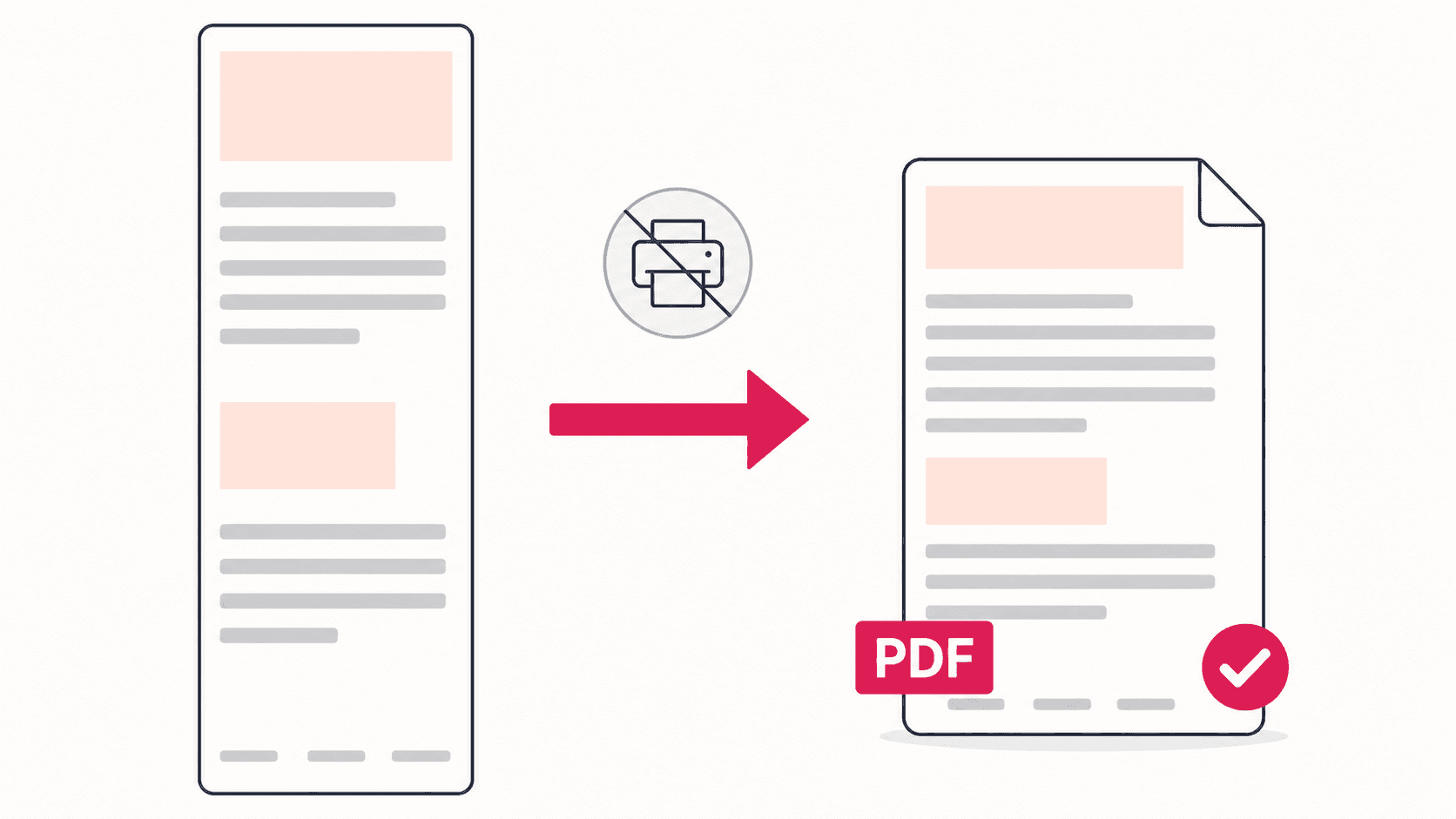
Chrome gives you two real ways to save a webpage as a PDF. The built-in option is Print, then "Save as PDF" as the destination: fast, free, and fine for text-heavy pages. The problem is that print rendering reformats the page, drops backgrounds, and regularly cuts off content in sideways-scrolling sections. When the PDF needs to look exactly like the page, capture the page as a full-height screenshot first and export it as a PDF. Both methods, step by step:
Method 1: Chrome's built-in Print to PDF
- Press Ctrl+P (Cmd+P on Mac) on the page you want.
- Set the destination to Save as PDF.
- Optional: expand More settings and enable Background graphics, which restores some of the page's colors and images.
- Click Save.
Use this when the page is mostly text and you want selectable, searchable text in the PDF: articles, documentation, terms pages. Receipts and tickets often ship a print stylesheet designed for exactly this, so they come out clean too.
Where it falls apart: print rendering uses the page's print stylesheet, or an improvised one. Multi-column layouts collapse, navigation and widgets vanish or overlap, wide tables and horizontally scrolling sections get cut at the paper edge, and pages built as web apps (dashboards, design tools, social feeds) often print as a near-blank page. That is the "webpage PDF cut off" problem, and no print setting fully fixes it, because the cause is the page being reflowed into paper dimensions it was never designed for.
Method 2: capture the full page, export as PDF
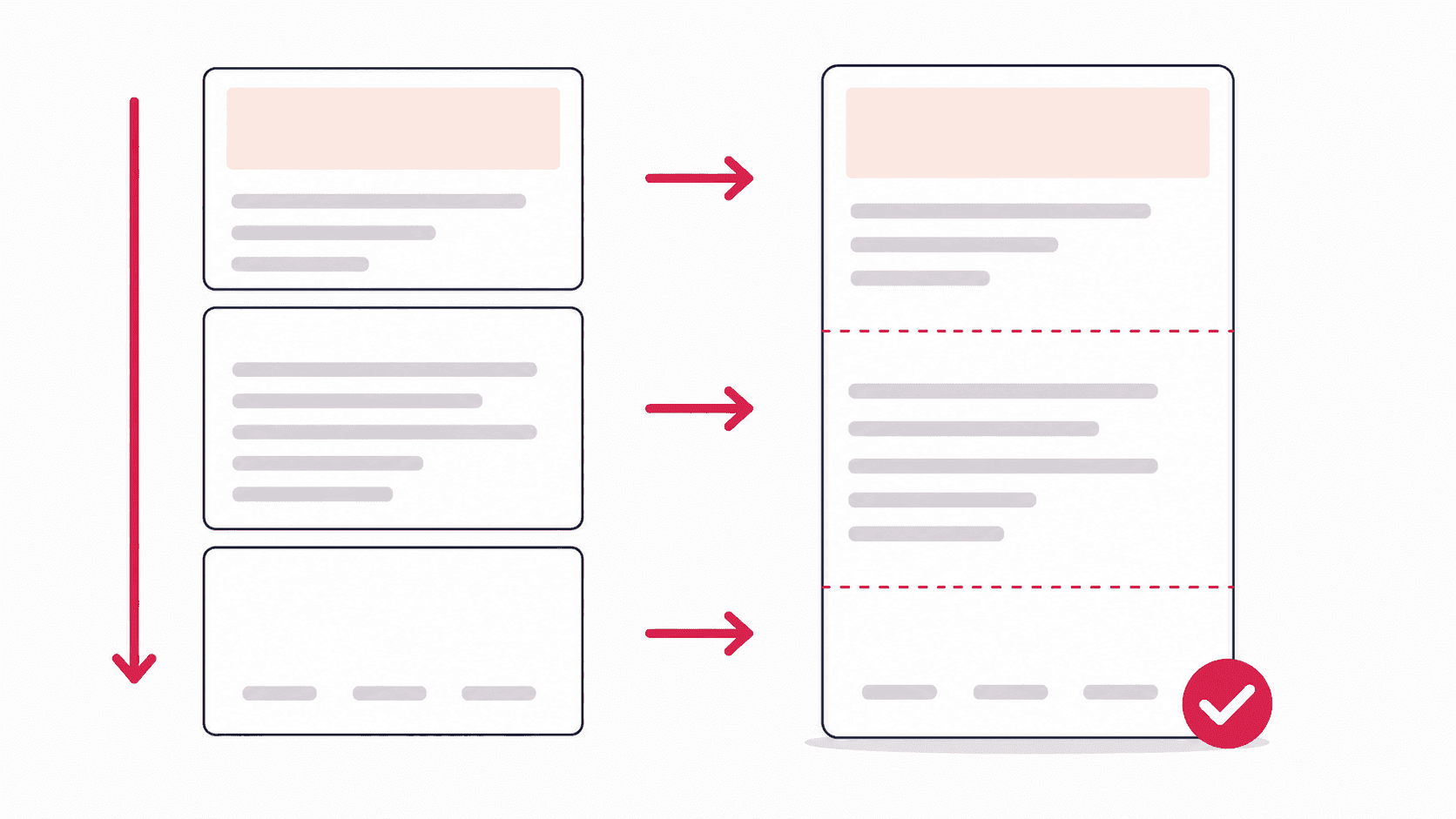
This route preserves the page pixel for pixel, because it photographs the rendered page instead of reformatting it:
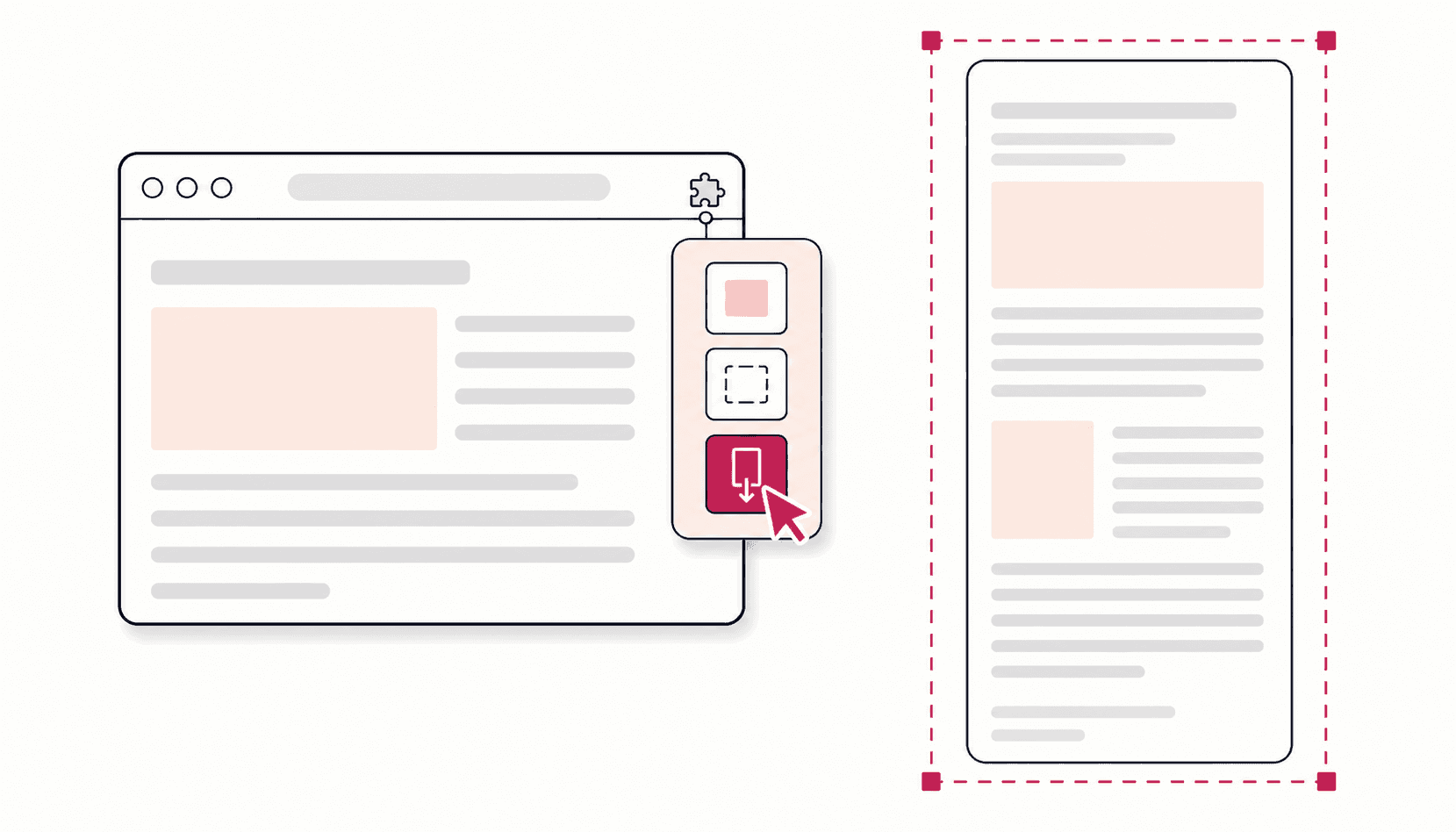
- Install the free Full Page Screenshot extension.
- Open the page, let it load fully, click the extension icon, and choose Full Page. The extension scrolls the entire page and stitches it into one image (how to take a full page screenshot in Chrome).
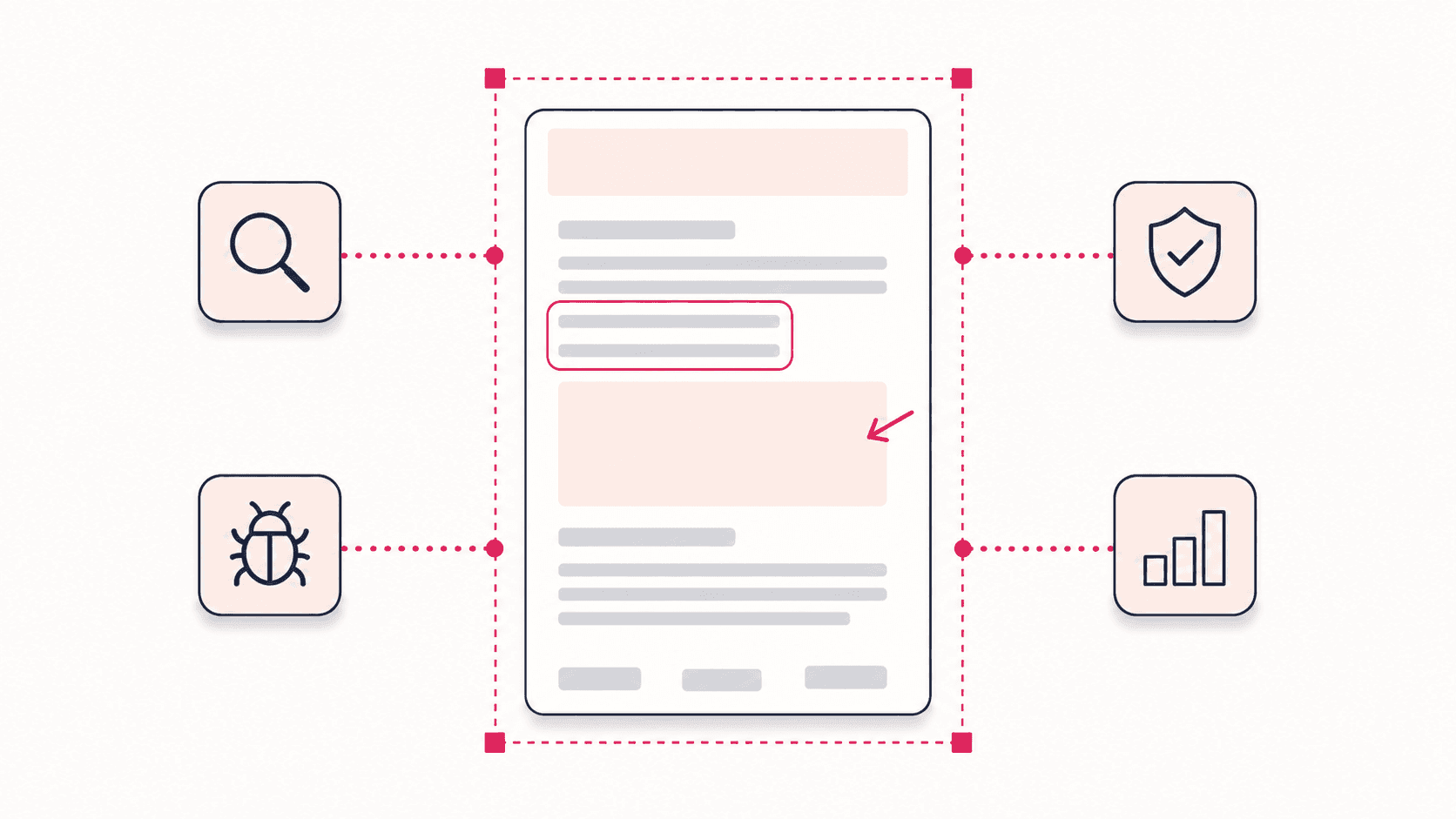
- In the editor that opens, crop or annotate if needed, then choose PDF as the export format.
Any capable full page extension works for this step; the extension comparison covers which ones include PDF export for free. The result is a PDF of the page exactly as it looked in your browser: layout intact, backgrounds included, nothing reflowed to paper width. Pages up to 32,700 pixels tall are supported, which covers even very long documentation and one-page sites. The text is part of the image rather than selectable, which is the honest trade-off between the two methods: choose print-to-PDF for searchable text, choose capture-to-PDF for visual fidelity.
One practical note for pages behind a login: both methods capture what your browser is showing, so log in first and the capture works normally. Nothing is sent anywhere; the extension runs offline and keeps everything local.
Fixing PDFs that cut off content
If a PDF is cutting off the right side or the bottom of a page, work down this list:
- Switch methods. Cut-offs at the paper edge are a print-rendering problem. Capture-to-PDF (method 2) does not have paper edges, and fixes most cases outright.
- Trigger the whole page first. Lazy-loading pages need one full scroll before capture so every section has rendered. The extension pre-scrolls automatically, up to 40 passes.
- Expand collapsed sections. Accordions and tabs save shut if they are shut on screen.
- Check for embedded frames. Content inside a scrollable inner frame is capped at the frame's visible size. Open the frame's own URL in a tab and capture that.
- Reset zoom to 100% (Ctrl+0) before either method, since zoom changes what fits on a rendered "page".
PDF, PNG, JPG, or WebP: pick the right export
| Format | Best for | Why |
|---|---|---|
| Reports, client deliverables, legal and compliance records | One file, prints predictably, universally opened | |
| PNG | Text-heavy captures, archives | Lossless, keeps small text sharp |
| JPG | Email and chat sharing | Small files, adjustable quality slider |
| WebP | Web publishing, storage at scale | Smallest files at comparable quality |
If a capture-based PDF comes out large, the page was very long: export as JPG or WebP instead, or crop to the sections you actually need before exporting.
On an iPad or phone?
Honest answer: desktop Chrome extensions do not run in Chrome for iPad, iPhone, or Android, so the extension route is desktop-only. On an iPad, use the Share menu's print or PDF option (or Safari's built-in full page PDF). On Android, Chrome's Print menu saves to PDF with the same reflow limitations as on desktop. When the mobile output matters, the reliable workflow is to capture the page on desktop Chrome and share the PDF from there.
FAQ
How do I save a full webpage as a PDF in Chrome?
Either press Ctrl+P and choose Save as PDF for a quick, text-searchable copy, or capture the page with a free full page screenshot extension and export as PDF for an exact visual copy with nothing cut off.
Why does my webpage PDF cut off content?
Print-to-PDF reflows the page into paper dimensions, so wide layouts, tables, and scripted sections get clipped at the page edge. Capturing the page as a full-height screenshot and exporting that as PDF avoids the reflow entirely.
Can I save a webpage as a PDF without printing?
Yes. A capture-based PDF never touches the print system: the extension photographs the full rendered page and exports the image as a PDF file directly.