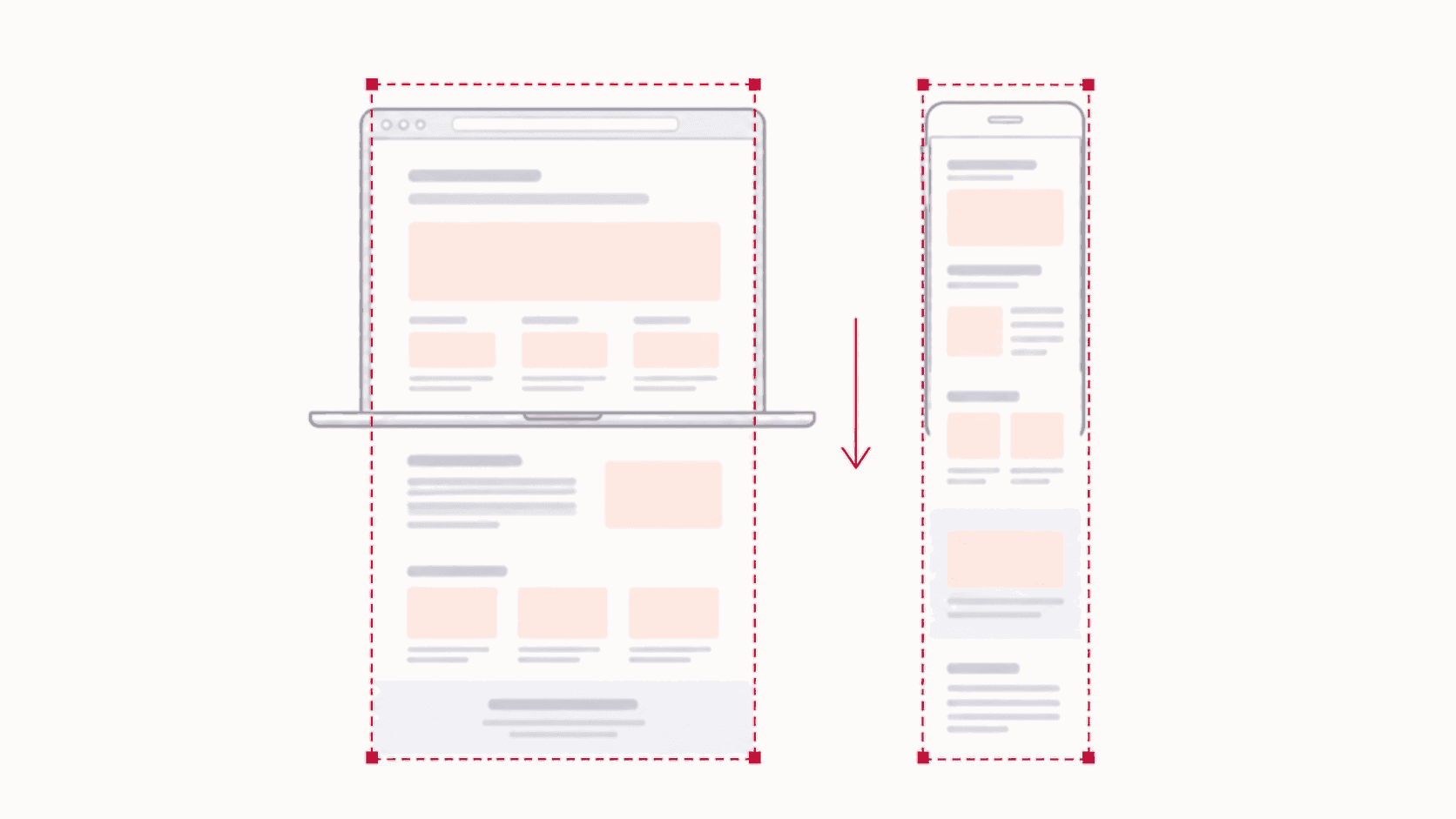
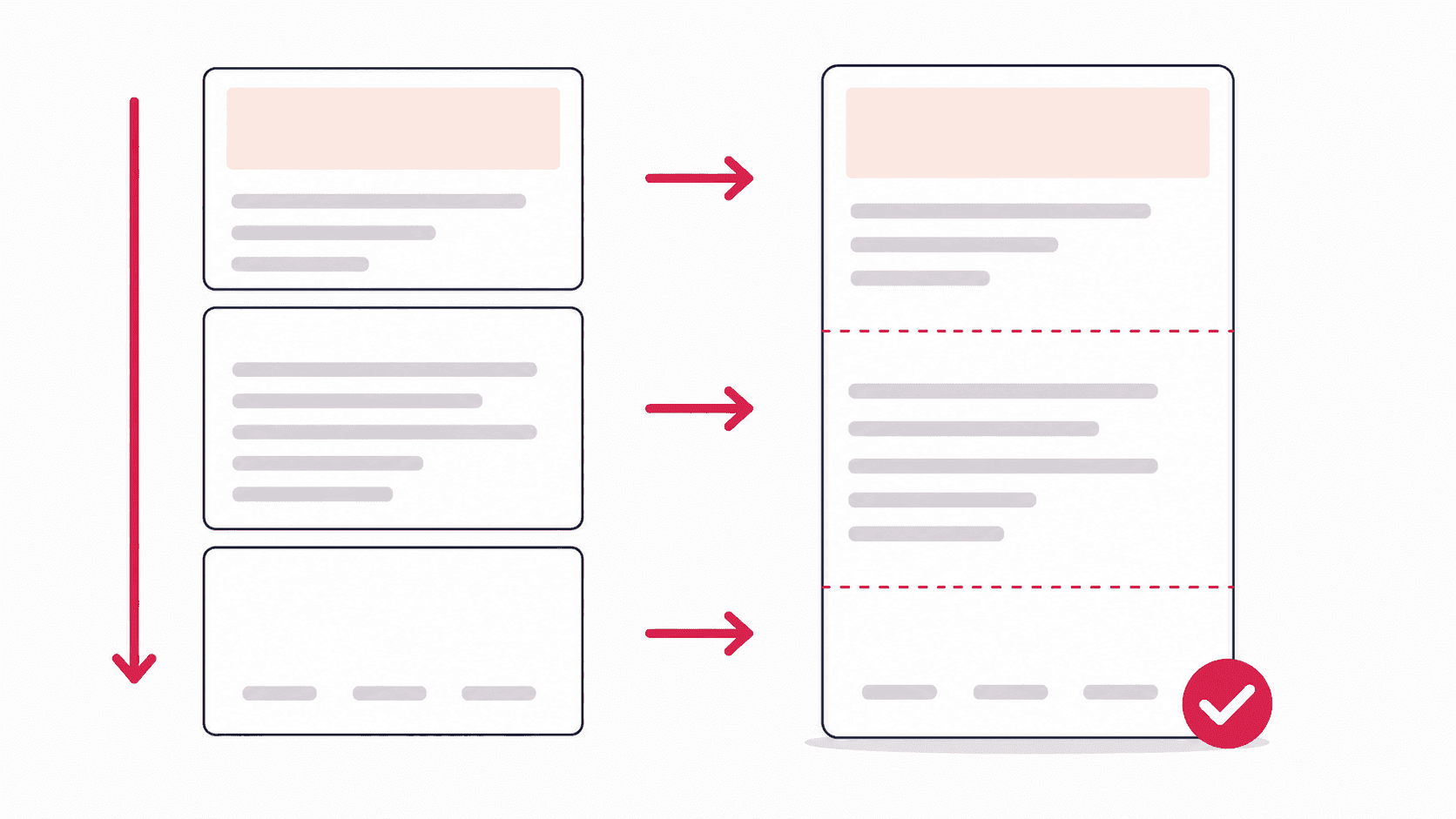
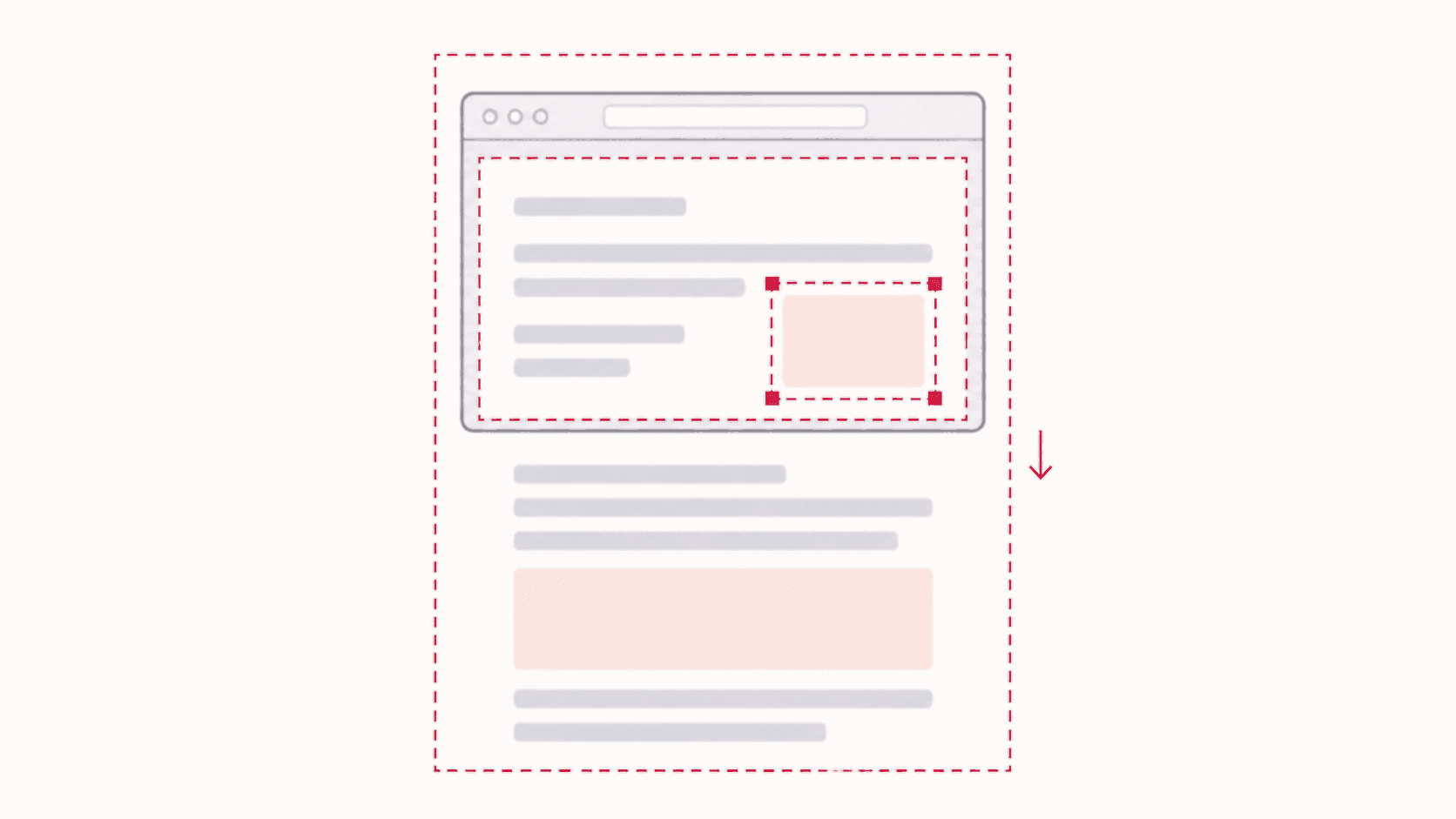
Full Page Screenshot
How to Screenshot a Whole Page on Mac (Full Webpage, Scrolling)
 Kaushik Prasath· Founder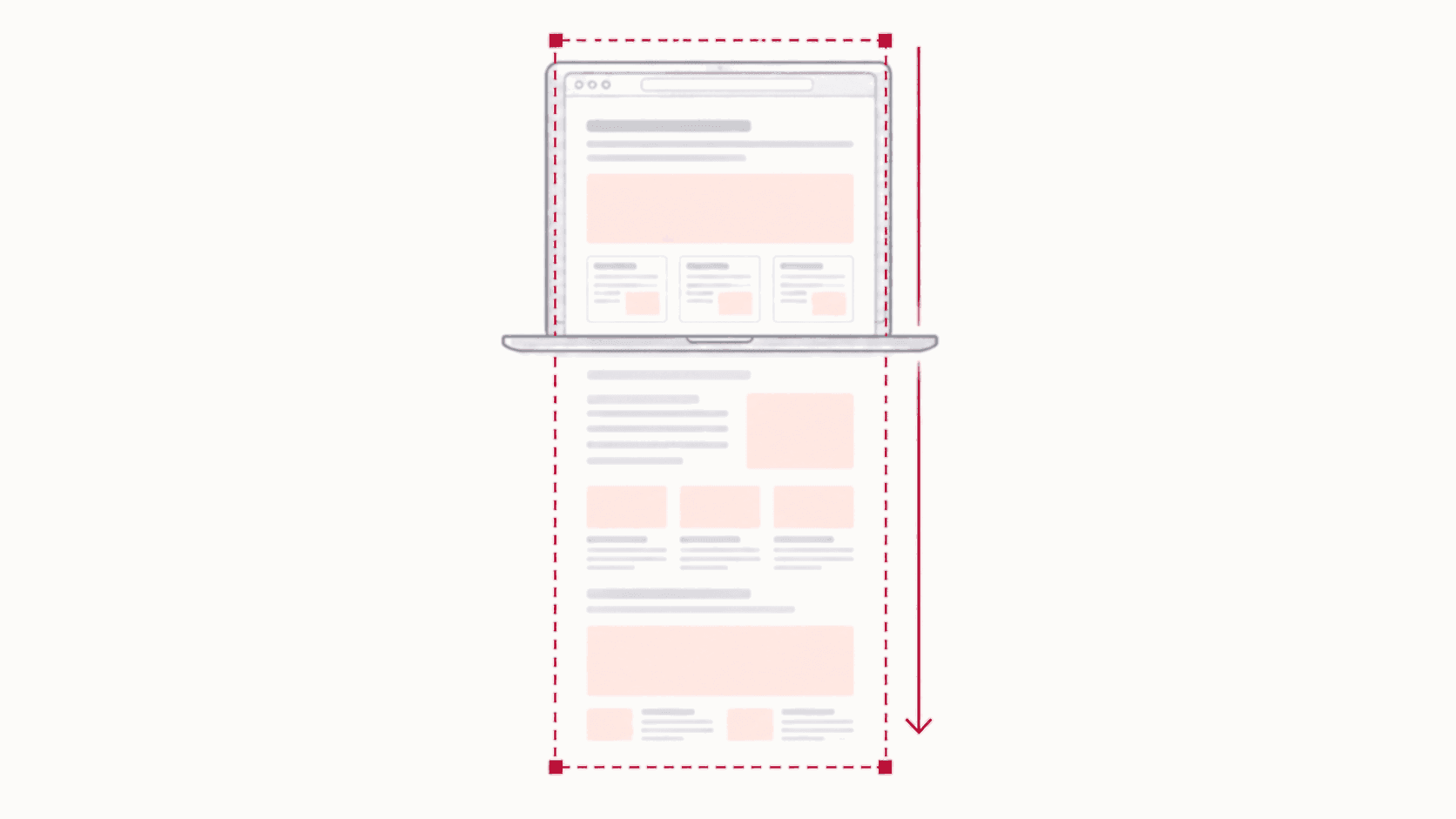
To screenshot a whole page on a Mac, you need your browser rather than macOS. The Mac's own shortcuts, Cmd+Shift+3, Cmd+Shift+4 and Cmd+Shift+5, only capture what is on screen and cannot scroll. In Chrome, use a full page screenshot extension or the built-in DevTools command. In Firefox, right-click and choose Take Screenshot, then Save full page. In Safari, File > Export as PDF saves the whole page as a PDF. Each method, step by step:
Which method should you use on a Mac?
| Browser | Method | Output | Editing |
|---|---|---|---|
| Chrome | Full page extension | PNG, JPG, WebP or PDF | Yes, in the extension's editor |
| Chrome | DevTools: Capture full size screenshot | PNG | No |
| Firefox | Take Screenshot, Save full page | PNG | No |
| Safari | File > Export as PDF | No |
In Chrome on a Mac, with an extension
This is the most reliable way to capture long, modern pages, because the extension scrolls the page first so lazy-loaded images appear, and shows sticky headers only once.
- Install Full Page Screenshot from the Chrome Web Store. It is free and needs no account.
- Pin it: click the puzzle-piece icon next to the address bar, then the pin next to the extension.
- Open the page and let it finish loading.
- Click the extension icon and choose Full Page. Do not scroll while it captures.
- The capture opens in an editor. Annotate, blur or crop it if you need to, then save as PNG, JPG, WebP or PDF.
Want a shortcut instead of a click? Open chrome://extensions/shortcuts and assign a key combination to the extension.
A very long page makes a large image, so export it as JPG or WebP when file size matters. The same steps work in Chrome on Windows and Chromebook too; the full page screenshot guide covers the rest.
In Chrome on a Mac, without an extension
Chrome's DevTools has a full page capture built in:
- Press Cmd+Option+I to open DevTools.
- Press Cmd+Shift+P to open the Command Menu.
- Type screenshot and choose Capture full size screenshot.
- Chrome saves the whole page as a PNG in your Downloads folder.
It needs nothing installed, but it renders the page in one pass without scrolling, so images that load as you scroll can come out as blank boxes. The DevTools screenshot guide explains the fixes.
In Firefox on a Mac
Firefox has full page capture built in:
- Right-click an empty part of the page and choose Take Screenshot.
- Choose Save full page at the top right.
- Click Download to save it, or Copy to put it on the clipboard.
In Safari on a Mac
Safari has no full page image capture in its menus, but it can save the whole page as a PDF:
- Open the page in Safari.
- Choose File > Export as PDF.
- Pick a name and location, then click Save.
The result is a PDF document rather than an image, and complex layouts may not match what you see on screen. If you need a picture of the page exactly as it looks, open it in Chrome or Firefox and use one of the methods above. Saving a page as a PDF has its own guide, including how to avoid content being cut off.
Why macOS can't screenshot a whole page by itself
Cmd+Shift+5 opens a toolbar with whole screen, window and selection modes, plus screen recording, but none of them scroll. macOS captures pixels that are on the display, and the rest of a webpage is not on the display until you scroll to it. Only the browser knows the full page, which is why every working method lives in the browser.
For a long window in an app other than a browser, such as a chat or a document, third-party Mac apps like Shottr and CleanShot X offer scrolling capture.
FAQ
How do I take a scrolling screenshot on a Mac?
There is no built-in scrolling screenshot in macOS. For a webpage, use a full page extension in Chrome, DevTools' Capture full size screenshot, or Firefox's Save full page. For other apps, use a third-party tool. The scrolling screenshot guide covers every device.
Can Cmd+Shift+5 take a full page screenshot?
No. Its options are the entire screen, a window or a selected area, and none of them scroll. It captures only what is visible.
How do I screenshot a whole page on a MacBook Air or MacBook Pro?
The same way as on any Mac: in Chrome use a full page extension or DevTools, in Firefox use Take Screenshot and Save full page, or in Safari use File > Export as PDF.
Where do Mac screenshots go?
macOS saves screenshots to the Desktop by default. You can change the location under Options in the Cmd+Shift+5 toolbar. Captures you save from Chrome, whether from an extension or DevTools, go to Chrome's download folder, which is Downloads unless you have changed it.
How do I screenshot a full page in Safari on a Mac?
Use File > Export as PDF to save the whole page as a PDF. For a full page image instead, open the page in Chrome or Firefox and use their full page capture.