Full Page Screenshot
How to Screenshot a Whole Page on iPhone (Full Page Screenshots in Safari and Chrome)
Guide Kaushik Prasath5 min read
On this page
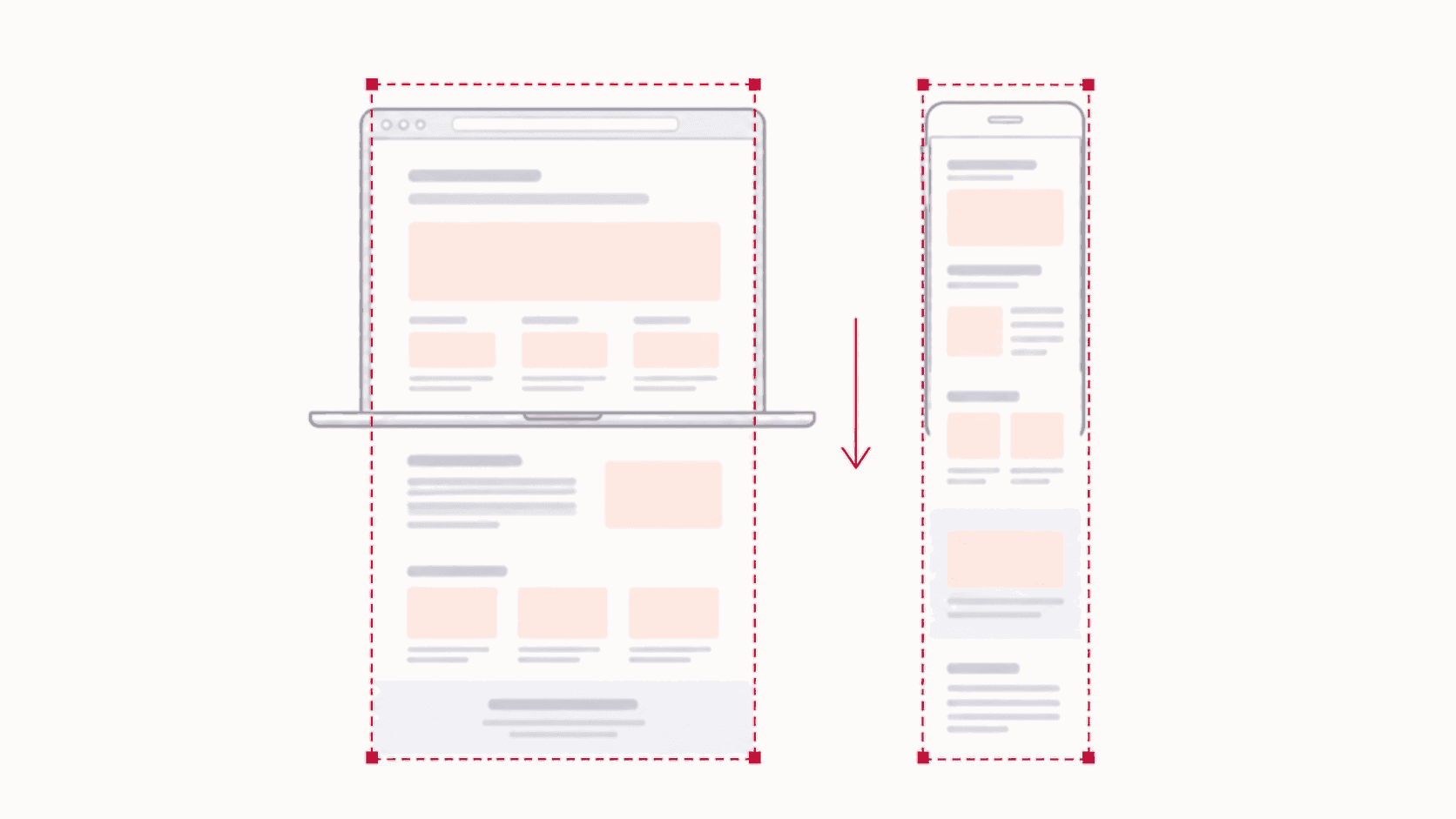
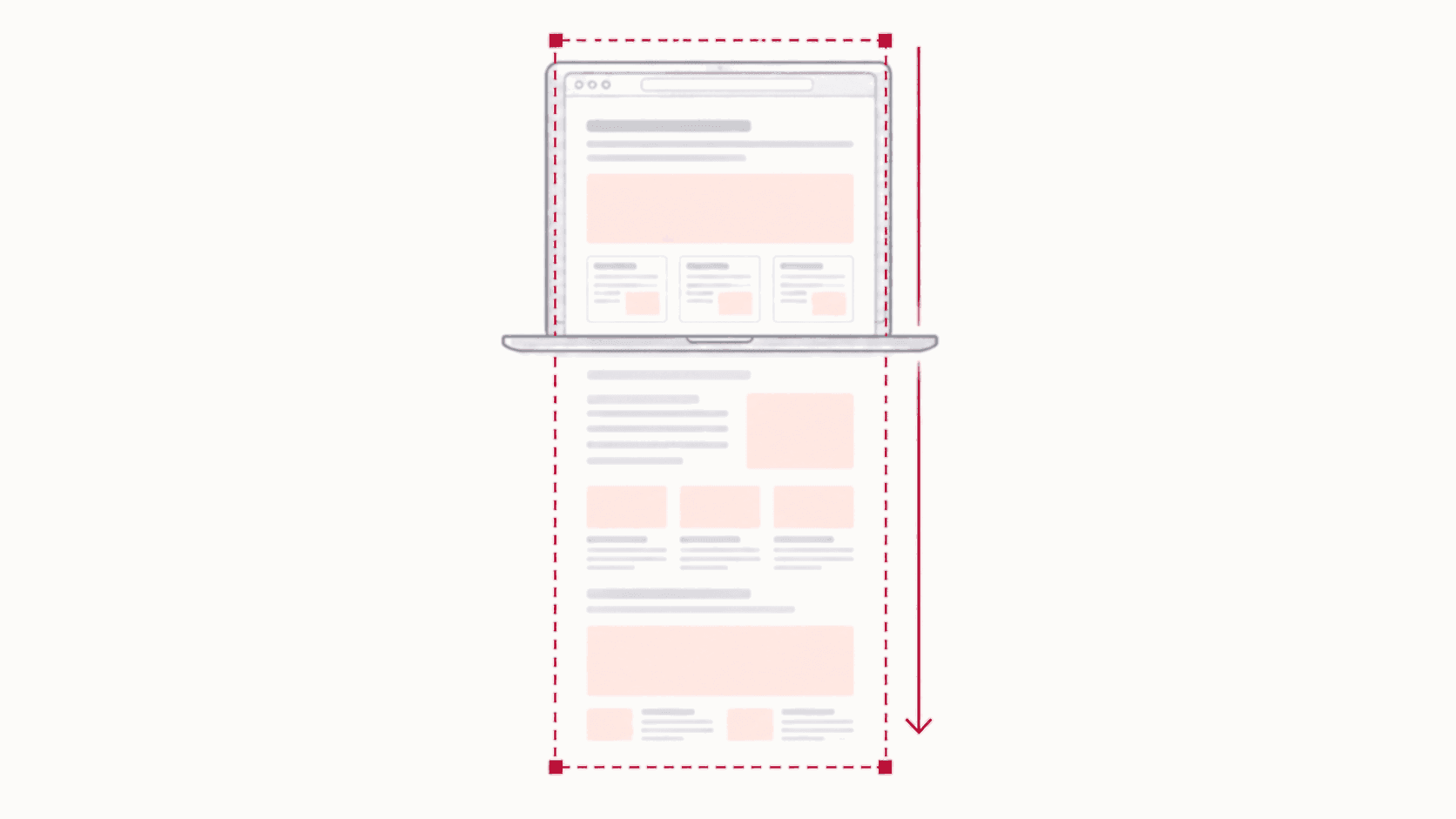
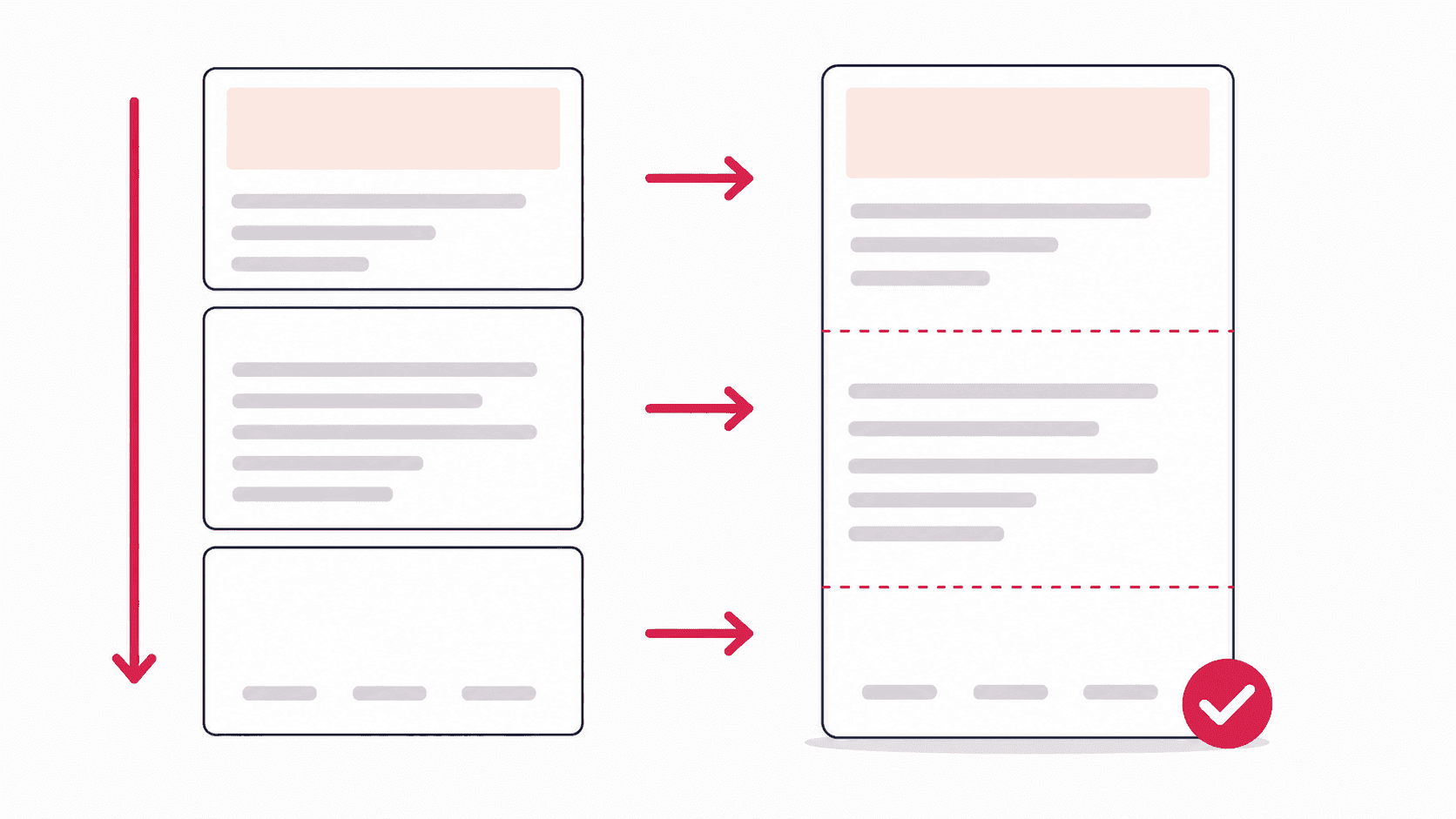
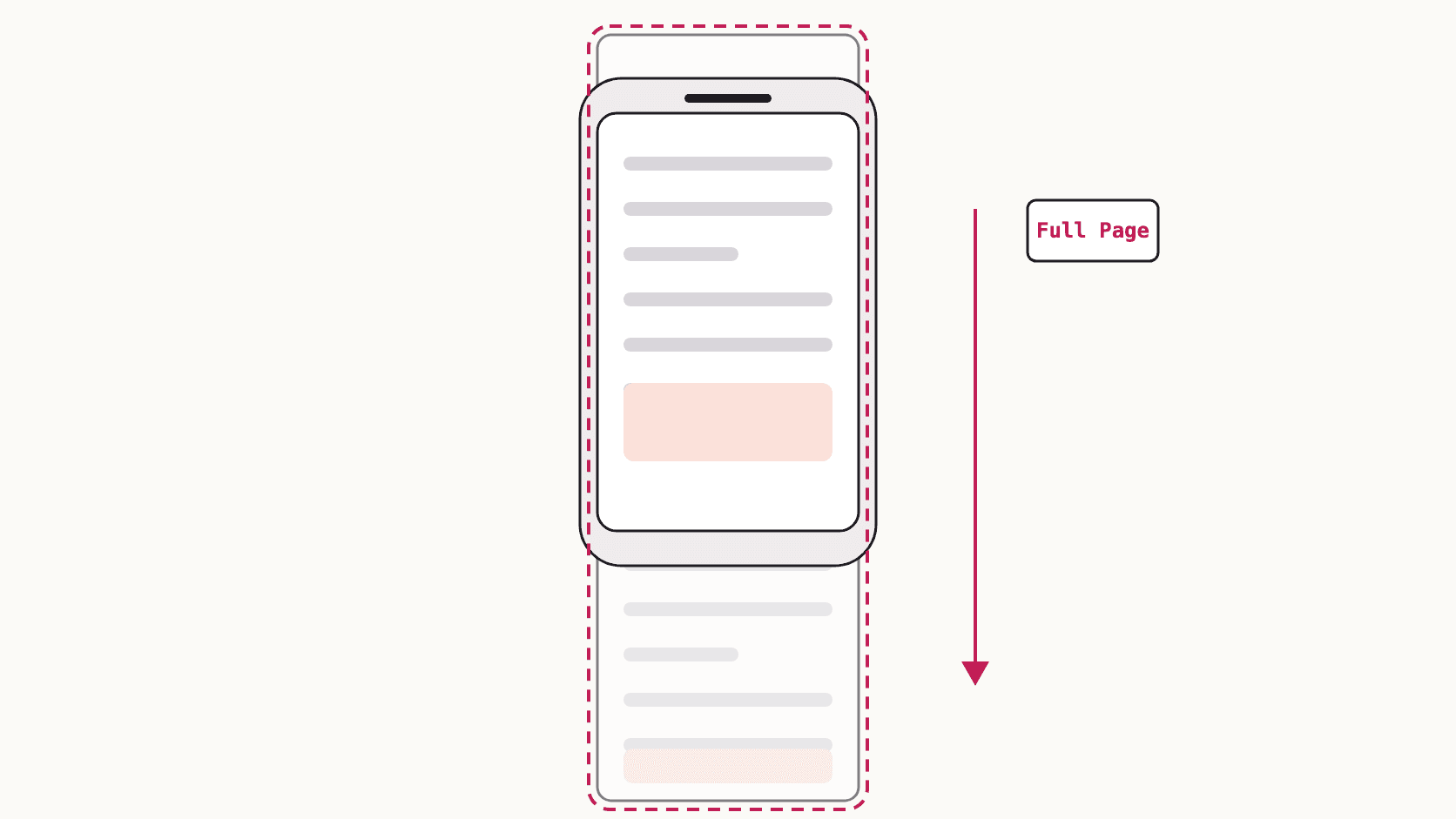
To screenshot a whole page on an iPhone, take a normal screenshot, tap the preview that appears in the corner, and choose the Full Page tab at the top. The capture now includes the entire webpage from top to bottom, not just the part on screen. On iOS 17 and later you can save it to Photos as an image; on earlier versions it saves as a PDF in Files. The option appears in Safari, Chrome and other apps that support it, and this guide covers each case, including what to do when the Full Page tab is not there.
Full page screenshot on iPhone, step by step
- Open the page in Safari (or Chrome, see below) and let it load.
- Take a screenshot. On an iPhone with Face ID, press the side button and volume up together. On an iPhone with a Home button, press the side button and Home together.
- Tap the small preview that appears in the bottom-left corner before it disappears.
- Tap Full Page at the top of the editor. A thin scroll bar on the right shows the whole length of the page; drag it to check the capture.
- Crop or mark it up if you want, then tap Done.
- Choose Save to Photos for an image, or Save PDF to Files for a PDF.
If you let the preview slide away, the screenshot was saved as a normal screen capture only. Take it again and tap the preview in time.
Save it as an image, not a PDF
Until iOS 16 a full page screenshot could only be saved as a PDF, which is why so many guides still say so. Since iOS 17, the Full Page tab offers Save to Photos as well, which stores the whole page as one tall image you can share like any other photo. If you only see the PDF option, update iOS in Settings, General, Software Update, or save the PDF and share it from Files.
A PDF is still the better choice for a page you need to print or attach to a form. An image is better for sharing in a chat or on social media.
Does it work in Chrome on iPhone?
Yes. Chrome for iOS has supported the Full Page tab since version 92, so the steps above are the same. Other apps show the tab only if they support it, which is why it appears in browsers, Mail, Notes and Maps but not in most other apps. If you need an entire page from an app without it, look for the app's own share or export option.
The Full Page tab is missing
The usual causes, in order of likelihood:
- The app does not support it. Only apps that opt in show the tab. Open the page in Safari instead.
- You tapped the preview too late. The tab only appears in the editor opened from the preview. If you opened the screenshot from Photos afterwards, it is already just the visible screen.
- The page is a PDF or an image. Full Page captures web content. For a PDF, use the share sheet instead.
- An older iPhone or iOS. Full page screenshots arrived with iOS 13. Anything older cannot do this.
Full page screenshots on iPad and Mac
The iPad works the same way: screenshot with the top button and volume up (or top button and Home), tap the preview, choose Full Page. On a Mac there is no equivalent in the system screenshot tool, so the capture has to come from the browser. The guide to screenshotting a whole page on Mac covers Chrome, Firefox and Safari.
When you need the capture on a computer
A phone capture is fine for sharing a page, but it cannot blur a detail, add an arrow or export to WebP, and very long pages come out as a huge image that is awkward to use. For anything you will edit or keep as a record, capture the page on a computer: the free Full Page Screenshot extension for Chrome captures the whole page in one click, opens it in an editor with blur and annotation, and exports as PNG, JPG, WebP or PDF. The guide to full page screenshots in Chrome has the steps.
FAQ
How do I take a scrolling screenshot on iPhone?
A scrolling screenshot and a full page screenshot are the same thing on iPhone. Take a screenshot, tap the preview, and choose Full Page. The scrolling screenshot guide covers Android, Windows and Mac too.
Why does my full page screenshot save as a PDF?
On iOS 16 and earlier that is the only format offered. From iOS 17, tap Done and choose Save to Photos to keep it as an image.
Can I take a full page screenshot of a chat or an app?
Only if the app supports the Full Page tab, and most do not. For apps, take several screenshots and combine them, or use the app's own export. On a computer, a webpage version of the same service can be captured in full with an extension.
How long can a full page screenshot be on iPhone?
There is no published limit, but very long pages produce large images that some apps refuse to share. If that happens, save as a PDF instead, or capture the page on a computer.
Can I crop a full page screenshot before saving?
Yes. In the Full Page tab, tap the crop tool to trim the top and bottom, then Done. The crop handles work on the whole length of the page, not only the visible part.