Full Page Screenshot
Full Page Screenshot Broken? Fix Repeating Headers and Blank Images
 Kaushik Prasath· Founder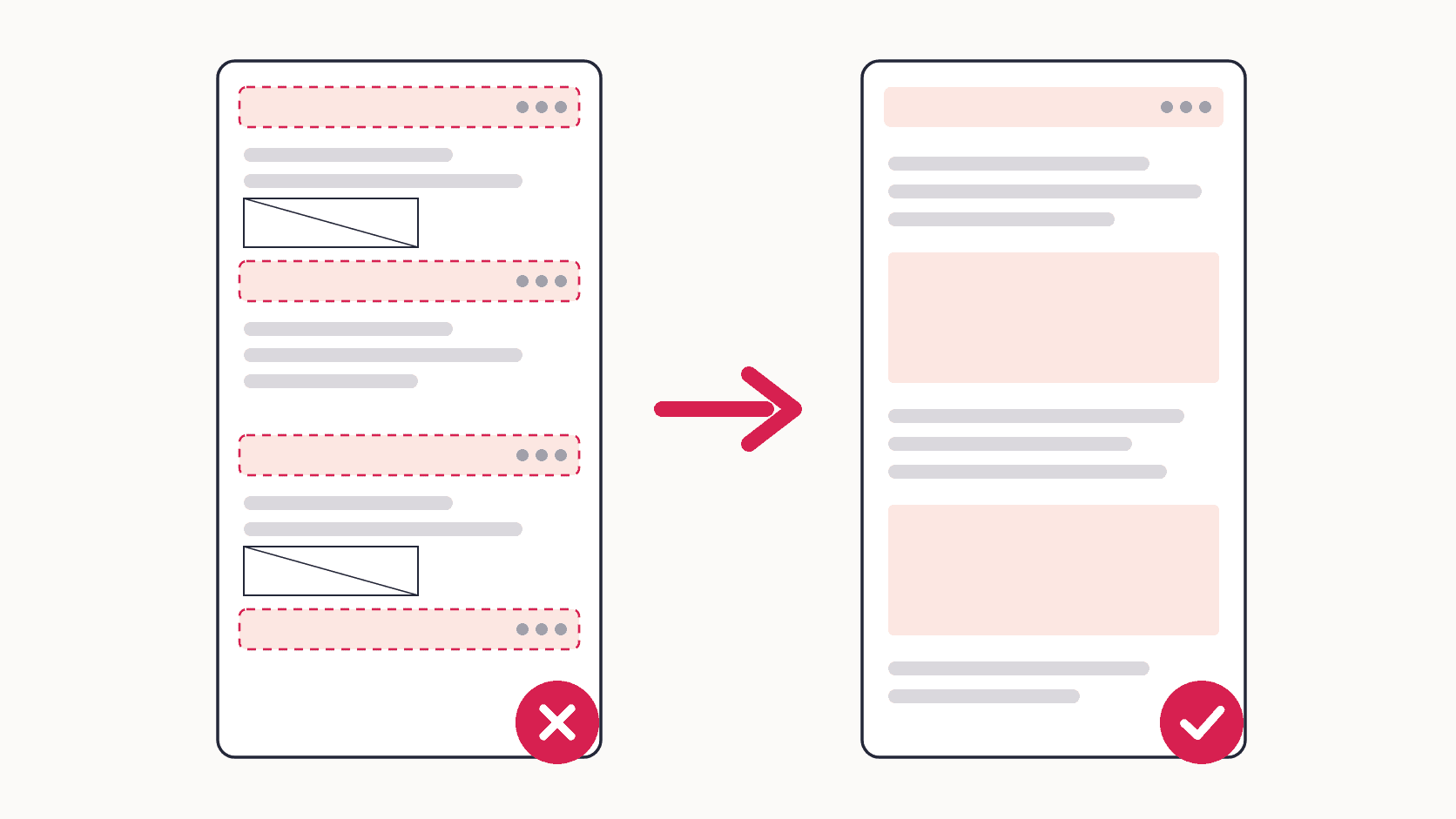
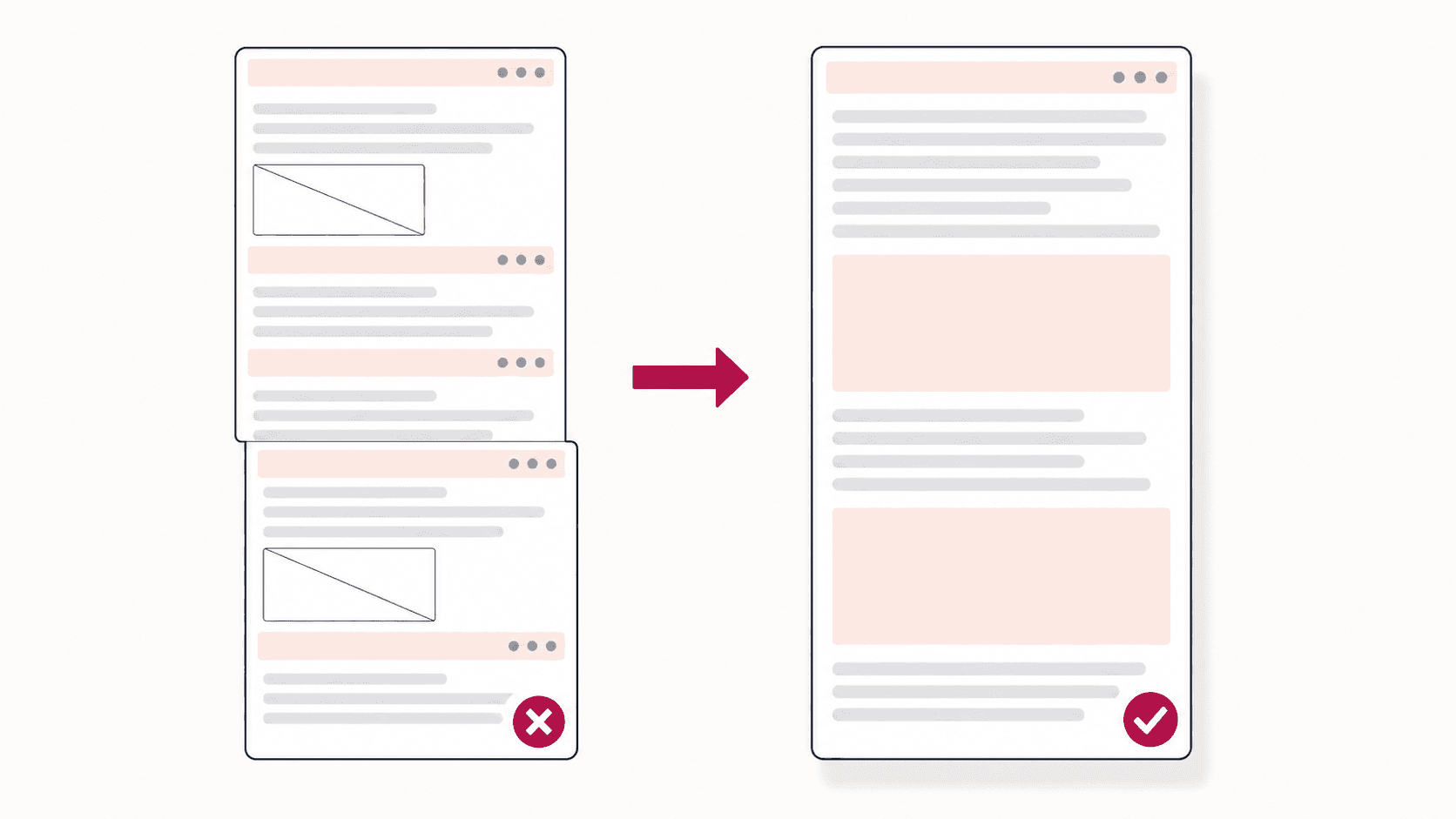
If your full page (or scrolling) screenshot shows the same header, cookie banner, or chat bubble repeated down the image, the page was captured in screen-sized strips and those elements were pinned into every strip. If images came out as blank grey boxes, the page only loads them once you scroll near them, and the capture got there first. The quick fixes: hide or unpin the fixed elements before capturing, and scroll the whole page slowly once so every image loads. The rest of this guide explains why, then gives each fix in order of effort.
Why it happens
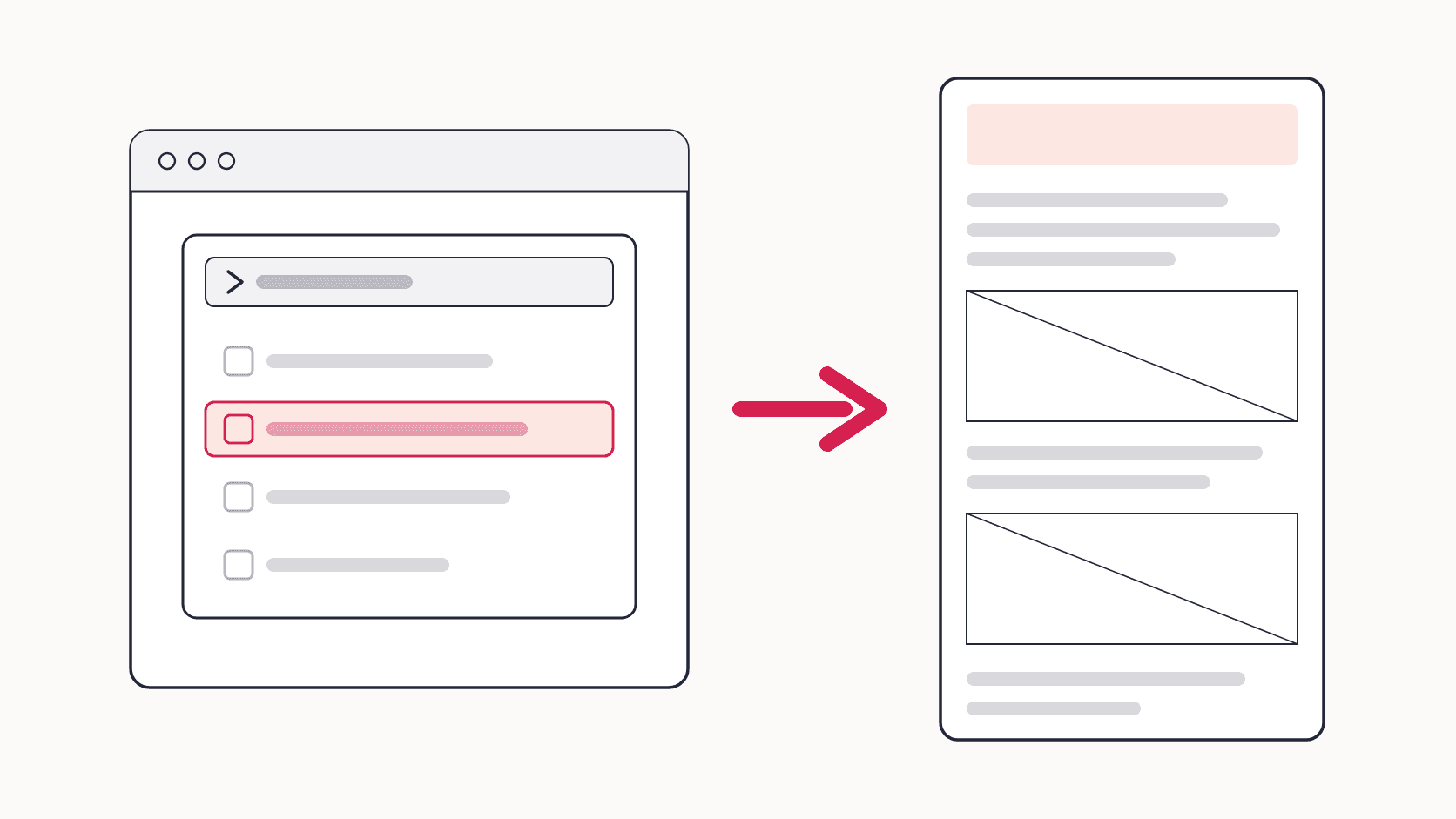
Most full page screenshot tools cannot photograph a whole webpage at once. They capture what is on screen, scroll down one screen, capture again, and stitch the strips together into one tall image. I wrote about building exactly that loop and everything that broke; this post is the practical side for anyone holding a broken capture right now.
Two ordinary web design choices clash with that loop:
- Fixed and sticky elements stay put while the page moves. A navigation bar pinned to the top, a cookie banner along the bottom, a chat bubble in the corner, a "back to top" button: they are designed to be on screen at all times. So they are in every strip, and the stitched result shows them once per strip, with the real content chopped up between the copies.
- Lazy-loaded images wait until you are close. To save bandwidth, most sites only fetch an image when you scroll near it. Until then, the page shows an empty placeholder. If the capture scrolls past before the image arrives, the placeholder is what gets saved.
Fixing a repeating sticky header, cookie banner, or chat widget
1. Check your tool's settings
Many capture tools have an option for fixed elements, labelled something like "hide sticky elements". If yours has one, turn it on and capture again.
2. Close what you can
Accept or dismiss the cookie banner, minimise the chat widget, and close any newsletter popup. That removes the bottom and corner offenders and often leaves only the header to deal with.
3. Hide one element with DevTools
For a single stubborn element, Chrome DevTools can hide it for you:
- Right-click the header (or banner) and choose Inspect.
- In the Elements panel, make sure the highlighted node is the whole bar, not a link inside it. Click its parent in the tree if needed.
- Press H. Chrome hides that node, the same shortcut described in Chrome's DOM editing docs.
If you would rather keep the header visible once at the top, skip step 3 and instead click element.style at the top of the Styles pane, then add:
position: static !important;
That takes the element out of its pinned position and puts it back in the normal flow of the page, so it appears once, where it sits in the layout.
4. Unpin everything at once from the Console
On pages with several pinned things, one short snippet handles them all. Open DevTools, go to the Console tab, paste this, and press Enter:
for (const el of document.querySelectorAll('body *')) {
  const pos = getComputedStyle(el).position;
  if (pos === 'fixed') el.style.setProperty('position', 'absolute', 'important');
  if (pos === 'sticky') el.style.setProperty('position', 'static', 'important');
}
It checks every element on the page. Anything pinned to the screen (fixed) is switched to absolute, so it stays in one spot near the top of the page instead of following you down. Anything sticky goes back to the normal page flow. It changes nothing on the website itself, only your open tab, and reloading the page undoes all of it. A few sites rewrite their header with JavaScript as you scroll and may undo the change; on those, hiding the element with H is more reliable.
The first time you paste into the Console, Chrome shows a warning and asks you to type allow pasting first. That warning exists for a good reason: only paste code you can read and understand, like the five lines above.
Fixing blank or grey lazy-loaded images
1. Check the tool's scroll delay
If your capture tool has a delay between scroll steps, raise it so images arrive before each strip is captured.
2. Pre-scroll the page yourself
This is the fix that works almost everywhere. Before capturing, scroll from top to bottom at a steady pace, pausing briefly as new sections appear, until you reach the footer. Then press Home (or Cmd+Up on a Mac) to return to the top and capture. The images you scrolled past are now loaded and usually stay loaded.
Do not just press End and jump to the bottom. Lazy loading triggers when content comes near the screen, so a jump skips everything in the middle.
If the page is long, this snippet does the slow scroll for you. Paste it into the Console:
(async () => {
  for (let y = 0; y < document.documentElement.scrollHeight; y += innerHeight / 2) {
    scrollTo(0, y);
    await new Promise(r => setTimeout(r, 400));
  }
  scrollTo(0, 0);
})();
It scrolls half a screen at a time, waits 400 milliseconds at each step, and returns to the top when it reaches the bottom. On an infinite feed it will keep going as the page grows, so reload the tab to stop it.
3. Reset the zoom to 100%
Press Ctrl+0 (Cmd+0 on a Mac). Zooming out can look like a shortcut to fewer strips, but any zoom level other than exactly 100% introduces fractional scroll positions, which shows up as misaligned joins and oddly scaled output. Capture at 100% and resize the image afterwards if you need it smaller.
Other artifacts you might see
Seams or a repeated line of text where strips join. This comes from the scroll position landing a pixel or two off, which is common at non-100% zoom. Reset the zoom, keep your hands off the mouse and keyboard while the capture runs, and capture again.
Half-drawn videos and animations. A playing video or a running animation is different in every strip. Pause videos before capturing, and wait for entrance animations to finish by scrolling through the page first. For sites with a lot of motion, DevTools can emulate reduced motion: open the Command Menu (Ctrl+Shift+P, or Cmd+Shift+P on a Mac), run Show Rendering, and set prefers-reduced-motion to reduce, as described in Chrome's CSS emulation docs. Sites that respect that setting will calm down.
Content inside an inner scrolling panel. Some layouts keep the window still and scroll a box inside it, such as a chat log, a documentation sidebar, or a web app's main pane. A tool that scrolls the window captures the same screen repeatedly. If the panel is an embedded frame, open its address in its own tab and capture that. If it is a plain scrolling box, you can sometimes inspect it and add height: auto !important; overflow: visible !important; in element.style so the whole box expands into the page, though complex app layouts may not cooperate.
When to let a tool handle it
If you capture pages regularly, doing all of the above by hand gets old. Chrome's own full size screenshot command in DevTools renders the page without stitching strips, which avoids some of this, though very long or lazy pages can still come out incomplete.
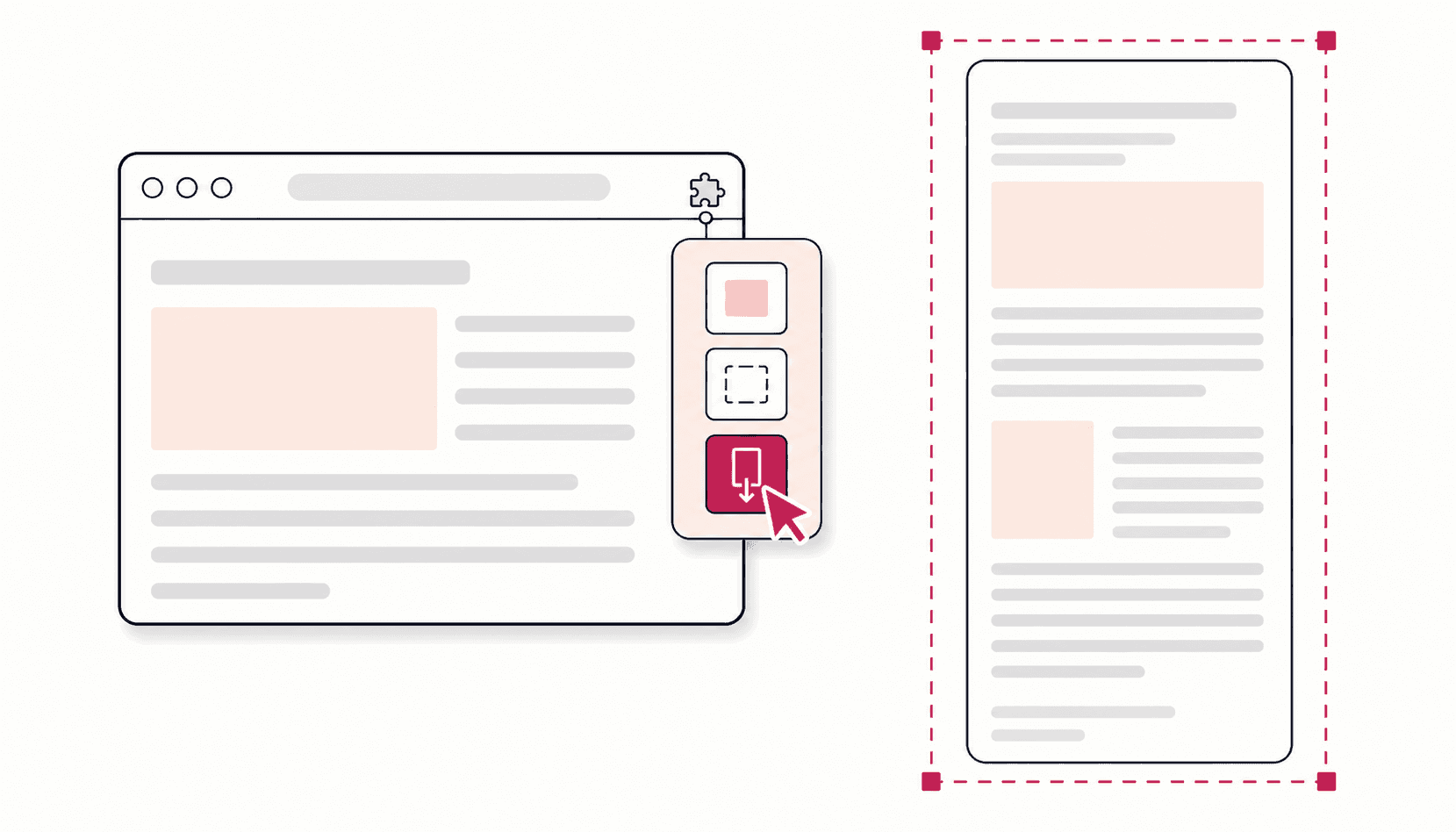
Full Page Screenshot is built to do all of this automatically. It identifies pinned elements and shows them once instead of in every strip, pre-scrolls up to 40 passes and waits for lazy images, keeps tracking pages that grow during capture, pauses videos, auto-dismisses modals and cookie banners, and handles inner scrolling panels. It also captures with an overlap, checks each seam, and recaptures any strip that does not line up. Pages up to 32,700 pixels tall work. It is free, and how it compares with other options is in the extension comparison. For the basics of every capture method, see the guide to full page and scrolling screenshots in Chrome.
FAQ
Why does my header repeat in a full page screenshot?
The header is fixed or sticky, so it is on screen in every strip the tool captures and stitches. Hide or unpin it before capturing, or use a tool that detects pinned elements.
Why are images missing from my full page screenshot?
The site lazy loads images, and the capture moved past them before they arrived. Scroll slowly through the whole page once, return to the top, and capture again.
Do DevTools changes affect the website permanently?
No. Hiding a node, editing element.style, or running a Console snippet only changes the copy of the page open in your tab. Reload the page and everything returns to normal.
Why is part of my page captured as the same screen over and over?
That content lives in an inner scrolling panel, so the window never moves and each strip looks identical. Open embedded frames in their own tab, expand the panel with CSS, or use a tool that scrolls inner panels.