Full Page Screenshot
How to Take a Scrolling Screenshot on Windows 11 and Windows 10
Guide Kaushik Prasath4 min read
On this page
Windows 11 and Windows 10 have no built-in scrolling screenshot. The Snipping Tool, Windows key + Shift + S and Print Screen all capture what is on the screen and stop at the bottom edge. For a webpage, the browser can do the job: Edge has a full page capture built in, Firefox has one too, and Chrome needs a free extension. For a long window in any other app, a free tool such as ShareX fills the gap. Each method, step by step:
Which method should you use?
| What you want to capture | Use | Built in? |
|---|---|---|
| A webpage in Chrome | A full page screenshot extension | No, one click to install |
| A webpage in Edge | Ctrl+Shift+S, then Capture full page | Yes |
| A webpage in Firefox | Right-click, Take Screenshot, Save full page | Yes |
| A long window in any other app | ShareX (free) or a paid tool such as Snagit | No |
Why the Snipping Tool cannot scroll
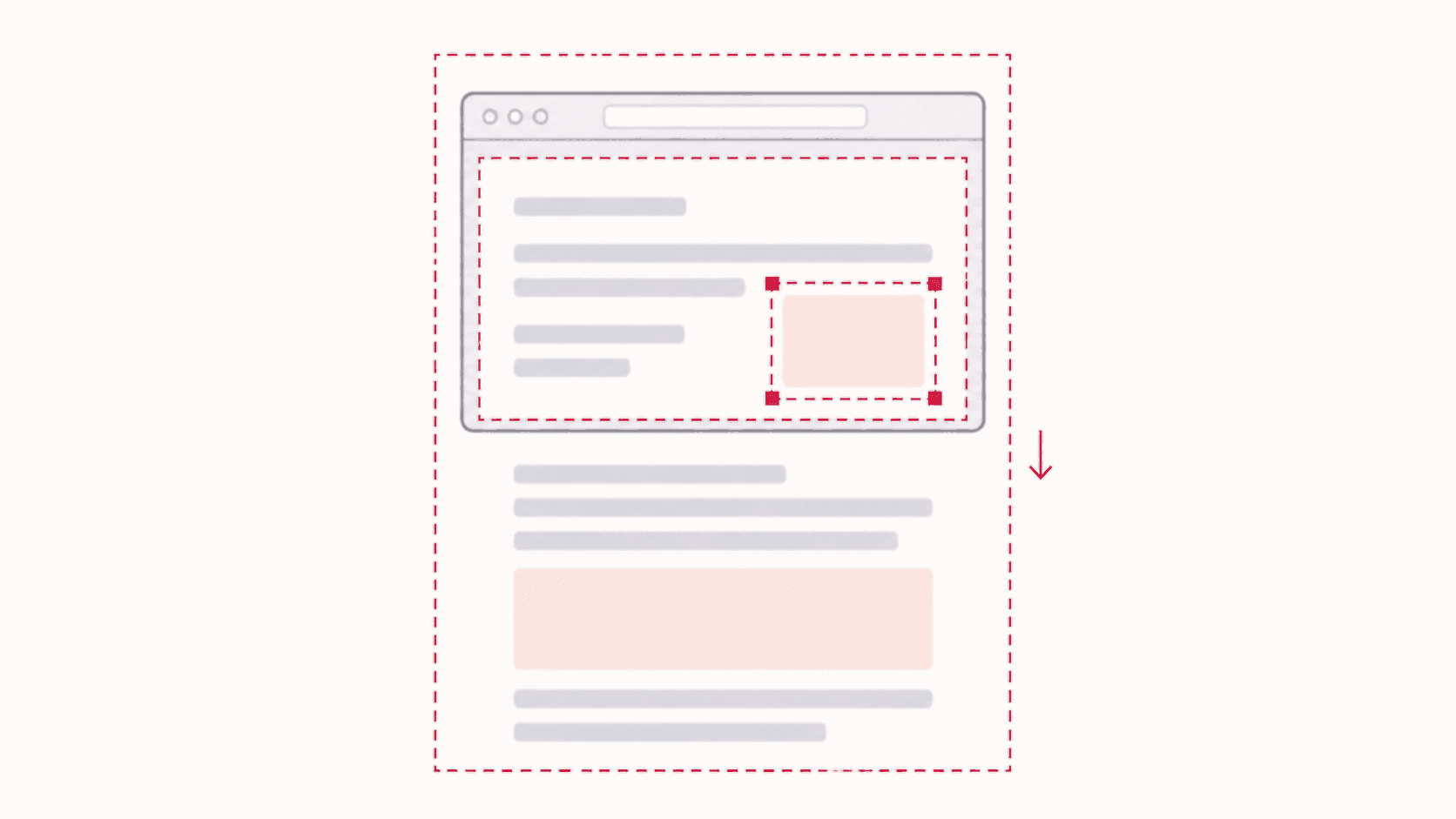
The Snipping Tool captures a rectangle, a window, a freeform shape or the whole screen, and in Windows 11 it can record video. It cannot scroll a window and stitch the result, and neither can the Windows key + Shift + S shortcut, which opens the same tool. Print Screen copies the screen as it is. So on Windows the scrolling has to be done by whatever is showing the content, which for most people means the browser.
Scrolling screenshot of a webpage in Chrome
Chrome has no scrolling capture in its menus, so install an extension:
- Add Full Page Screenshot from the Chrome Web Store. It is free and needs no account.
- Open the page and let it finish loading.
- Click the extension icon and choose Full Page. Do not scroll while it captures.
- The whole page opens in an editor. Blur, annotate or crop it, then save as PNG, JPG, WebP or PDF.
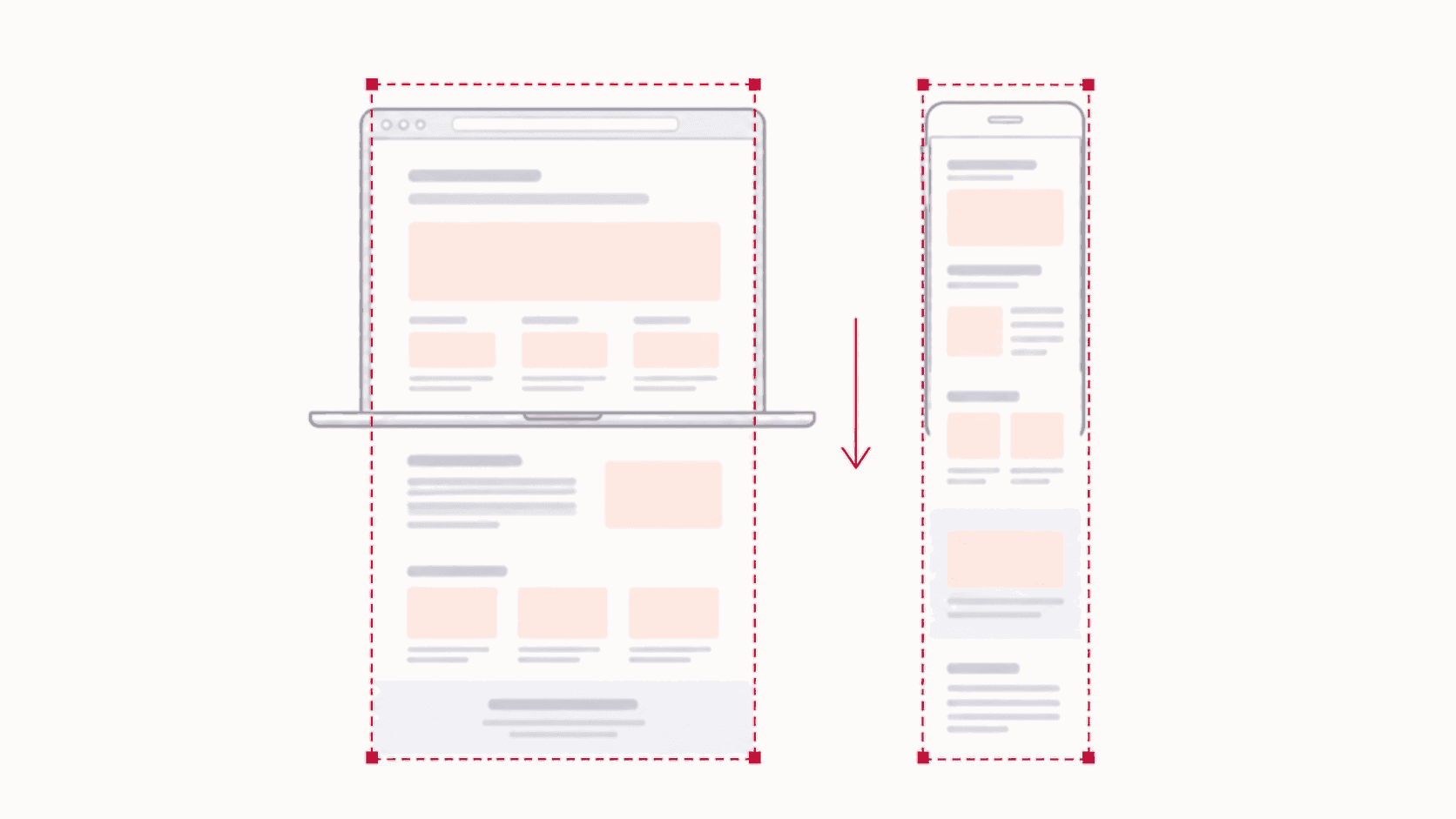
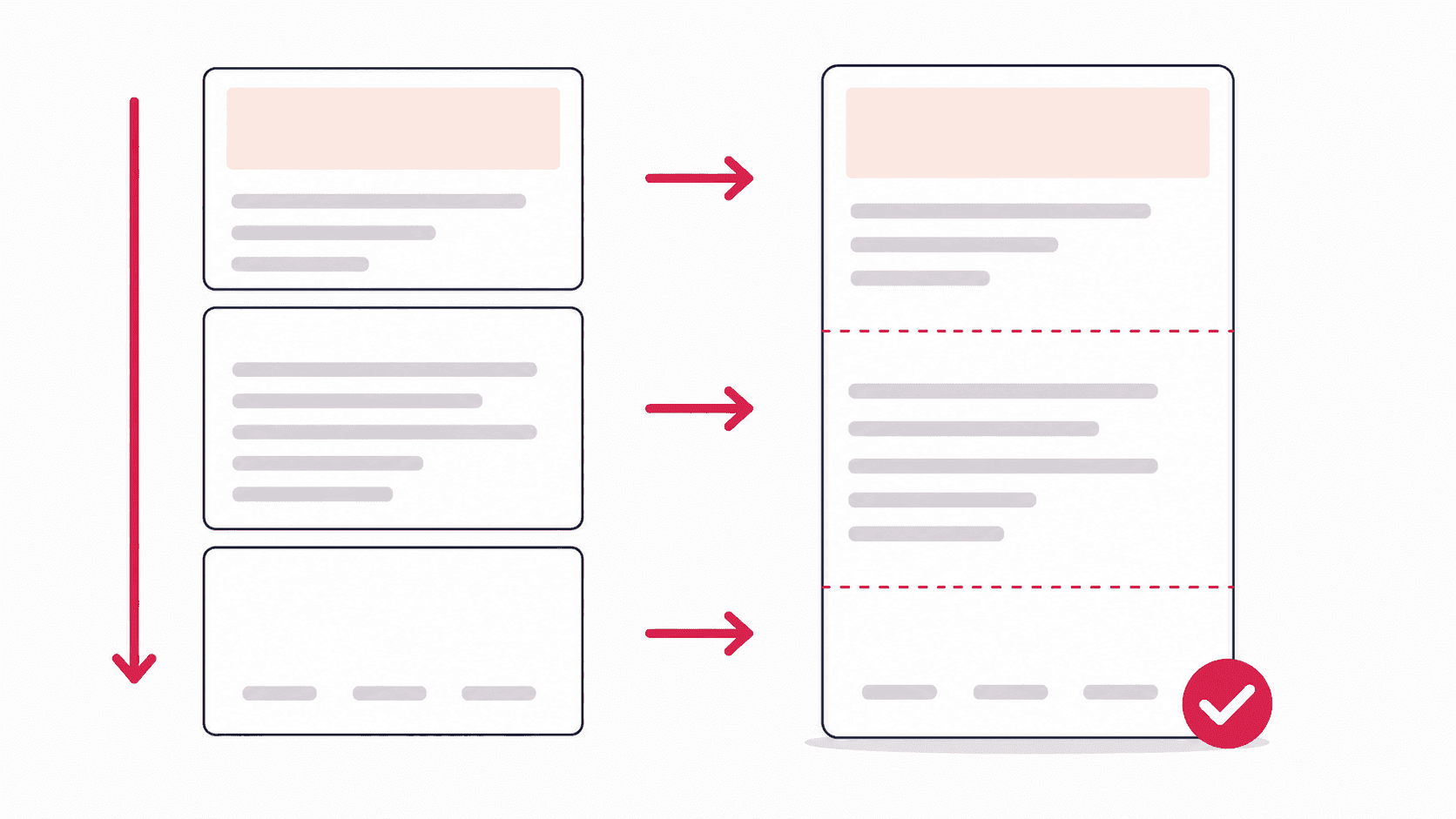
The extension scrolls the page itself, waits for images that load late, and shows sticky headers once instead of repeating them in every section. The guide to full page screenshots in Chrome covers the details, and Chrome's own DevTools command for one-off captures.
Scrolling screenshot in Microsoft Edge
Edge is the one Windows browser with full page capture built in:
- Press Ctrl+Shift+S, or open the three-dot menu and choose Screenshot.
- Choose Capture full page.
- The whole page opens in a preview. Draw on it if you like, then click Save to download it or Copy to put it on the clipboard.
Edge saves the capture to your Downloads folder as an image. There is no PDF option and no blur, so for a page you need to redact, open it in Chrome and use the extension instead.
Scrolling screenshot in Firefox
- Right-click an empty part of the page and choose Take Screenshot.
- Choose Save full page at the top right.
- Click Download, or Copy for the clipboard.
Scrolling screenshot of any window on Windows
For a long chat, a document, a settings page or anything else that is not a webpage, use a tool that scrolls the window for you:
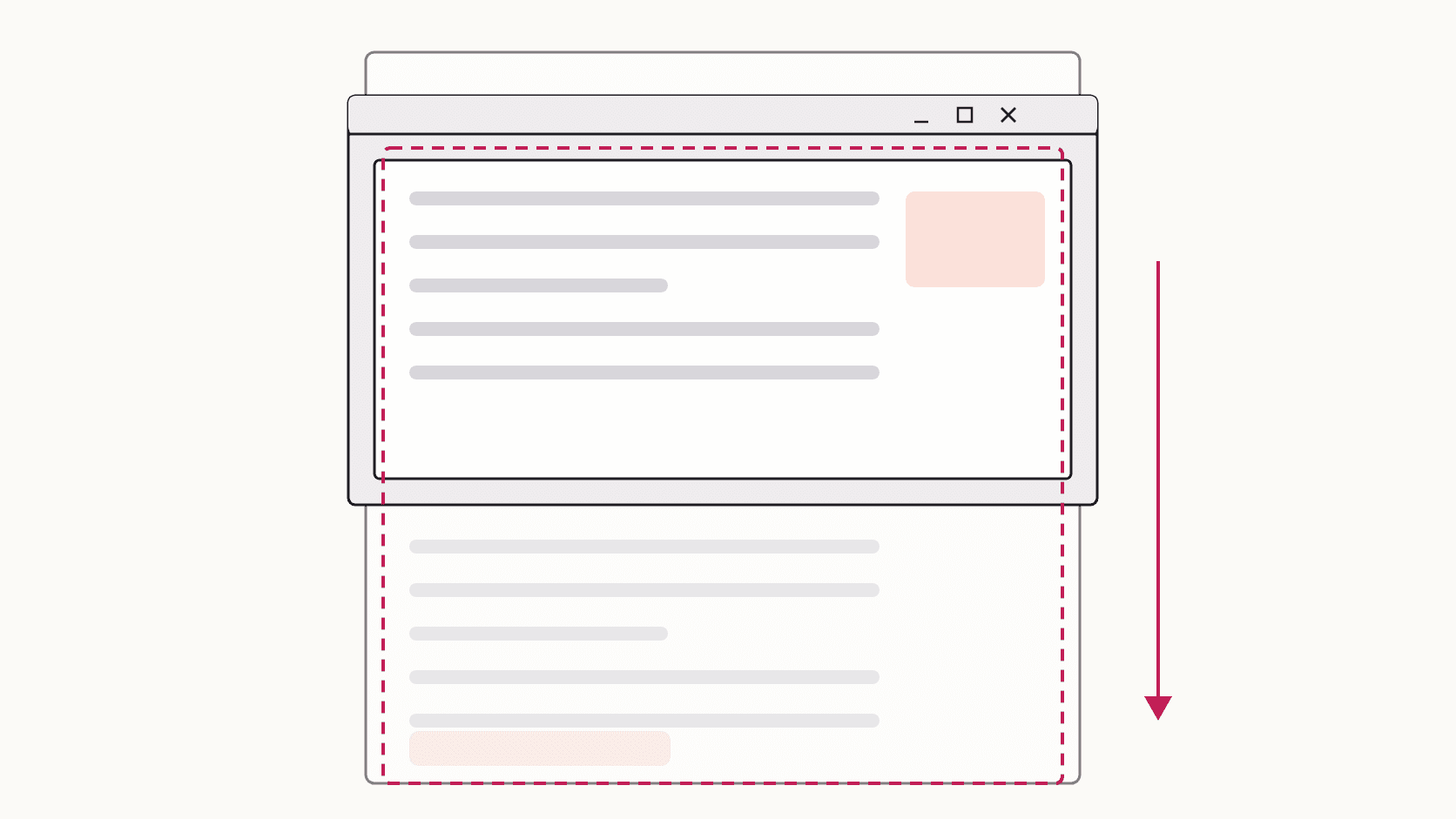
- ShareX is free and open source. Install it, press its capture hotkey (Ctrl+Print Screen by default), choose Scrolling capture, click inside the window, and ShareX scrolls it and stitches the result. It works in most apps but can struggle with windows that use unusual scrolling.
- PicPick has a scrolling window mode and is free for personal use.
- Snagit is paid and the most dependable of the three for awkward apps.
Whichever you use, let the window finish loading before you start, and keep the mouse still while it scrolls.
When a scrolling screenshot comes out wrong
The two usual problems are a header that repeats down the image and images that show as grey boxes because they had not loaded. Both have simple fixes, covered in the guide to repeating headers and blank images. On a page that keeps loading as you scroll, scroll to the bottom once before capturing.
FAQ
Does Windows 11 have a scrolling screenshot?
No. The Snipping Tool and the Windows key + Shift + S shortcut capture only what is on screen. For webpages use Edge's Capture full page, Firefox's Save full page, or an extension in Chrome; for other apps use a tool such as ShareX.
Can the Snipping Tool take a scrolling screenshot?
No. It offers rectangle, window, freeform and full screen captures, plus video recording on Windows 11. None of them scroll.
How do I take a long screenshot in Chrome on Windows?
Install a full page screenshot extension, open the page, click the icon and choose Full Page. The extension scrolls and stitches the page into one image.
Where does Edge save a full page screenshot?
In your Downloads folder, as an image. Click Copy instead of Save if you only want to paste it somewhere.
Is there a keyboard shortcut for a scrolling screenshot on Windows?
Not a system one. In Edge, Ctrl+Shift+S opens the screenshot bar where you choose Capture full page. In Chrome, open chrome://extensions/shortcuts and assign a key to the extension.