Full Page Screenshot
How to Take a Scrolling Screenshot on Windows, Mac, iPhone, Android and Chrome
 Kaushik Prasath· Founder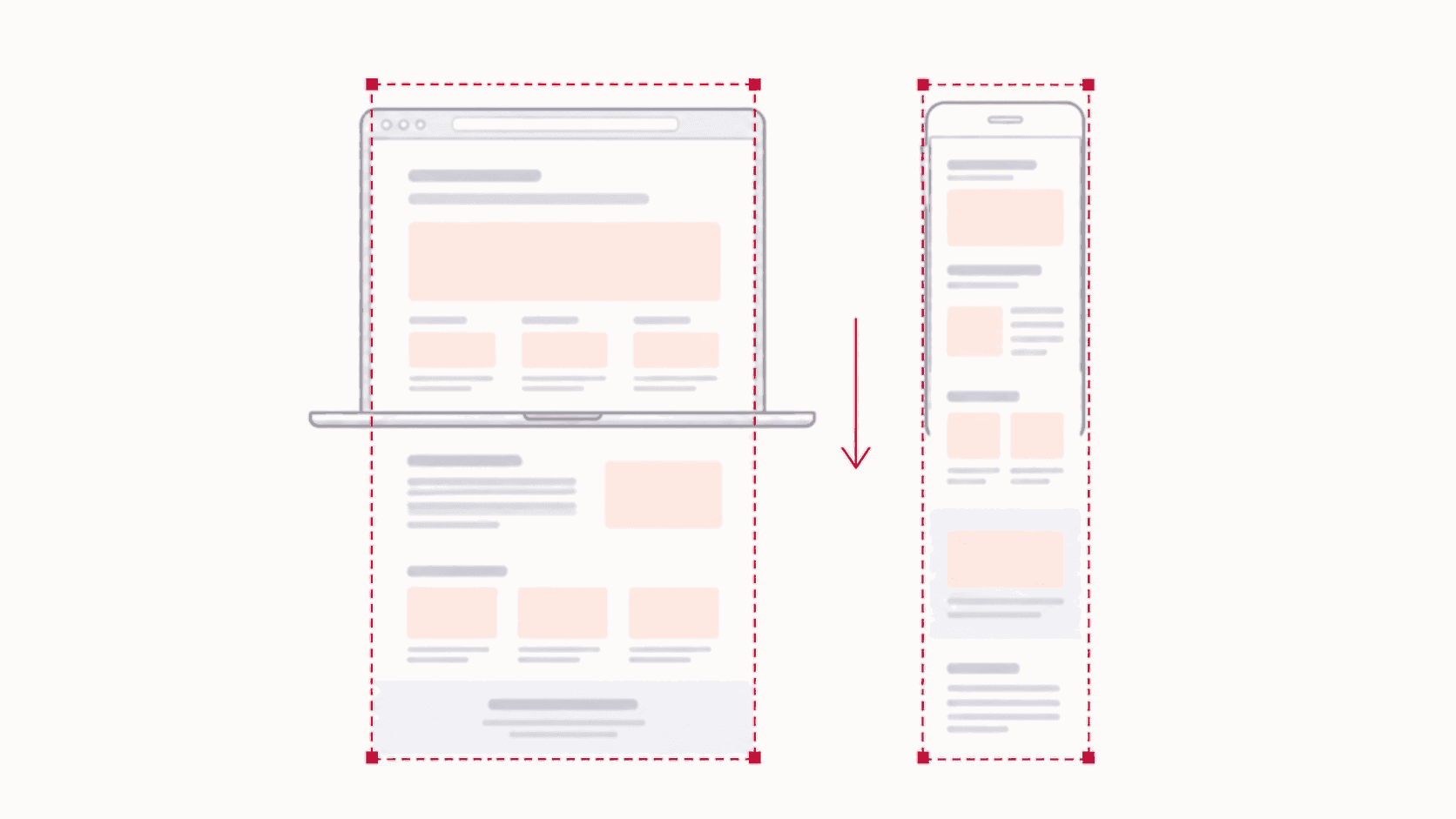
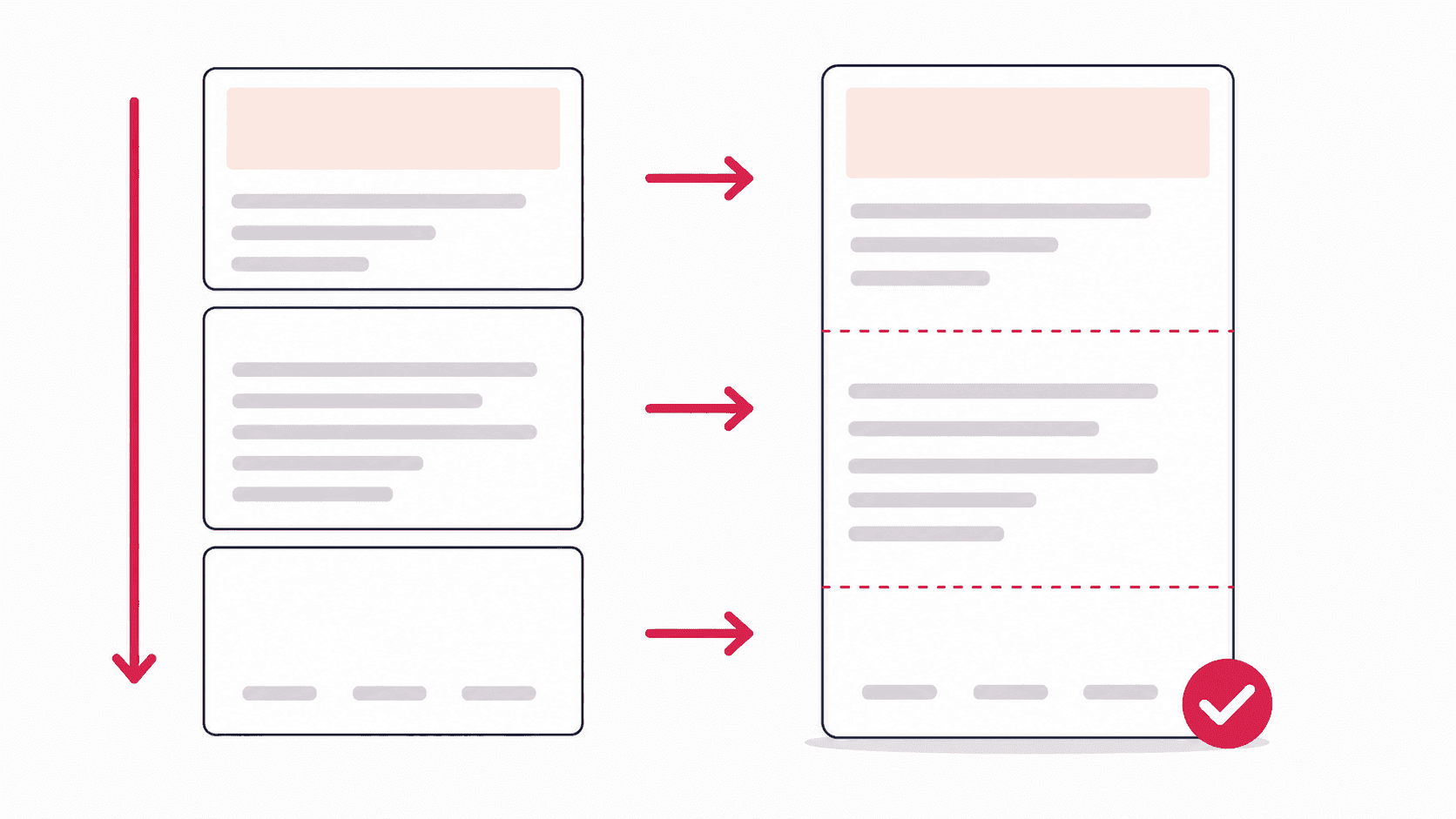
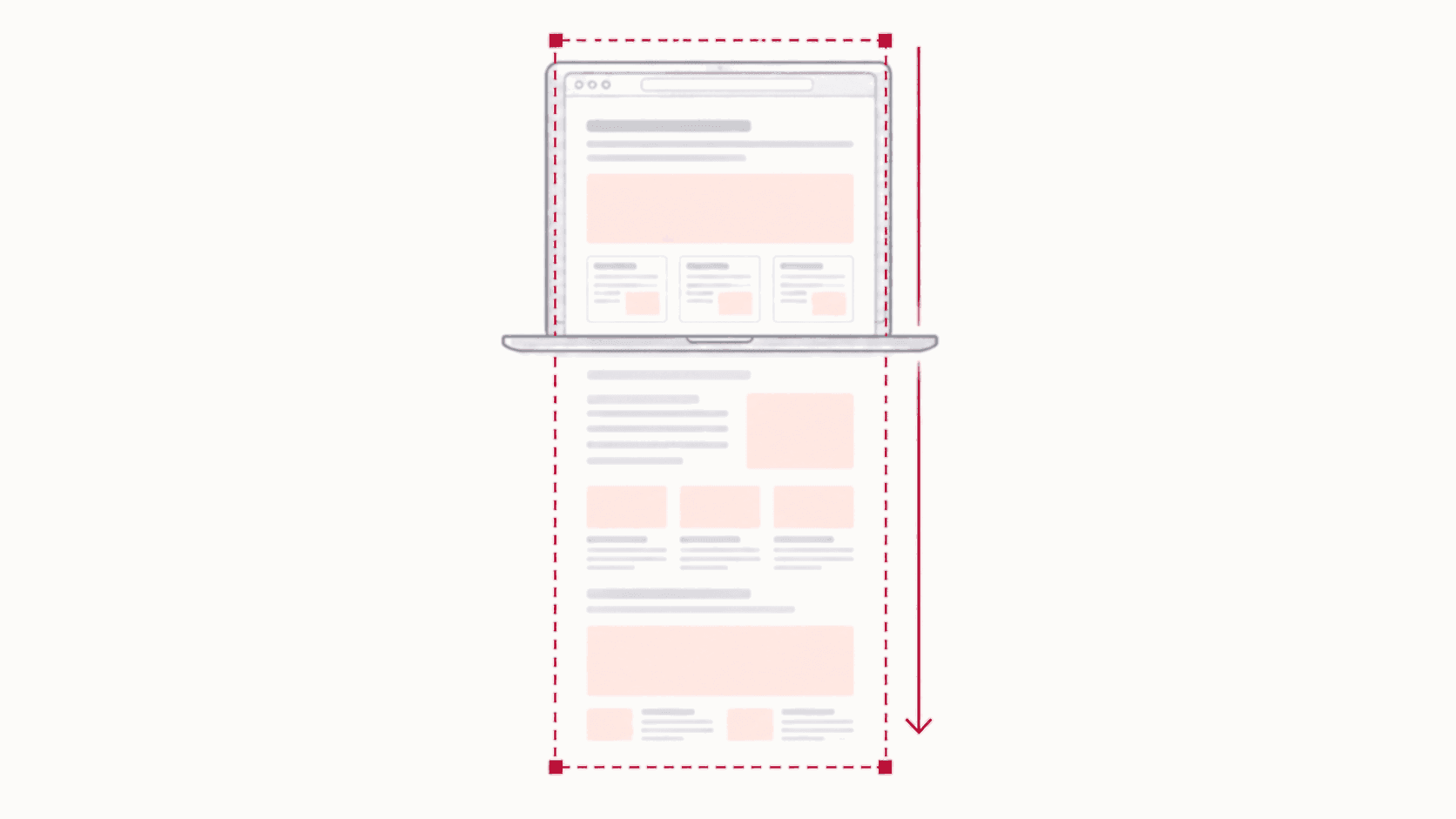
A scrolling screenshot, also called a long screenshot, captures a page or a conversation from top to bottom, including everything you would have to scroll to see. iPhone and Android can take one natively, and so can the Edge and Firefox browsers. Chrome on a computer, Windows and macOS cannot on their own: for those, use a browser extension for webpages or a dedicated app for everything else. Here is how to do it on each.
Which devices can take a scrolling screenshot?
| Where | Built in? | How |
|---|---|---|
| Chrome (computer) | Only in DevTools | Extension, or DevTools' Capture full size screenshot |
| Microsoft Edge | Yes | Ctrl+Shift+S, then Capture full page |
| Firefox | Yes | Right-click, Take Screenshot, Save full page |
| Safari (Mac) | As a PDF, not an image | File > Export as PDF |
| Windows apps | No | A third-party tool such as ShareX |
| Mac apps | No | A third-party tool such as Shottr or CleanShot X |
| iPhone and iPad | Yes | Screenshot, tap the preview, choose Full Page |
| Android | Yes, on Android 12 and later | Screenshot, then Capture more or Scroll capture |
Scrolling screenshot in Chrome
Chrome has no scrolling screenshot option in its menus, but there are two reliable ways:
- An extension. Install a full page extension such as Full Page Screenshot, open the page, click the icon and choose Full Page. It scrolls the page, captures each section and stitches them into one image, then opens it in an editor. It is free and works the same on Windows, Mac and Chromebook.
- DevTools. Press F12, then Ctrl+Shift+P (Cmd+Shift+P on Mac), type "screenshot" and choose Capture full size screenshot. Nothing to install, but it does not scroll the page first, so lazy-loaded images can come out blank.
The full walkthrough, with fixes for broken captures, is in the guide to taking a full page screenshot in Chrome.
Scrolling screenshot on Windows
The Windows Snipping Tool captures a rectangle, a window or the whole screen, but it has no scrolling mode, and neither does Print Screen. Your options depend on what you are capturing:
- A webpage in Chrome: use a full page extension, as above.
- A webpage in Edge: press Ctrl+Shift+S to open Web capture and choose Capture full page.
- Any other app, such as a document or a chat window: use a third-party tool. ShareX is free and open source and includes a scrolling capture mode.
Scrolling screenshot on Mac
macOS has no scrolling screenshot either. Cmd+Shift+3, Cmd+Shift+4 and the Cmd+Shift+5 toolbar all stop at the edge of the screen.
- A webpage in Chrome: use a full page extension or DevTools.
- A webpage in Firefox: right-click the page, choose Take Screenshot, then Save full page.
- A webpage in Safari: choose File > Export as PDF to save the whole page as a PDF. It is a document rather than an image, and complex layouts may not match the screen exactly.
- Any other app: third-party Mac apps such as Shottr and CleanShot X can capture a scrolling window.
The guide to screenshotting a whole page on Mac covers each browser step by step.
Scrolling screenshot on iPhone and iPad
- Open the page in Safari, or in another app that supports full page capture, such as Chrome.
- Take a screenshot: Side button + Volume up (or Top button + Volume up on an iPad with no Home button).
- Tap the preview that appears in the corner.
- Choose Full Page at the top. A scroll bar on the right shows the whole length.
- Tap Done and choose where to save it.
The Full Page option only appears in apps that provide it, so you will not see it in every app.
Scrolling screenshot on Android
On Android 12 and later, most phones can extend a screenshot downwards:
- Take a screenshot with Power + Volume down.
- Tap Capture more in the options below the preview. On Samsung phones, tap the Scroll capture button, the icon with downward arrows, instead.
- Drag the bottom edge to include as much as you need, or keep tapping on Samsung until it reaches the end, then save.
In Chrome for Android there is also a dedicated option: tap the three-dot menu, then Share, then Long screenshot, and adjust the crop handles.
When a scrolling screenshot comes out wrong
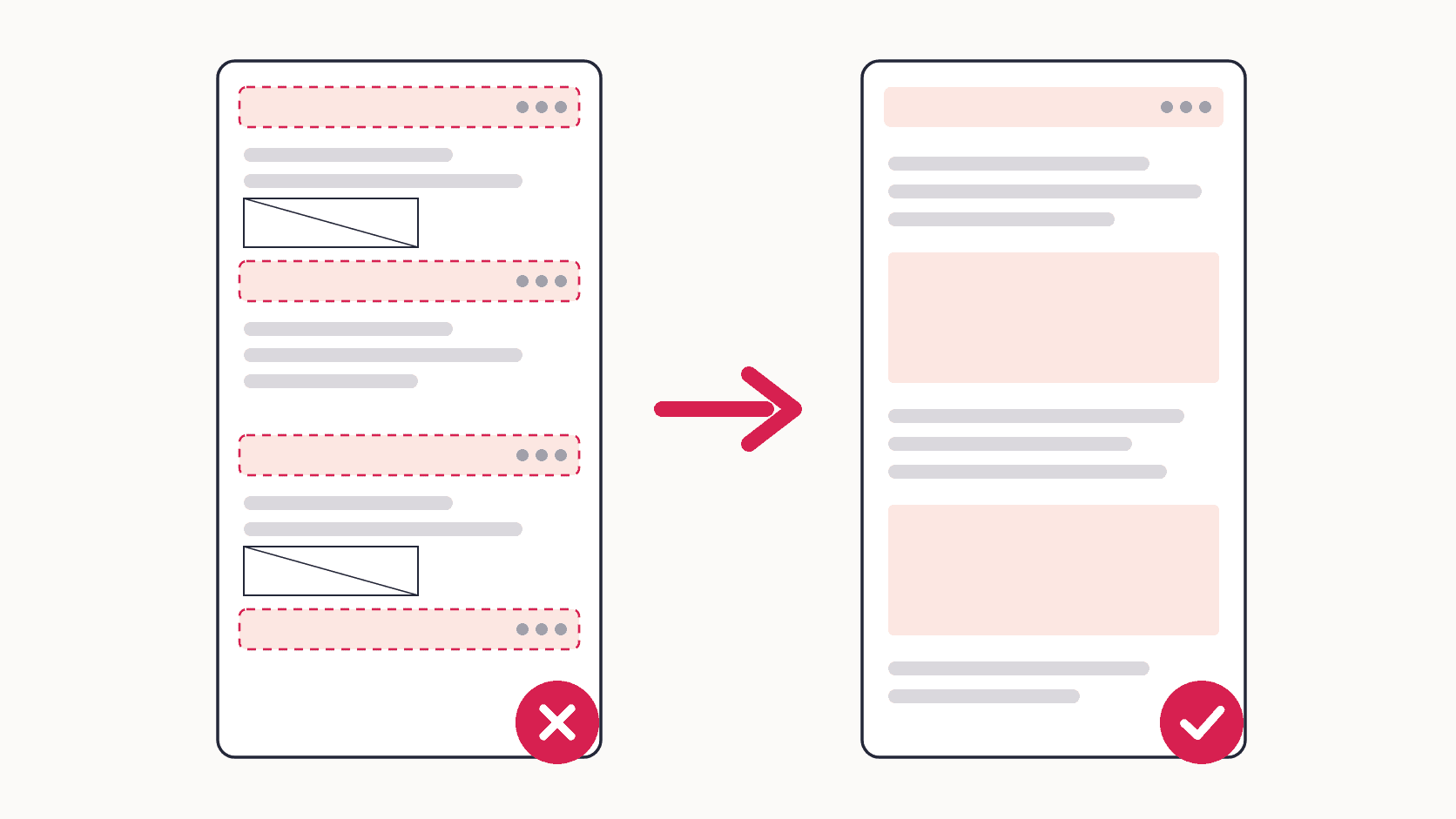
Two problems account for most broken long captures on every platform: a sticky header that repeats down the image, and images that are still grey placeholders because the page loads them only as you scroll. The fix for both is in this guide to repeating headers and blank images. Two habits help everywhere: let the page finish loading before you start, and do not scroll or click while the capture runs.
FAQ
Is a long screenshot the same as a scrolling screenshot?
Yes. Phones tend to call it a long screenshot and computer tools a scrolling or full page screenshot, but all three mean a capture that continues past the bottom of the screen.
Can the Windows Snipping Tool take a scrolling screenshot?
No. It captures a rectangle, a freeform shape, a window or the full screen, but it cannot scroll. For webpages use Edge's Capture full page or a Chrome extension, and for other apps use a tool like ShareX.
How do I take a scrolling screenshot on a Chromebook?
ChromeOS's own Screen capture tool does not scroll. Install a full page screenshot extension in Chrome and choose Full Page; Chrome extensions run normally on Chromebooks.
Why don't I see Full Page when I take a screenshot on iPhone?
The Full Page tab only appears in apps that support it, mainly Safari and other browsers. In apps without it, take several screenshots or use the app's own share or export option.
Why does my scrolling screenshot repeat the header?
The page has a sticky header that stays on screen while the capture scrolls, so it appears in every section. Tools that detect fixed elements show it once; otherwise, see the fixes linked above.