Full Page Screenshot
GoFullPage Was Removed From Chrome and Is Back: What Happened, and What Else to Use
 Kaushik Prasath· Founder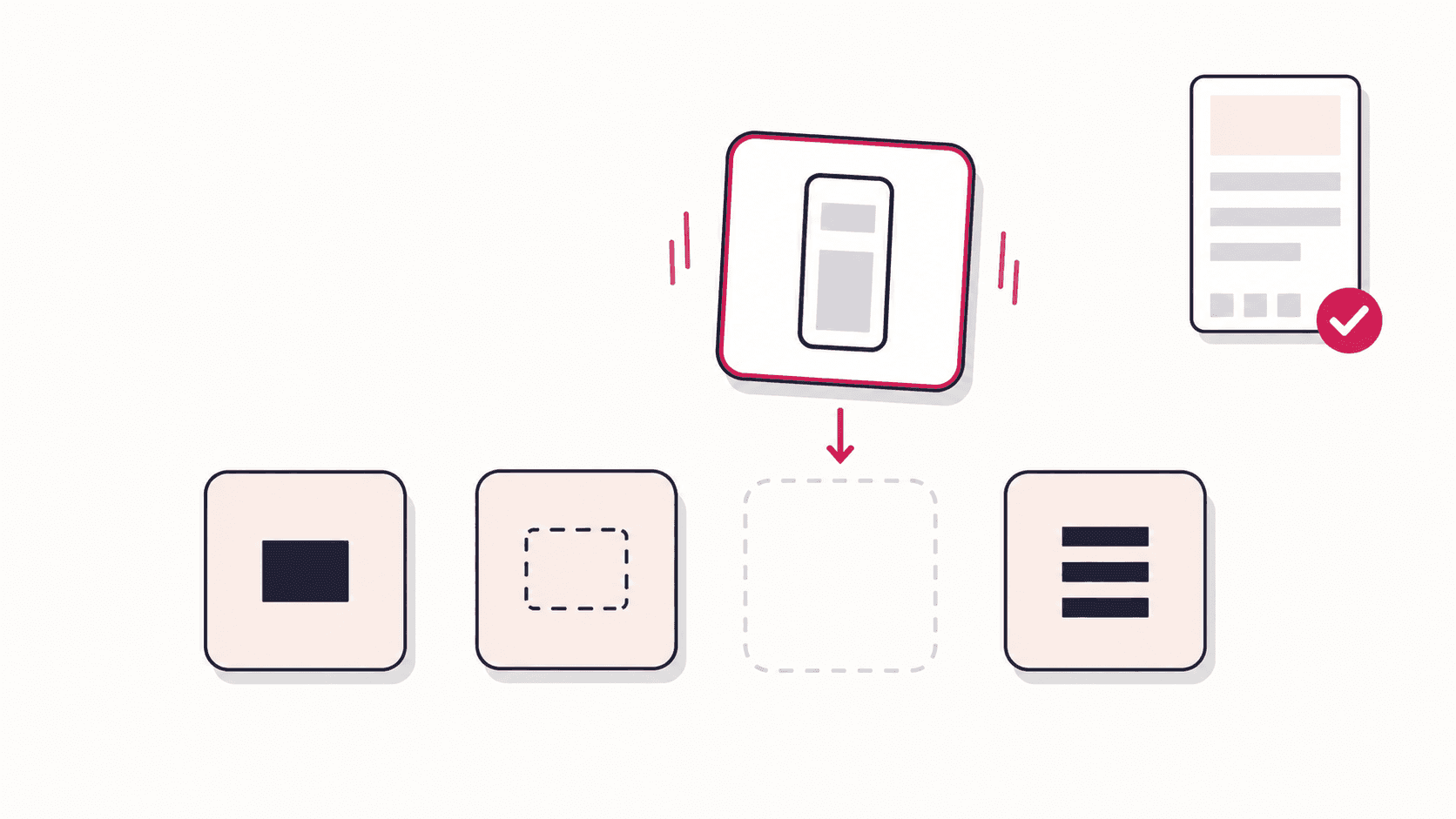
GoFullPage is back in the Chrome Web Store. It was removed on 11 August 2026 over a copyright issue, and Chrome disabled it for many of its 11 million users. The original listing returned on 10 September 2026, and the developers confirmed the restoration on 14 September.
If you still have it installed and it is switched off, go to chrome://extensions and turn it
back on. If you removed it, reinstall it from the
official Chrome Web Store listing,
not from a search result. While it was gone, unofficial copies claiming to be GoFullPage
appeared, and the developers have warned people not to install them.
Below is a dated timeline of what happened, and, if a month without it has you wanting a second option, what else to use.
Timeline: GoFullPage's removal and return
- 11 August 2026: GoFullPage is removed from the Chrome Web Store over a copyright-related issue. The developers say the removal was in error. Chrome flags existing installs as unsafe and disables them for many users.
- 13 August 2026: Android Authority reports the removal, noting the extension had more than 11 million users.
- 14 August 2026: In a progress report, the team says it sees a path to restoration but has no firm timeline.
- During the outage: unofficial versions and downloads claiming to be GoFullPage appear. The developers warn users to install only from their official links.
- By 2 September 2026: the separate GoFullPage BETA listing reaches 200,000 users as people route back to the tool through it.
- 3 September 2026: GoFullPage publishes its first Firefox version.
- 10 September 2026: the original Chrome Web Store listing is back, with an update dated that day.
- 14 September 2026: the developers announce that GoFullPage is back on Chrome and now available on Firefox. Premium features work on both the official and BETA extensions.
What happened to GoFullPage?
On 11 August 2026, GoFullPage was removed from the Chrome Web Store. According to the developers' own statement, the removal was due to a copyright-related issue, and they believe it was made in error:
"GoFullPage was temporarily removed from the Chrome Web Store due to a copyright-related issue. We believe the removal was in error and are working with Google to have GoFullPage restored."
This was not a security problem, despite what your browser told you. This is the part that caused the most alarm, so it is worth separating carefully.
Removing the listing also tripped Chrome's automated safety machinery, so many people saw their browser flag GoFullPage as unsafe and disable it. That warning is what made this feel like a security incident. It was not one. The developers stated explicitly that the cause was a copyright dispute, not a vulnerability, and nothing about your past screenshots or your data is implicated. An administrative takedown and a malware warning look identical from inside Chrome, which is unfortunate but is what happened here.
It took a month to resolve. The listing was down from 11 August to 10 September. In that time the team kept a BETA listing live on Chrome, kept the Edge version working, and shipped a Firefox version.
We think that context matters more than a quick pitch. Now that GoFullPage is back, if it does everything you need, keep using it. It is a good tool that has served millions of people well.
How to get GoFullPage working again
Re-enable it in Chrome. Chrome disabled the extension for many users rather than deleting
it. Go to chrome://extensions, find GoFullPage in the list, and switch it back on.
Reinstall from the official listing. If you removed it, use the official Chrome Web Store listing or the links on gofullpage.com. Search results and third-party download sites are where the unofficial copies turned up, so skip them.
Or keep the BETA. If you switched to the GoFullPage BETA listing during the outage, it still works and premium carries over, though the developers recommend the official version for the most stable experience.
GoFullPage also runs on Microsoft Edge, and now on Firefox.
If that solves your problem, you can stop reading here. If the outage made you want a second tool that does not depend on one listing staying up, read on.
The alternative: Full Page Screenshot
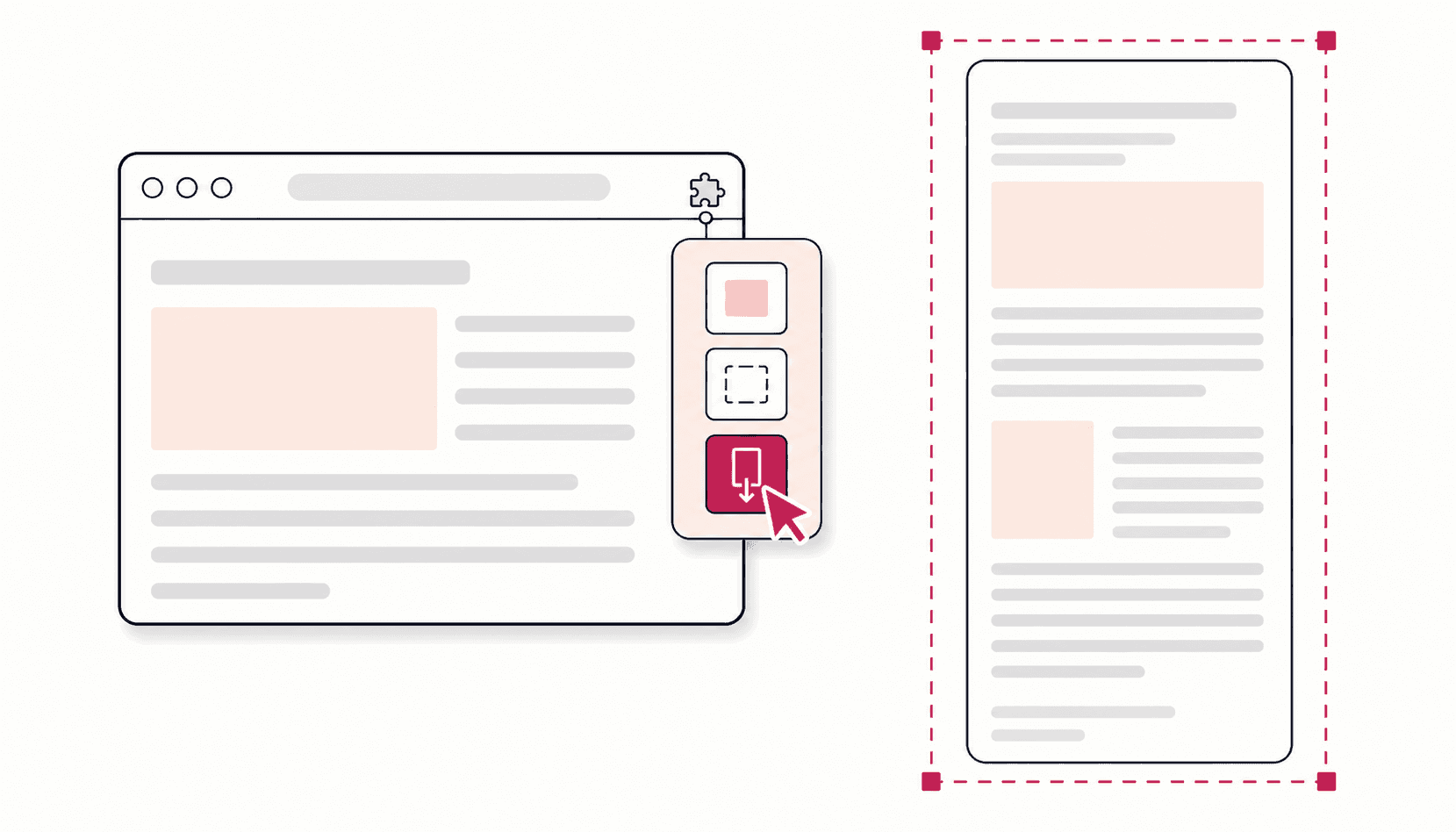
Full Page Screenshot - Screen Capture & Editor is a free Chrome extension that does the core job GoFullPage does, one click for the entire page top to bottom, and adds a full editor so you can mark up, blur and frame the result without leaving the tab.
It is 100% local. Your captures are processed and stored in your browser. There is no account, no upload, and no server involved.
Three ways to capture
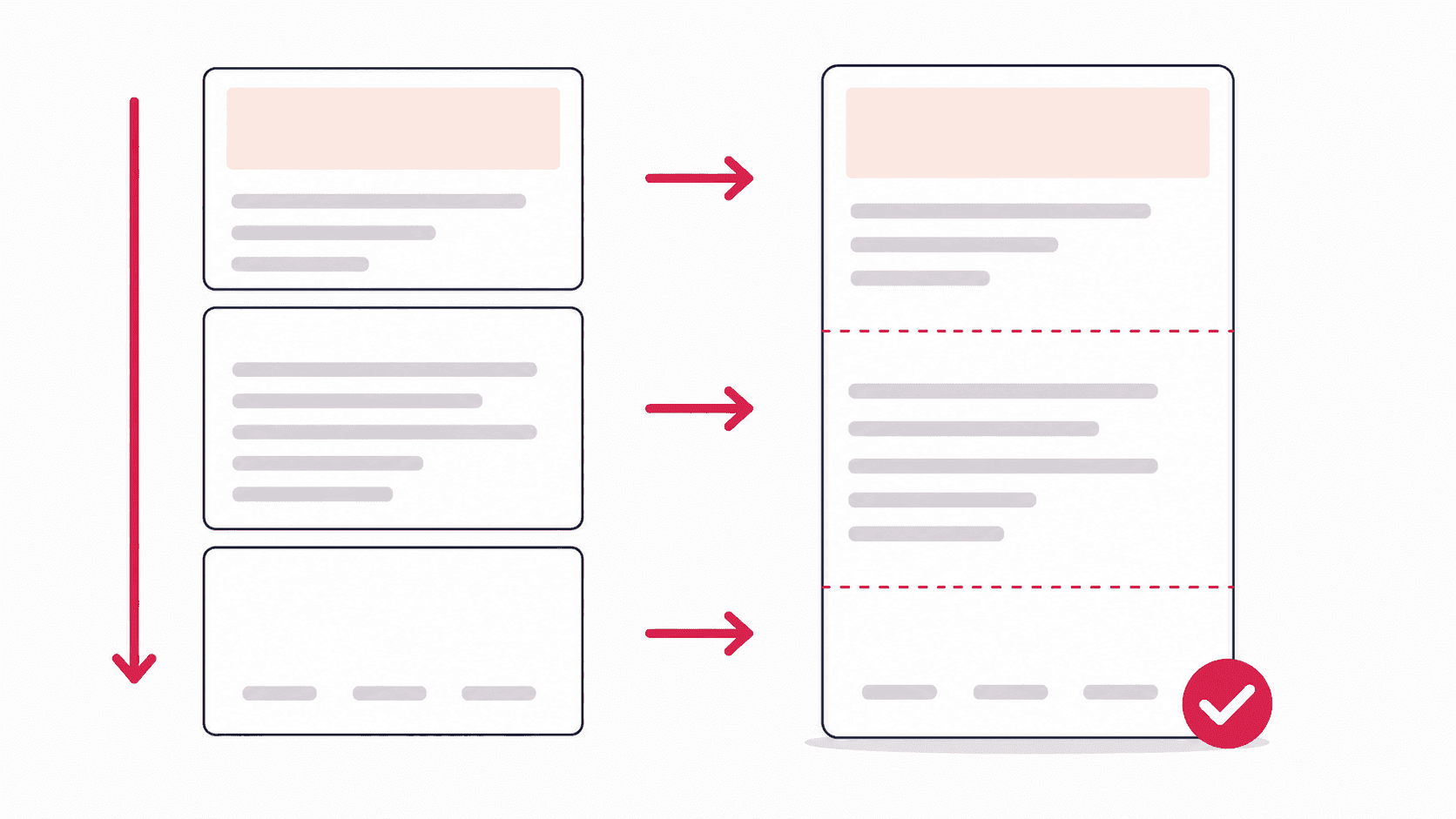
- Full Page: scrolls the whole page and stitches it into one long screenshot
- Visible Area: captures exactly what is on screen right now
- Snip: drag a box over any region, like a snipping tool inside Chrome
What makes a full page screen capture actually accurate
Capturing a long page is harder than it looks, and it is where most tools quietly fail. The things that break naive capture tools are handled here:
- Sticky headers and floating bars appear once, in the right place, instead of repeating down the image every screen-height
- Lazy-loaded images get time to load before that part of the page is captured, so you don't get grey placeholder boxes
- Pages that grow while you scroll, such as infinite feeds and dynamically loading sections, are tracked as they change
- Inner scrolling panels, where the content scrolls inside a pane rather than the window
- Playing videos are paused during the capture, so you never get a half-drawn frame
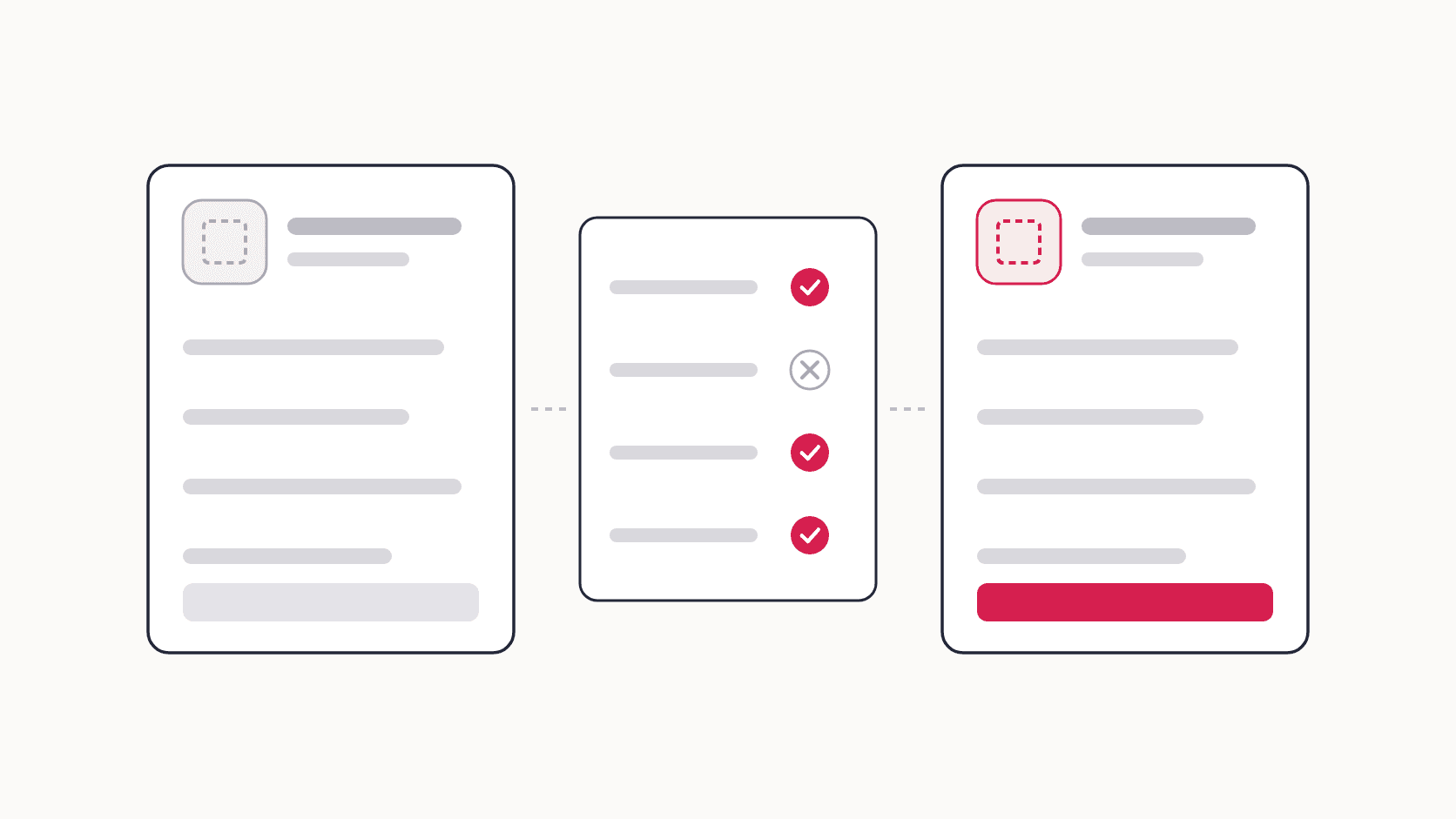
- Seams are verified: where two captured strips meet, the overlap is checked and re-captured if it doesn't line up, so you don't get visible join lines or doubled text
Each of these started as a real bug; the build notes explain how they were solved.
The editor
Every capture opens straight into an editor:
- Freehand drawing, rectangles, circles and arrows
- Text labels with bold and italic, from footnote-sized to headline-sized
- Blur for hiding emails, prices, names and account numbers
- Two erasers: remove a whole shape, or rub out part of a stroke
- Crop, with optional fixed aspect ratios
- Zoom and pan, undo and redo, and copy straight to the clipboard
Annotations stay editable. Nothing is permanently stamped onto the picture, so you can reopen a capture days later and move an arrow or fix a typo.
One detail worth calling out: the blur is applied to the exported file, not just the on-screen preview. What you hide stays hidden in the image you actually share. That is not true of every tool in this category, and it is the kind of thing you only discover after you've sent the wrong file to the wrong person.
Making it presentation-ready
You can wrap a capture in a designed frame with padding, a gradient or solid backdrop, rounded corners and a shadow, or in a realistic macOS or Windows browser window with the page's real URL in the address bar, and optionally the capture date. It turns a raw screenshot into something that looks deliberate in a slide or a blog post.
Export
PNG, JPG, WebP and PDF, at adjustable scale. Filenames are generated from the site name and time, or you can type your own. Everything you capture is kept in a local history grid you can search, annotate with notes, re-download or bulk-export.
How the alternatives compare
Checked against each tool's own Chrome Web Store listing and website on 29 September 2026.
| Full Page Screenshot | GoFullPage | Awesome Screenshot | FireShot | |
|---|---|---|---|---|
| Full page capture | ✅ | ✅ | ✅ | ✅ |
| Region / snip capture | ✅ | Not described | ✅ | ✅ |
| Built-in annotation | ✅ Free | Premium | ✅ | Pro, on Windows |
| Blur tool | ✅ Free | Premium | ✅ | Pro |
| Browser-frame styling | ✅ | Not listed | Not listed | Not listed |
| PDF export | ✅ Free | ✅ Free | ✅ | ✅ Free (advanced PDF in Pro) |
| Screen recording | ❌ | ❌ | ✅ | ❌ |
| Account required | ❌ | ❌ | For cloud saving | ❌ |
| Paid tier | None | $12 a year | From $5 a month | $39.95 a year or $99.95 once |
| Currently on Chrome Web Store | ✅ | ✅ (restored 10 Sep 2026) | ✅ | ✅ |
Being fair about the others: Awesome Screenshot is a genuinely capable tool with screen recording that we don't offer, and FireShot has been around longer than almost anyone and its PDF handling is excellent. If you need video recording, Awesome Screenshot is the better choice. If your priority is a full page screen capture with real editing that never sends your data anywhere, that is what we built. For more tools and a wider table, see the full page screenshot Chrome extension comparison.
How to switch in under a minute
- Install Full Page Screenshot - Screen Capture & Editor from the Chrome Web Store
- Pin it to your toolbar (click the puzzle-piece icon, then the pin next to it)
- Open any page and click the icon
- Choose Full Page, Visible Area or Snip
- Your capture opens in the editor, ready to annotate, blur, frame, then save or copy
There is nothing to set up, no account to create, and no permissions beyond what any screenshot extension needs to read the page it is capturing.
Frequently asked questions
Is GoFullPage back on the Chrome Web Store?
Yes. The original listing was restored on 10 September 2026, after being removed on 11 August.
The developers announced it on their
blog
on 14 September. If Chrome disabled your copy, re-enable it at chrome://extensions.
Why was GoFullPage removed from Chrome?
Over a copyright-related issue, according to its developers, who say the removal was made in error. It was not removed for malware or a security flaw.
Is GoFullPage safe?
The official extension, yes, as far as anyone has stated publicly. The developers confirmed the removal was a copyright-related administrative issue and explicitly not a security problem, and we have no reason to believe otherwise. The risk is the unofficial copies that appeared while it was gone: those are not GoFullPage, so install only from the official listing.
How do I take a full page screenshot in Chrome?
Install a full page screen capture extension, open the page, and click the extension icon.
Chrome does have a built-in method. Open DevTools with Ctrl+Shift+I (or Cmd+Option+I on
Mac), press Ctrl+Shift+P, type "screenshot" and choose "Capture full size screenshot". But
it fails on many modern sites: sticky headers repeat, lazy-loaded images come out blank, and
you get no editing at all. The DevTools guide has
a fix for each of those, and the full page screenshot guide
covers every method.
How do I screenshot an entire webpage, not just the visible part?
The visible-area screenshot built into your operating system only captures what fits on screen. To capture the whole page you need a tool that scrolls the page and stitches the pieces into a single image. That is exactly what the Full Page mode does.
Is Full Page Screenshot free?
Yes. Every feature described here, all three capture modes plus the full editor, blur, frames, and PNG/JPG/WebP/PDF export, is free, with no account.
Do my screenshots get uploaded anywhere?
No. Captures are processed and stored entirely in your browser. There is no server, no account, and no upload. It works offline.
Can I capture pages I'm logged into?
Yes. The extension captures whatever the page is showing you, including content behind a
login, because it runs in your browser as you. Chrome does block extensions from capturing
certain pages entirely: chrome:// settings pages, other extensions' pages, the Chrome Web
Store itself, and local file:// URLs. That restriction applies to every extension equally.
The short version
GoFullPage was removed from the Chrome Web Store on 11 August 2026 over a copyright issue its developers say was a mistake, and it was restored on 10 September 2026. It was never a security problem. Re-enable it or reinstall it from the official listing, and avoid lookalike copies.
If you want a second tool for full page capture, Full Page Screenshot does the same core job, adds a real editor with blur and framing, and keeps everything on your machine.