Full Page Screenshot
How to Screenshot in Google Chrome on Windows, Mac and Chromebook
 Kaushik Prasath· Founder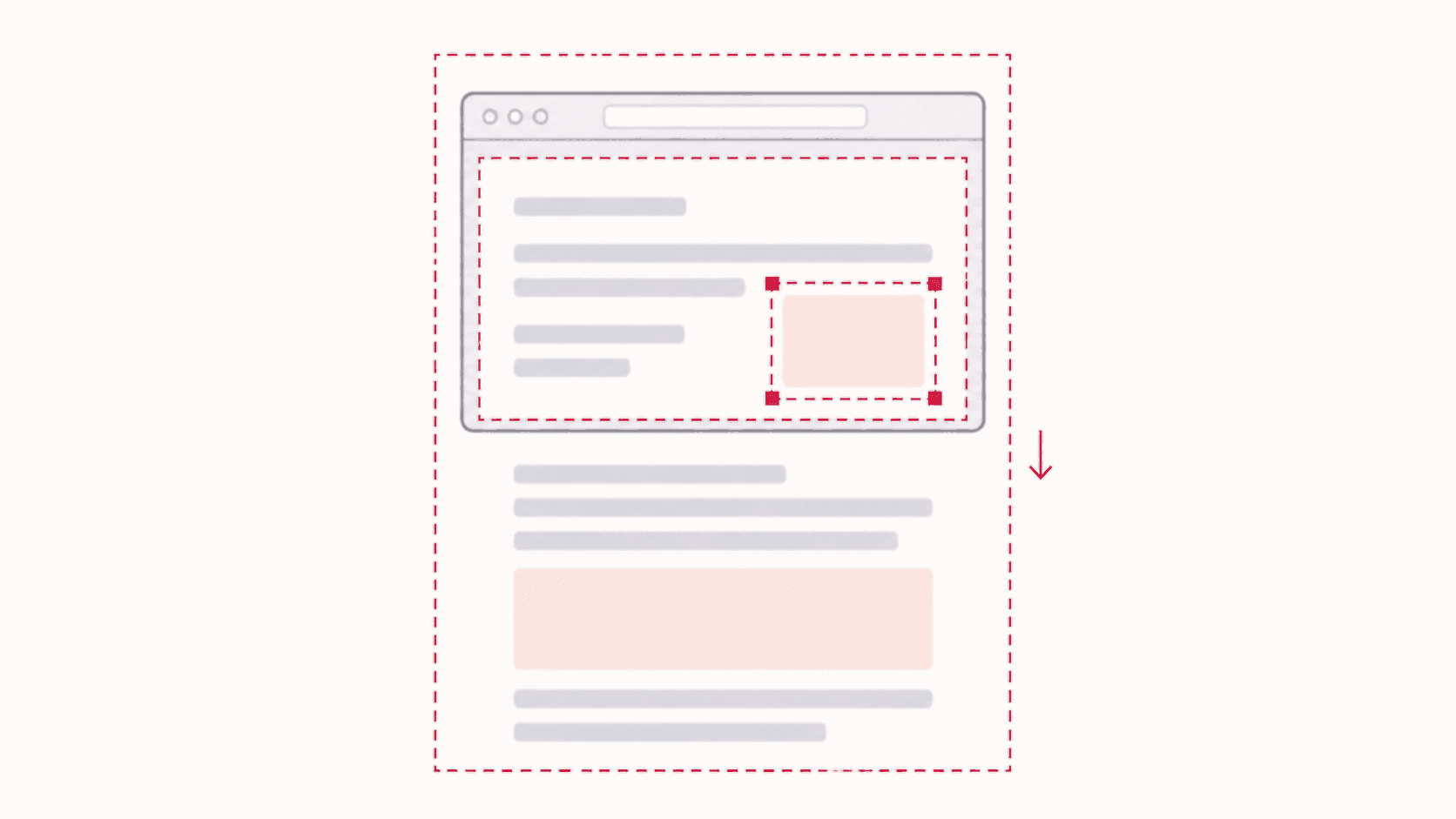
To take a screenshot in Google Chrome, use your computer's screenshot shortcut: Windows key + Shift + S on Windows, Cmd+Shift+4 on a Mac, or Ctrl + Show windows on a Chromebook. Those capture whatever is on your screen, including Chrome's tabs and address bar. To capture only the webpage, a part of it, or the entire page from top to bottom, use a screenshot extension or Chrome's built-in DevTools capture. This guide covers each option.
Quick answer: Chrome screenshot shortcuts
| Computer | Whole screen | Part of the screen | Where it goes |
|---|---|---|---|
| Windows | Windows key + Print Screen | Windows key + Shift + S | Pictures > Screenshots (whole screen); clipboard (part) |
| Mac | Cmd+Shift+3 | Cmd+Shift+4 | Desktop |
| Chromebook | Ctrl + Show windows | Ctrl + Shift + Show windows | Downloads |
None of these shortcuts belong to Chrome. They are your operating system's, so they work the same in any app, and none of them can scroll to capture the rest of a long page.
Screenshot only the webpage, without the tabs and address bar
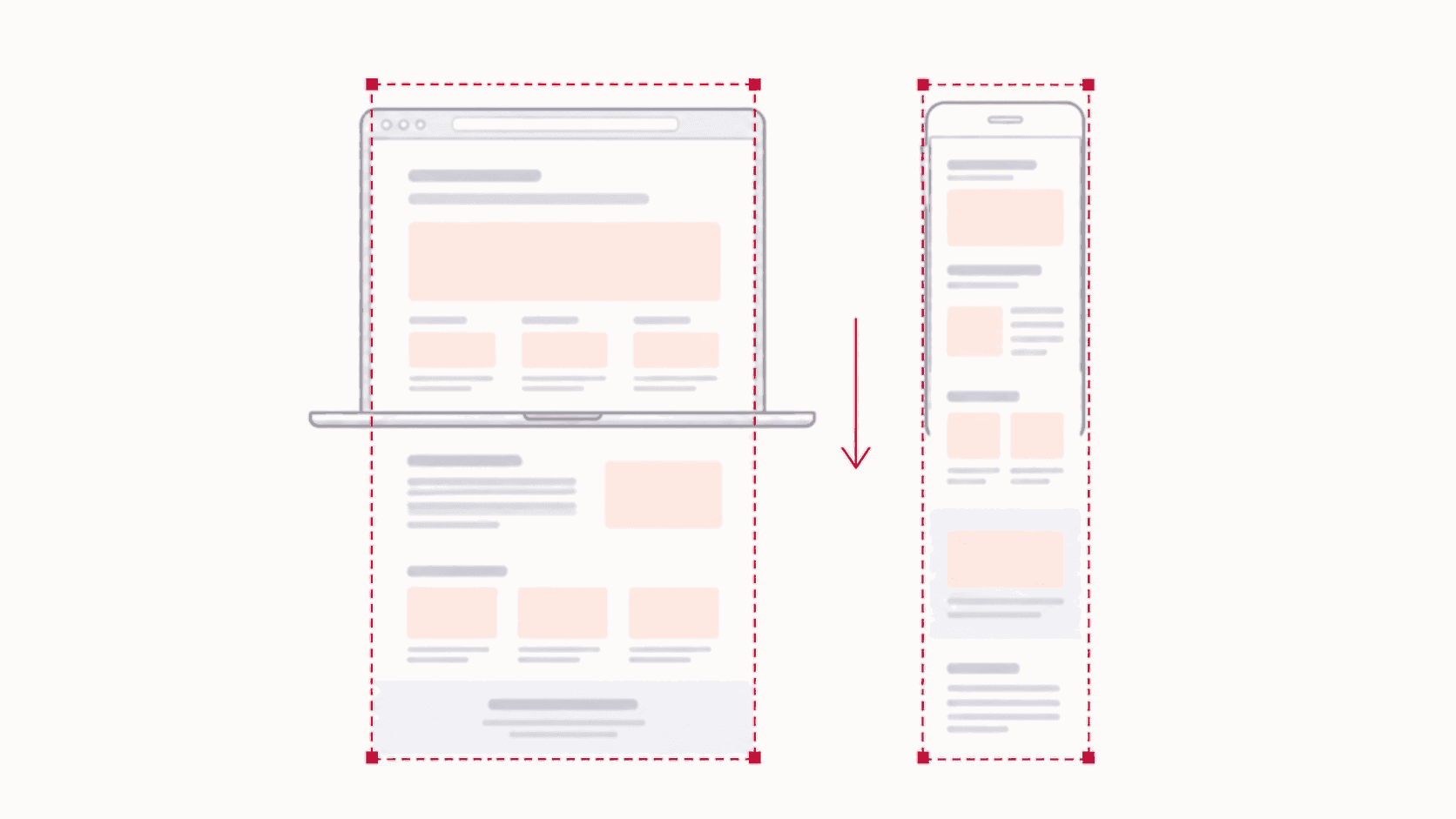
A system screenshot includes the browser around the page, which usually means cropping afterwards. Two ways to capture just the page content:
With an extension (simplest):
- Install a screenshot extension such as Full Page Screenshot. It is free and needs no account.
- Click its icon in the toolbar and choose Visible Area.
- The capture opens in an editor, where you can annotate, blur or crop it, then save it as PNG, JPG, WebP or PDF.
With Chrome DevTools (nothing to install):
- Press F12 (Cmd+Option+I on Mac) to open DevTools.
- Press Ctrl+Shift+P (Cmd+Shift+P on Mac) to open the Command Menu.
- Type screenshot and choose Capture screenshot. Chrome saves the visible part of the page as a PNG in your Downloads folder.
The same menu has Capture area screenshot, Capture full size screenshot and Capture node screenshot. The DevTools screenshot guide covers all four and why they sometimes fail.
Screenshot part of a page in Chrome
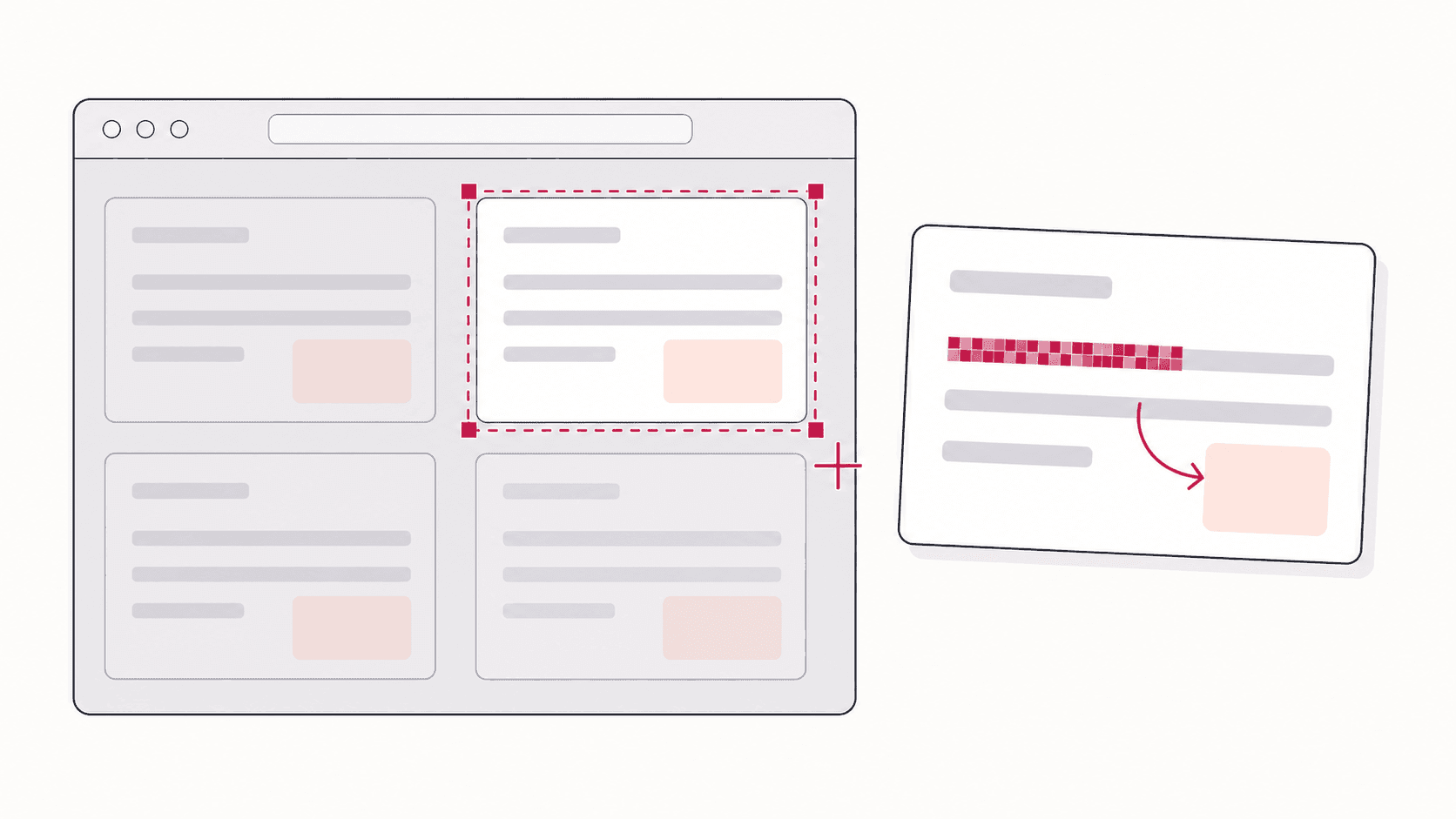
To grab one chart, one message or one product card, drag a box around it:
- Extension: choose Snip instead of Visible Area and drag over the region. The snipping tool guide walks through it.
- DevTools: run Capture area screenshot from the Command Menu and drag over the page.
- System shortcut: Windows key + Shift + S on Windows, Cmd+Shift+4 on Mac, or Ctrl + Shift + Show windows on a Chromebook, then drag.
Screenshot the whole page in Chrome
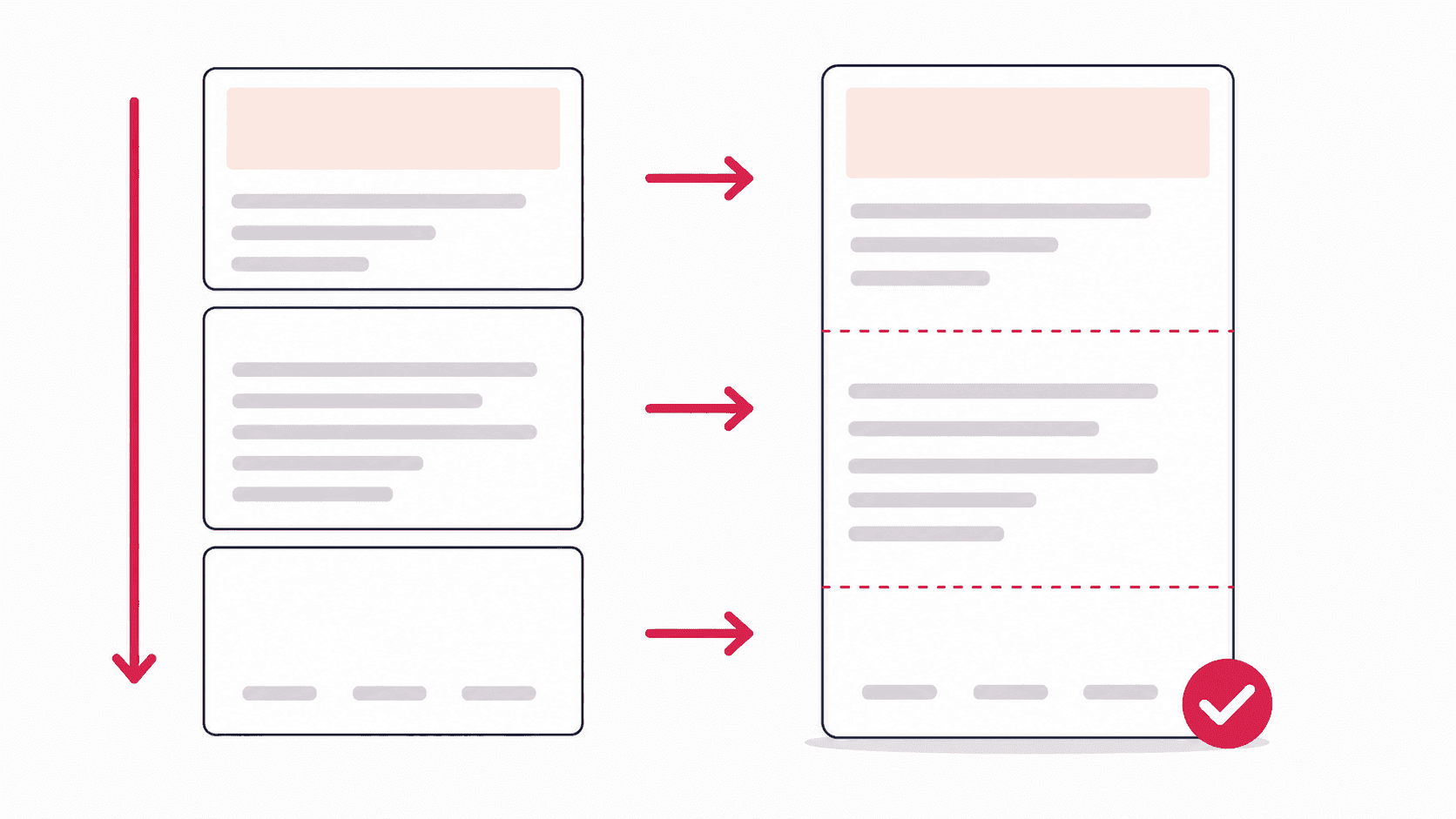
When the page is longer than your screen, every shortcut above stops at the bottom edge. A full page screenshot scrolls the page and stitches it into one tall image. In the extension, choose Full Page instead of Visible Area. In DevTools, choose Capture full size screenshot. The guide to taking a full page screenshot in Chrome covers both, plus what to do when a capture comes out with repeating headers or blank images.
How to screenshot in Chrome on Windows
- Windows key + Shift + S opens the Snipping Tool overlay. Choose rectangle, freeform, window or full screen, and the capture is copied to your clipboard. Click the notification that appears to edit or save it.
- Windows key + Print Screen saves the whole screen straight to Pictures > Screenshots.
- Alt + Print Screen copies only the active window, which is handy for a single Chrome window on a large monitor.
To capture just the Chrome window on Windows, use Windows key + Shift + S and choose the window mode, then click the Chrome window.
How to screenshot in Chrome on a Mac
- Cmd+Shift+3 captures the whole screen.
- Cmd+Shift+4 turns the pointer into crosshairs; drag to capture an area.
- Cmd+Shift+4, then Space captures a single window. Click the Chrome window to capture it on its own.
- Cmd+Shift+5 opens the Screenshot toolbar with all of these options and a timer.
Mac screenshots are saved to the Desktop by default. None of the macOS options scroll, so a long page needs one of the Chrome methods above. The guide to screenshotting a whole page on Mac covers that in detail.
How to screenshot in Chrome on a Chromebook
- Ctrl + Show windows captures the whole screen. The Show windows key is the one with a rectangle and two lines, in the top row.
- Ctrl + Shift + Show windows opens the Screen capture toolbar, where you can choose a partial area or a single window.
- No Show windows key? On an external keyboard or a tablet, open Quick Settings by clicking the time in the corner of the screen and choose Screen capture.
Chromebook screenshots go to the Downloads folder by default. Chrome extensions run normally on a Chromebook, so the extension method above also gives you full page and snip captures there.
If screenshots do nothing on a school or work Chromebook, the administrator may have turned them off. Managed Chromebooks can disable screenshots and block extensions by policy, and only the administrator can change that.
Screenshots in Chrome on Android and iPhone
- Android: press Power + Volume down. For a long page, Chrome has its own option: tap the three-dot menu, then Share, then Long screenshot.
- iPhone: press Side button + Volume up, tap the preview, and choose Full Page at the top to capture the whole webpage.
The scrolling screenshot guide covers long captures on every device.
FAQ
Does Google Chrome have a built-in screenshot tool?
Not in its menus on desktop. Chrome's built-in capture lives in DevTools: press F12, then Ctrl+Shift+P, type "screenshot", and choose a capture command. Chrome on Android also has a Long screenshot option in its Share menu.
How do I screenshot in Chrome without an extension?
Use your system shortcut (Windows key + Shift + S, Cmd+Shift+4, or Ctrl + Show windows) for what is on screen, or DevTools' Capture full size screenshot for the whole page. Neither needs an install.
How do I take a screenshot of a whole webpage in Chrome?
Use a full page screenshot extension and choose Full Page, or DevTools' Capture full size screenshot command. Both capture everything from the top of the page to the bottom, not just the part on screen.
Why is my Chrome screenshot black?
Video players that use DRM protection, such as streaming services, show up black in screenshots on purpose. Chrome also blocks every extension on its own internal pages (chrome:// addresses) and the Chrome Web Store, so extensions cannot capture those.
How do I screenshot on a Chromebook without the Show windows key?
Click the time in the corner of the screen to open Quick Settings, then choose Screen capture. It offers full screen, partial and window captures without any keyboard shortcut.