Full Page Screenshot
Capture Full Size Screenshot in Chrome DevTools: How It Works and Why It Fails
 Kaushik Prasath· Founder
To take a full page screenshot with Chrome DevTools, open DevTools (F12 or Ctrl+Shift+I on Windows and Linux, Cmd+Option+I on Mac), press Ctrl+Shift+P (Cmd+Shift+P on Mac) to open the Command Menu, type "screenshot", and choose Capture full size screenshot. Chrome renders the whole page and downloads it as a PNG. When the result comes out with blank images, missing sections, or a banner stuck in the middle, the cause is almost always the same: DevTools never scrolls the page. This guide covers the command in depth and gives a fix for each of those failures.
For the broader picture, our main guide compares the three ways to take a full page screenshot in Chrome. This post stays on DevTools.
How to use Capture full size screenshot
- Open the page and let it finish loading.
- Open DevTools. On Windows and Linux press F12 or Ctrl+Shift+I. On Mac press Cmd+Option+I.
- Open the Command Menu with Ctrl+Shift+P (Cmd+Shift+P on Mac). You can also reach it from the DevTools three-dot menu (Customize and control DevTools) under Run command.
- Type screenshot. The list filters to the screenshot commands.
- Select Capture full size screenshot and press Enter.
- Chrome saves a PNG named after the page URL to your usual downloads location.
The other three screenshot commands
Typing "screenshot" in the Command Menu also shows these.
Capture screenshot
Saves only the visible viewport, exactly as it looks now.
Capture area screenshot
Lets you drag a rectangle anywhere on the page, similar to a snipping tool. Chrome's documentation notes that area capture does not work if DevTools is undocked from the window.
Capture node screenshot
Saves a single element. Select it in the Elements panel and run the command, or right-click the node there and choose Capture node screenshot. Since Chrome 89 this captures the whole node, including the parts below the fold, which makes it the best tool for grabbing one long section of a page, such as an article body or a pricing table.
Full page captures of mobile layouts in device mode
DevTools can also capture the whole page as a phone or tablet would render it:
- Open DevTools and press Ctrl+Shift+M (Cmd+Shift+M on Mac), or click the Toggle device toolbar button.
- Pick a phone from the Dimensions list, or stay in Responsive and type a width.
- Open the device toolbar's More options menu (the three dots) and choose Capture full size screenshot. When you pick a named device, the file name includes it.
- For a visible area capture with the phone hardware drawn around it, choose More options > Show device frame first, then Capture screenshot.
Chrome describes device mode as a first-order approximation of a mobile device, so treat these captures as layout previews rather than proof of how a real phone renders the page.
Capture full size screenshot not working? Why it fails and how to fix it
The DevTools source code makes the root cause clear. The command sends Chrome one request to render the entire page into a single PNG, drawing beyond the viewport. There is no scrolling, no waiting, and no second pass. That avoids stitching seams entirely, but anything that depends on scrolling or on time passing is captured in whatever state it happens to be in.
Lazy-loaded images come out blank
Most sites defer images until they are about to scroll into view. Because DevTools does not scroll, images further down may still be grey placeholders or empty boxes when it takes the capture.
Fix: scroll slowly to the bottom of the page, give the images a moment to arrive, scroll back to the top, then run the command. For images that use the browser's native lazy loading, you can also paste this into the Console first:
document.querySelectorAll('img[loading="lazy"]').forEach((img) => (img.loading = 'eager'))
Script-based lazy loaders ignore that attribute, so the manual scroll is the reliable fallback.
Animations caught mid-transition, and fallback fonts
Scroll-reveal effects start sections invisible and fade or slide them in when you reach them. DevTools never reaches them, so those sections can appear as empty gaps. Anything animating at the moment of capture is frozen partway through, and if web fonts have not finished loading you may get the fallback font instead.
Fix: scroll through the page first so every reveal animation plays. Some sites also switch animations off when the visitor prefers reduced motion: open the Rendering tab (from the Command Menu, type "rendering") and set Emulate CSS media feature prefers-reduced-motion to reduce. For fonts, type document.fonts.status in the Console and wait until it returns "loaded" before capturing.
Sticky headers and fixed elements land in odd places
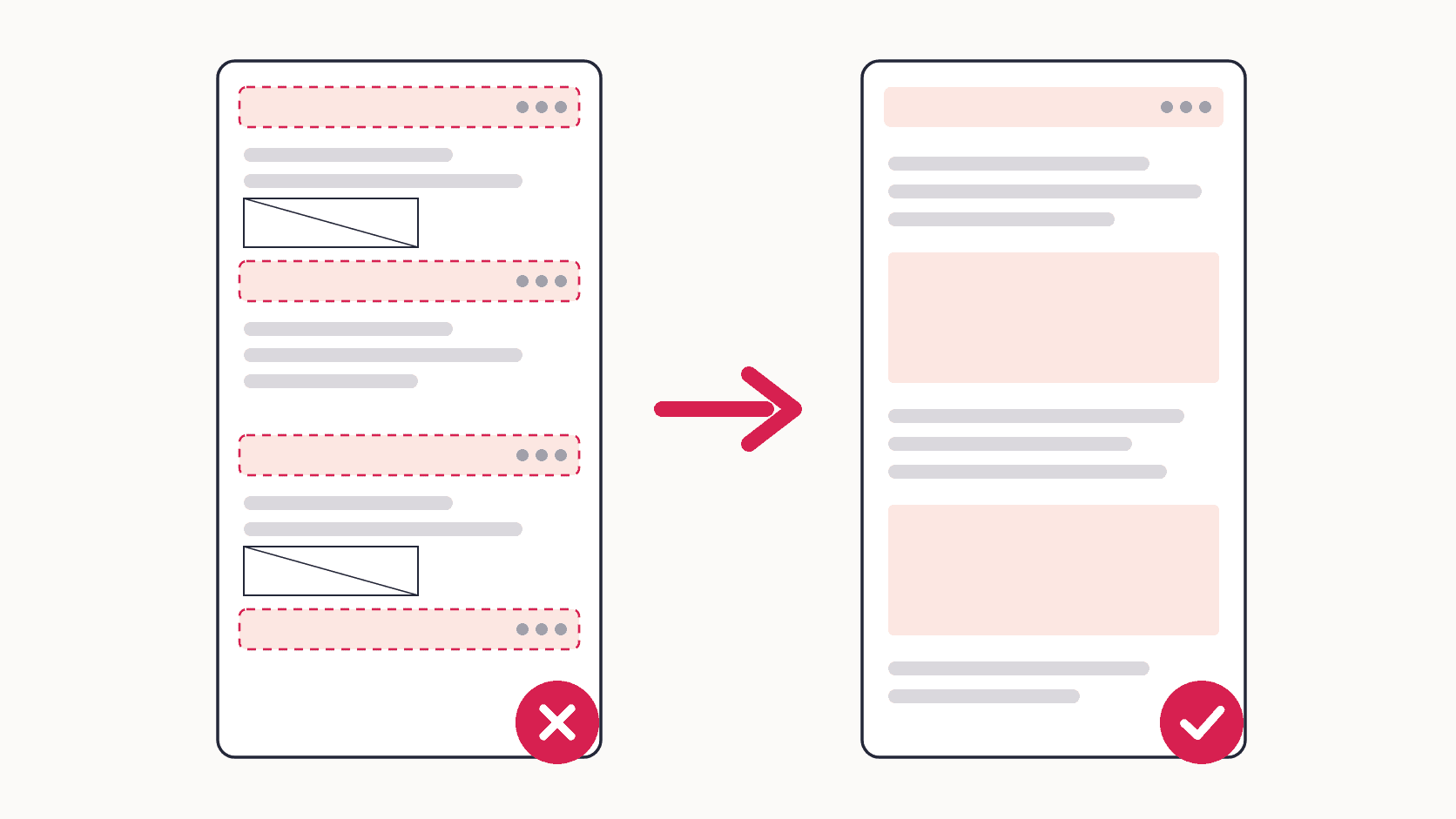
Fixed elements are positioned relative to the screen, and during this capture the "screen" is effectively the whole page. A header pinned to the top usually appears once, which is what you want. Bars, chat buttons and "back to top" arrows anchored to the bottom or side may end up floating over content, in a spot that never existed while you were browsing.
Fix: in the Elements panel, select the element and press H to hide it. Capture, then press H again to bring it back.
Inner scrolling containers: only the visible part is captured
Some layouts, especially web apps, dashboards and documentation sites, keep the window still and scroll a panel inside it. The page itself is then exactly one screen tall, so a full size capture is one screen tall too, with the panel cut off at its visible edge.
Fix: select the scrolling panel in the Elements panel and, in the Styles pane, set height: auto and overflow: visible. Do the same for any parent with a fixed height (often html, body, or an app wrapper set to 100vh). Then capture. This will not help with virtualized lists that only create the rows currently on screen, because the hidden rows do not exist in the page yet.
Very tall pages come out cut off or fail
Everything is drawn into a single bitmap in one pass, and graphics hardware limits how large one image can be. Chrome does not document an exact ceiling for this command, and it varies by machine, but very long pages can come back incomplete or fail to download. High density displays make this worse, because the PNG is drawn at your screen's pixel density, not at CSS pixel size.
Fix: in device mode, choose More options > Add device pixel ratio and set the DPR to 1 to cut the pixel count. If the page is still too tall, capture it in parts with Capture node screenshot on each major section.
Cookie banners and popups cover the page
DevTools captures exactly what is rendered, so a consent banner, newsletter modal or chat window is baked into the image.
Fix: dismiss it through its own buttons (the reject or necessary-only choice is the private one), or select it in the Elements panel and press H.
When an extension is the better tool
DevTools is genuinely good for one-off captures, mobile layout previews, and single elements. It gets tedious when you capture often, because every fix above is manual and repeats on every page.
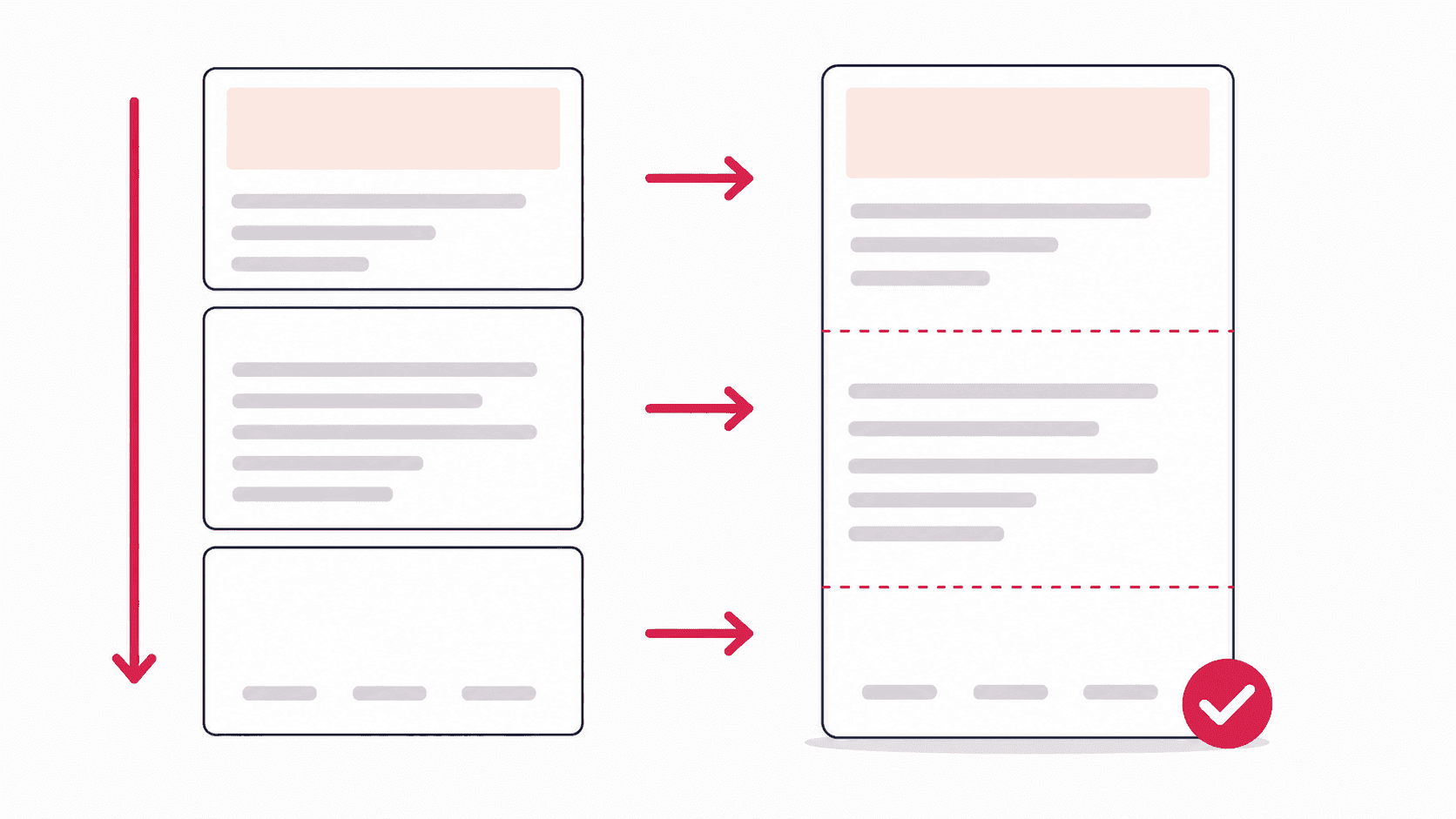
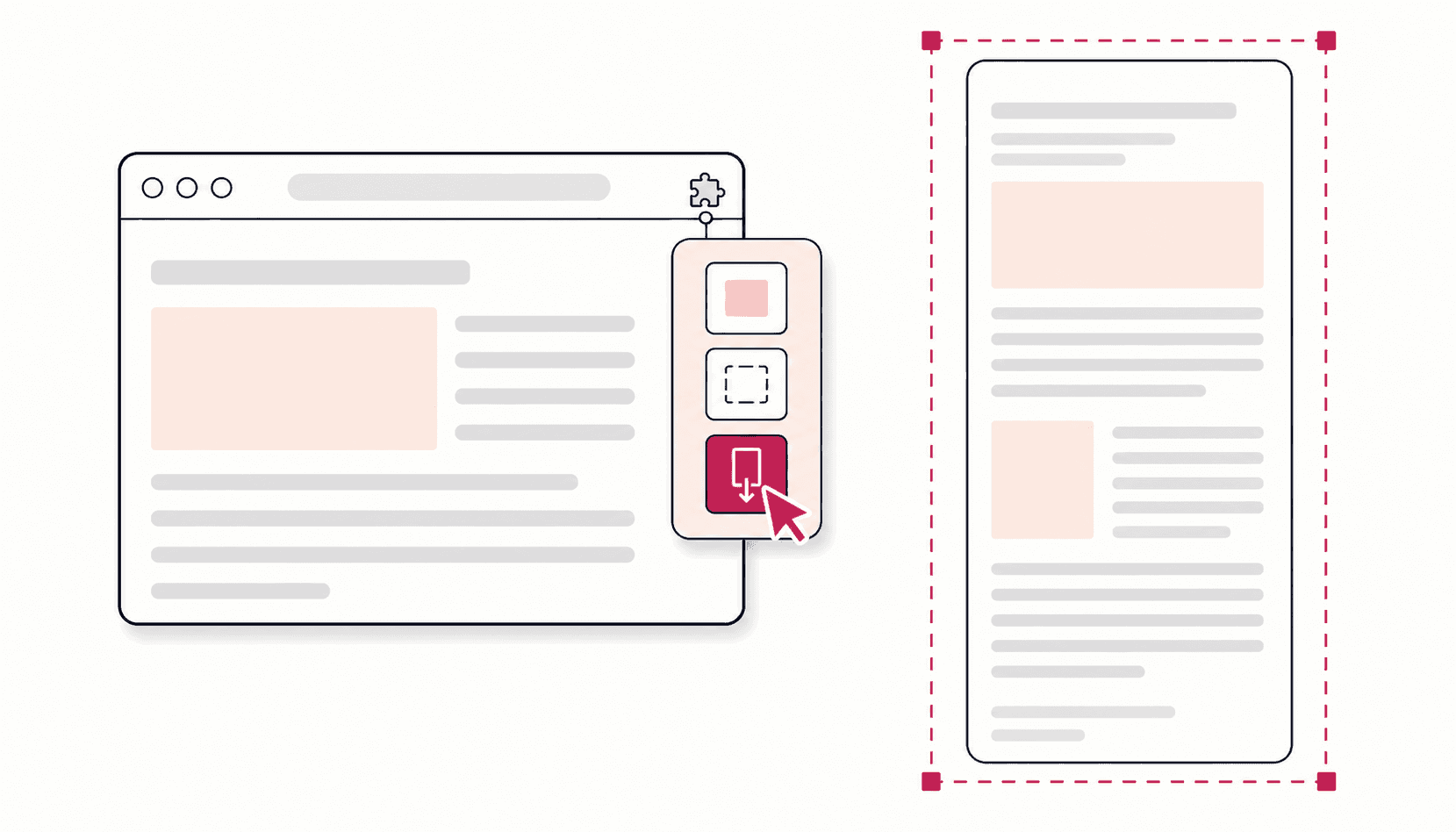
A capture extension takes the opposite approach: it scrolls the page like a person would, so lazy content and scroll animations actually load, then stitches the sections together. That brings its own problems, which I wrote about in why full page capture is harder than it looks. In Full Page Screenshot, the engine pre-scrolls up to 40 passes, shows sticky elements once, pauses videos, verifies every seam, and handles pages up to 32,700 pixels tall. You also get an editor with a blur that is baked into the export, and PNG, JPG, WebP or PDF output. It is free, needs no account, and works offline.
If you are weighing several tools, our honest comparison of screenshot extensions covers the differences.
FAQ
Why does Chrome's full size screenshot show blank images?
The page lazy-loads images as you scroll, and DevTools captures without scrolling. Scroll to the bottom and back before running Capture full size screenshot, or switch native lazy images to eager loading from the Console as shown above.
Why does Capture area screenshot do nothing?
Area capture does not work when DevTools is undocked into its own window. Dock DevTools back into the browser window and run the command again.
Can DevTools capture just one section or a scrollable panel?
Yes. Select the element in the Elements panel and run Capture node screenshot. It includes the whole element even beyond the viewport. For a panel that scrolls internally, remove its height limit in the Styles pane first, or you will only get the visible part.
Does Capture full size screenshot work in Microsoft Edge?
Yes. Edge is built on the same engine and has the same DevTools. Open the Command Menu with Ctrl+Shift+P (Cmd+Shift+P on Mac) and type "screenshot", or turn on device emulation and choose More options > Capture a full size screenshot, as Microsoft's DevTools documentation describes. The same limitations and fixes apply.
What format does the DevTools screenshot use?
Always PNG. There is no option for JPG, WebP or PDF, and no editing step, so any cropping, annotation or redaction has to happen in another tool.