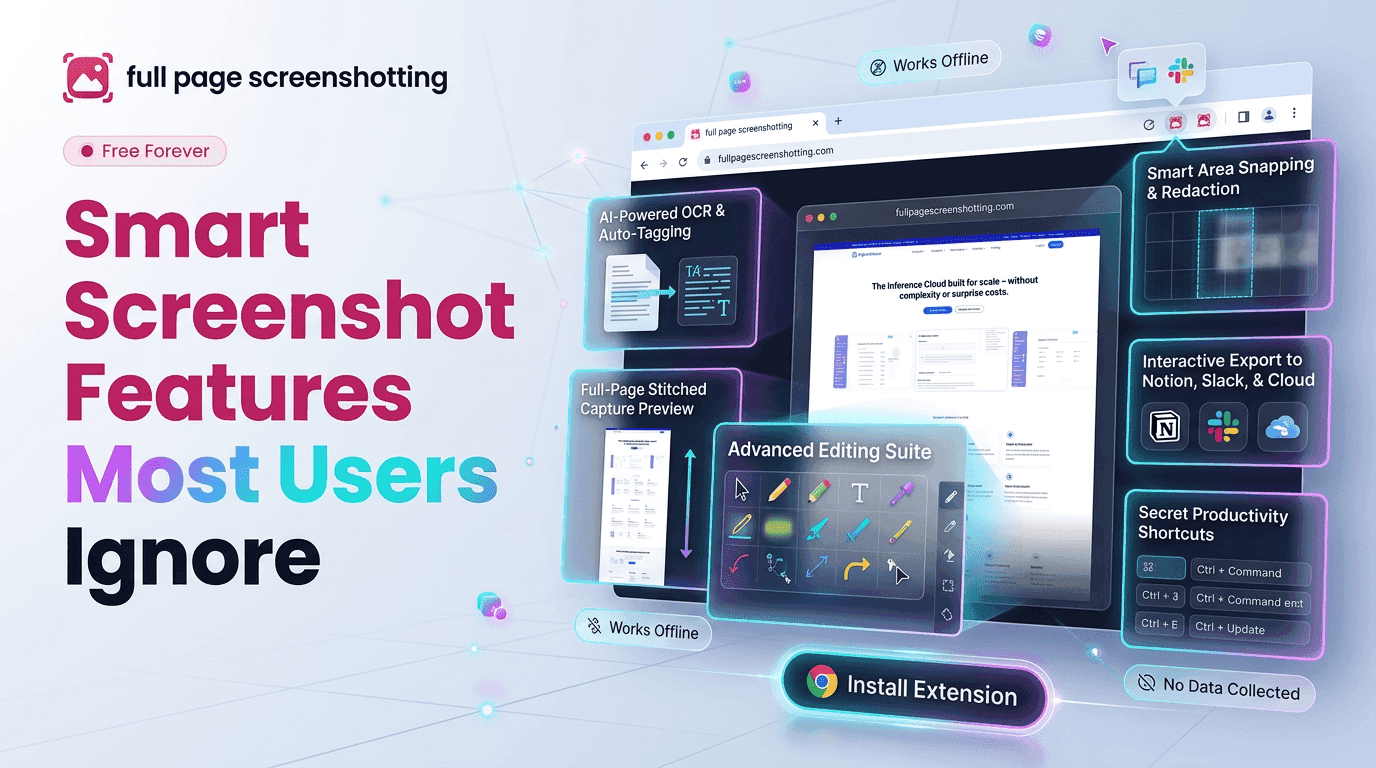
Browser screenshot extensions have become essential productivity tools for students, marketers, developers, business teams, and online researchers. Most users install a screenshot plugin chrome extension simply to capture webpage images quickly. However, many people only use the most basic screenshot functions and ignore several advanced features that can significantly improve workflow efficiency.
Modern screenshot tools now offer much more than simple screen capture. Features such as scrolling screenshots, delayed capture, annotations, keyboard shortcuts, cloud sharing, and smart export systems help users manage digital tasks faster and more effectively. Extensions like FullPageScreenshotting include advanced capabilities designed to simplify webpage documentation, communication, and online collaboration.
Why Most Users Ignore Advanced Screenshot Extension Features
Most people begin using screenshot extensions for simple tasks such as saving webpage images or capturing visible browser windows. Because these basic functions already solve immediate needs, users often never explore the additional tools available inside modern screenshot extensions.
Basic screenshot habits are one major reason advanced features remain underused. Many users continue using the same capture methods they learned years ago, even though browser screenshot technology has evolved significantly. Simple screen capture becomes a routine behavior, limiting awareness of more advanced workflow tools.
Lack of feature awareness is another major factor. Some users install screenshot extensions quickly without reviewing available settings or learning about hidden functionality. As a result, they miss tools that could improve organization, communication, and capture quality.
Hidden Features Inside Modern Screenshot Browser Tools
Modern screenshot extensions contain several powerful features that many users rarely notice or fully utilize.
Delayed Screenshot Capture
Delayed screenshot functionality allows users to capture webpages after a short timer countdown. This feature is useful when users need time to:
- Open menus
- Hover over dropdowns
- Display tooltips
- Prepare dynamic webpage sections Delayed capture helps users document webpage states that disappear quickly during normal interaction.
Auto-Scroll Functionality
Auto-scroll technology is one of the most valuable modern screenshot features. Instead of taking multiple screenshots manually, the extension automatically scrolls through the webpage while capturing every section.
This functionality is especially useful for:
- Long articles
- Landing pages
- Analytics dashboards
- Technical reports
- Educational content
Extensions like FullPageScreenshotting simplify long webpage capture using automated scrolling systems that preserve complete layouts.
Blur Sensitive Information
Many screenshot tools now include blur functionality that allows users to hide sensitive details before sharing images.
Blur tools help protect:
Email addresses Login credentials Personal information Financial details Confidential business data
This feature improves security during client communication, team collaboration, and public reporting.
Keyboard Shortcut Workflows
Keyboard shortcuts help users speed up screenshot workflows by reducing repeated mouse navigation.
Shortcuts improve efficiency during:
- Research sessions
- Website audits
- Bug reporting
- Educational note collection Fast capture commands allow users to preserve webpage information instantly without interrupting ongoing tasks.
How Annotation Features Improve Team Communication
Annotation tools have become one of the most valuable features inside modern screenshot extensions because they simplify communication across teams and projects. Instead of writing long explanations, users can visually mark webpage sections directly on screenshots.
Teams can instantly highlight webpage issues, design suggestions, or content updates without scheduling lengthy discussions. Visual communication improves efficiency because users immediately understand the highlighted problem areas.
Issue reporting workflows benefit significantly from annotated screenshots. Developers often receive bug reports containing marked webpage sections that identify:
- Broken layouts
- Missing images
- Alignment issues
- Responsive design problems
- User interface errors
This reduces troubleshooting time and improves communication accuracy between departments.
Export Functions That Improve Productivity Workflows
Export functionality plays a major role in how effectively screenshots can be organized, shared, and archived during daily workflows.
PDF exports are useful for preserving webpage reports, educational materials, and documentation in a format that is easy to share and print. Many businesses prefer PDF screenshots for:
- Client reports
- SEO audits
- Training documents
- Research archives
PNG export functionality is equally important because PNG files maintain high image quality and preserve webpage clarity. This format works well for presentations, visual reporting, and design documentation.
Browser Optimization Tricks for Faster Screenshot Capture
Browser performance directly affects screenshot quality and capture speed. Optimizing Chrome properly can help users create smoother and more reliable screenshot workflows.
Clearing browser cache regularly also helps improve screenshot accuracy. Cached webpage data can sometimes cause outdated elements or rendering inconsistencies during capture sessions. Regular cache cleanup improves browser responsiveness and webpage loading speed.
Maintaining updated Chrome versions is equally important because browser updates often improve compatibility with screenshot extensions. Updated browsers help reduce:
- Rendering issues
- Capture failures
- Extension conflicts
- Security problems
Common Problems That Cause Broken Webpage Screenshots
Although screenshot extensions are highly advanced today, certain webpage conditions can still create capture problems.
Extension conflicts inside Chrome are another frequent problem. Multiple browser extensions interacting with webpage content simultaneously can disrupt scrolling capture functionality or affect image quality.
Browser memory limitations can occasionally affect very large webpage captures as well. Closing unnecessary tabs and reducing background activity often improves long screenshot performance.
Final Thoughts
Modern screenshot plugin chrome extensions offer far more than basic webpage capture. Features such as delayed screenshots, scrolling capture, annotations, blur tools, export flexibility, and keyboard shortcuts significantly improve productivity across research, collaboration, reporting, and educational workflows.
Tools like FullPage Screenshotting help users simplify webpage documentation while improving communication and workflow organization. Advanced screenshot functionality reduces manual work, supports remote collaboration, and creates faster digital processes for businesses and individuals alike.