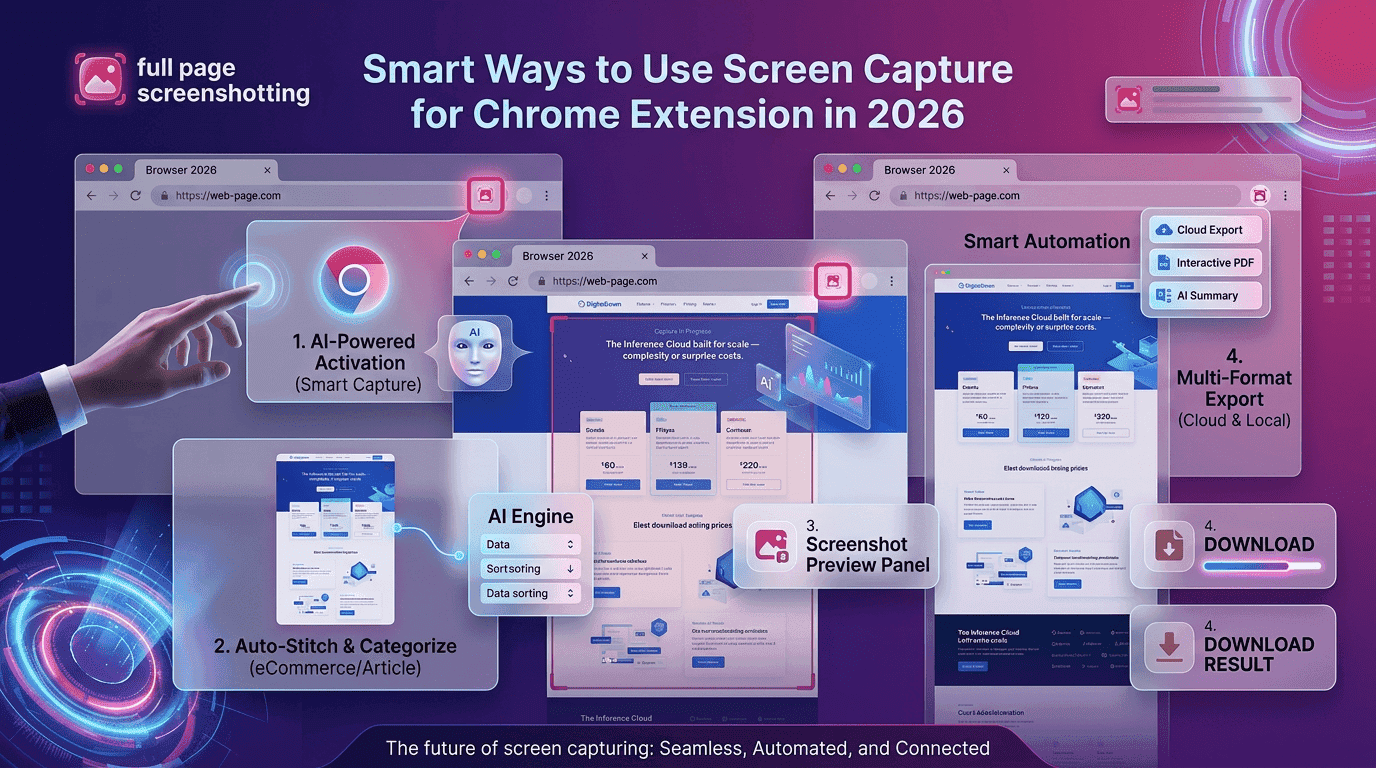
The way people work online has changed rapidly over the last few years. From remote meetings and digital collaboration to online education and website management, screenshots have become an essential part of everyday productivity. Whether someone wants to save a webpage, report a bug, archive content, or create tutorials, having a reliable screen capture for chrome extension makes the process faster and more efficient.
Traditional screenshot methods often fail when users need to capture long webpages, scrolling sections, or high-quality website visuals. This is where modern browser-based screenshot tools are becoming increasingly valuable. Extensions like FullPage Screenshotting are helping users capture full webpages instantly without installing heavy desktop software.
Today, students, marketers, developers, bloggers, designers, and businesses rely on lightweight Chrome screenshot tools to improve communication and workflow efficiency. A smart screenshot extension can simplify documentation, save time, and improve collaboration across teams.
Why Chrome Screenshot Tools Are Growing Fast
Chrome screenshot tools have seen massive growth because modern work environments depend heavily on visual communication. Instead of explaining issues through long text messages, users can instantly share screenshots to provide clarity and context.
Remote work has played a major role in increasing the demand for browser-based screenshot extensions. Teams working from different locations often need to share website previews, software bugs, UI feedback, and online reports quickly. A screenshot can communicate information much faster than written instructions.
Built-in screenshot features available on computers and browsers are useful for simple tasks, but they are often limited when users need advanced functionality. Most default screenshot tools cannot capture full webpages properly, especially pages with scrolling content. Some tools also struggle with maintaining image quality or exporting screenshots in different formats.
Browser-based productivity extensions are growing because they are lightweight, easy to install, and integrated directly into Chrome. Users do not need additional software or complex configuration. With one click, they can capture entire webpages and instantly download or share them.
Another reason these tools are becoming popular is the rise of content creation. Bloggers, SEO professionals, and digital marketers frequently use screenshots for tutorials, competitor analysis, social media posts, and website documentation.
What Is a Screen Capture for Chrome Extension
A screen capture for chrome extension is a browser tool designed to capture screenshots directly from Chrome. Unlike traditional desktop screenshot software, these extensions work inside the browser and focus mainly on webpage capturing.
Most modern screenshot extensions allow users to capture:
- Entire webpages
- Visible browser areas
- Selected sections
- Scrolling pages
- Browser tabs
These tools are lightweight because they run inside Chrome without requiring large system resources. They are faster to install and easier to use compared to traditional desktop applications.
Students often use screenshot extensions for saving online notes and educational resources. Marketers use them for competitor research and campaign reporting. Developers use screenshots for bug tracking and UI testing, while businesses rely on them for documentation and communication.
Tools like FullPage Screenshotting Chrome Extension simplify the process of capturing long webpages without losing image quality.
Core Features Users Expect in Modern Screenshot Add-ons
Modern users expect screenshot extensions to offer more than basic image capture. Productivity-focused tools now include advanced features that improve workflow efficiency.
Full Page Capture
One of the most valuable features is full page capture. This allows users to capture entire webpages from top to bottom, including sections that are not visible on the screen.
This feature is extremely useful for:
- Website documentation
- Landing page analysis
- Blog archiving
- UI reviews
- Research collection
- Visible Area Screenshot
Visible area capture focuses only on the currently displayed browser section. It is useful when users only need a specific screen section without capturing the entire page.
Selected Region Capture
This feature allows users to manually select specific areas of a webpage. It helps avoid unnecessary cropping and improves screenshot precision.
Scrolling Screenshot Support
Scrolling screenshot functionality is important for capturing lengthy content such as:
- Product pages
- Reports
- Articles
- Dashboards
- Analytics pages
Without scrolling support, users would need multiple screenshots and manual stitching.
Annotation Tools
Many modern screenshot extensions include annotation tools that allow users to:
- Highlight sections
- Add arrows
- Insert text
- Blur sensitive data
- Draw shapes
These features improve collaboration and communication.
Instant Download Options
Users prefer tools that instantly save screenshots without complex steps. Quick download functionality improves workflow speed and convenience.
PDF and PNG Export
Different export formats improve flexibility. PNG files preserve image quality, while PDF exports are ideal for sharing reports and documentation.
Cloud Sharing Support
Cloud integration allows users to share screenshots instantly through links. This feature is valuable for remote teams and collaborative projects.
How Screen Grab Chrome Plugin Improves Productivity
A screen grab chrome plugin can significantly improve daily productivity across different industries and workflows.
One major advantage is faster bug reporting. Developers and testers can instantly capture website issues and send visual references to teams. This reduces confusion and speeds up problem resolution.
Content creators also benefit from screenshot extensions because they can quickly save references, inspiration, and design examples. Social media managers frequently use screenshots for creating visual content and campaign planning.
Documentation becomes much easier with screenshot tools. Businesses often create guides, SOPs, onboarding materials, and tutorials using webpage screenshots.
Website archiving is another useful application. Marketers and SEO professionals use screenshots to track website updates, monitor competitor changes, and preserve landing page versions.
Training workflows also become more effective when screenshots are used alongside instructions. Instead of explaining every step in text, trainers can visually guide users through processes.
Best Situations to Use a Screen Grabber Chrome Extension
A screen grabber chrome extension is useful in many real-world situations where fast webpage capture is necessary.
Capturing Landing Pages
Digital marketers frequently save landing page screenshots for:
- Campaign tracking
- Competitor analysis
- Client reporting
- Design inspiration
Saving Invoices or Receipts
Users can quickly save online payment confirmations, invoices, or receipts for future reference without downloading multiple files.
Recording UI Errors
Developers and QA testers use screenshots to record website issues, broken layouts, or functionality problems.
Saving Research Material
Students and researchers often capture online articles, charts, and educational resources for offline study.
Collecting Competitor References
SEO professionals and marketers use screenshot tools to monitor competitor content strategies and website layouts.
Educational Screenshots for Notes
Teachers and students frequently use webpage screenshots to create visual study materials and presentations.
Full Page Screenshot vs Regular Screen Capture
| Feature | Full Page Capture | Regular Screenshot |
|---|---|---|
| Captures entire webpage | Yes | No |
| Scroll support | Yes | Limited |
| Best for long pages | Yes | No |
| Documentation friendly | High | Medium |
| Export quality | Better | Standard |
Full page screenshot tools are better suited for professional workflows because they capture entire webpages without requiring multiple images. Regular screenshots are useful for quick captures but often miss important content located below the visible screen area.
Features That Make a Screengrab Chrome Extension Stand Out
Not all screenshot extensions provide the same performance and reliability. Some features make certain tools more effective and user-friendly.
Fast Rendering Speed
Users prefer screenshot tools that capture webpages instantly without freezing the browser.
Low Memory Usage
Lightweight extensions reduce browser lag and improve multitasking performance.
Clean Interface
A simple and intuitive interface improves usability and reduces learning time.
No Watermark Exports
Professional users prefer screenshot tools that export clean images without branding overlays.
One-Click Capture
Quick capture functionality saves time and improves productivity.
Offline Functionality
Some extensions allow screenshots to be captured even without an active internet connection.
Cross-Device Compatibility
Compatibility across different operating systems improves flexibility for users working on multiple devices.
Common Problems Users Face While Capturing Screenshots
Even advanced screenshot tools can encounter issues if not used properly.
Broken Page Layouts
Some webpages contain animations, sticky headers, or dynamic content that can affect screenshot accuracy.
Solution:
Wait for the page to fully load before capturing.
Missing Lazy-Loaded Images
Certain websites load images only when users scroll down.
Solution:
Scroll through the page once before capturing.
Poor Image Quality
Low-resolution captures reduce readability and professionalism.
Solution:
Use high-quality export settings and maintain browser zoom at 100%.
Cropped Screenshots
Incorrect capture settings can cut off webpage sections.
Solution:
Use full page capture mode instead of visible screen capture.
Browser Lag
Too many active extensions can slow Chrome performance.
Solution:
Disable unused browser extensions regularly.
Extension Conflicts
Some Chrome extensions interfere with screenshot functionality.
Solution: Test screenshot tools in a clean browser environment when troubleshooting.
Why Businesses Prefer Screenshot Add On Chrome Tools
Businesses rely heavily on screenshot extensions because visual communication improves operational efficiency.
Teams can collaborate faster when screenshots are used during discussions and feedback sessions. Instead of writing lengthy explanations, employees can instantly highlight issues visually.
Customer support departments use screenshots to explain troubleshooting steps and resolve user problems quickly.
QA teams depend on screenshots for documenting software testing results and interface issues.Agencies and freelancers use screenshots in client reports to demonstrate progress, analytics, design updates, and SEO improvements.
Screenshot tools also help speed up content approvals. Designers and clients can review webpage visuals and provide feedback directly.
How to Choose the Right Chrome Screenshot Extension
Choosing the right screenshot extension depends on functionality, reliability, and performance.
Important Factors to Consider
- Fast capture speed
- Accurate full page rendering
- Multiple export formats
- Simple user interface
- Lightweight browser usage
- Security and privacy protection
- Positive user reviews
- Frequent extension updates
Users should also test compatibility with their workflow before selecting a tool.
Future Trends in Chrome Screenshot Technology
Screenshot technology continues evolving alongside browser productivity tools.
AI Annotations
AI-powered tools may automatically highlight important webpage elements during screenshot capture.
Smart Cropping
Future extensions may intelligently crop unnecessary sections for cleaner screenshots.
OCR Text Extraction
OCR technology can convert screenshot text into editable content.
Instant Cloud Sync
Cloud synchronization will improve accessibility across devices and teams.
Collaboration Editing
Teams may soon edit and annotate screenshots collaboratively in real time.
Browser Automation Integration
Screenshot extensions are increasingly integrating with automation workflows for testing and reporting.
Final Thoughts
Screenshot extensions have become essential productivity tools for modern internet users. Whether someone needs to capture webpages for documentation, collaboration, education, marketing, or research, browser-based screenshot tools provide a fast and convenient solution.
Compared to traditional screenshot software, Chrome extensions are lightweight, efficient, and easier to use. They help improve communication, simplify workflows, and save valuable time.
Tools like FullPage Screenshotting continue to grow in popularity because they offer reliable full page screenshot functionality without unnecessary complexity.
As online workflows continue expanding, smart screenshot extensions will remain an important part of digital productivity and visual communication.
Frequently Asked Questions
1. What is the best way to capture a full webpage in Chrome?
Using a dedicated full page screenshot extension is one of the easiest methods for capturing entire webpages without missing scrolling content. Extensions like FullPage Screenshotting simplify the process with one-click capture functionality.
2. Why do some screenshot extensions fail on long webpages?
Long webpages with dynamic content, animations, or lazy-loaded images can sometimes create screenshot issues. Waiting for the page to load completely and using reliable full page capture tools usually solves the problem.
3. Are Chrome screenshot extensions safe to use?
Most trusted Chrome screenshot extensions are safe when downloaded from the official Chrome Web Store. Users should always check extension permissions, reviews, and update history before installation.