Screenshot extensions have become essential tools for modern internet users. Students, professionals, developers, marketers, bloggers, and designers all rely on browser screenshot tools for capturing important online content quickly. As Chromebook usage continues to grow in schools and workplaces, many users search for the best screen capture chromebook extension to improve their daily productivity.
Although Chrome browsers and Chromebooks belong to the same Google ecosystem, they are not identical platforms. Chrome is a browser that works on multiple operating systems, while Chromebooks run on ChromeOS, which is designed specifically for lightweight cloud-based computing. Because of these differences, screenshot extensions may behave differently depending on the device and operating system being used.
Many users simply want a reliable extension that can capture entire webpages without requiring complicated software installations. Tools like FullPageScreenshotting are becoming popular because they provide fast full-page screenshot functionality for both Chromebook and desktop Chrome users.
Understanding the difference between Chrome screenshot tools and Chromebook-optimized extensions helps users choose the right solution based on their browsing habits, performance needs, and workflow requirements.
What is a Screen Capture Chrome Extension for Desktop Browsers
A screen capture Chrome extension is a browser tool that allows users to take screenshots directly inside Google Chrome. These extensions are commonly used on Windows, macOS, and Linux systems where users often require advanced browsing and multitasking capabilities.
Desktop Chrome screenshot extensions help users capture:
- Full webpages
- Scrolling pages
- Visible browser tabs
- Selected screen areas
- Long-form website content
These tools are widely used for:
- Website design reviews
- SEO reporting
- Blog content research
- Online tutorials
- Technical documentation
- Client presentations
Desktop browsers generally operate on more powerful hardware compared to Chromebooks. Because of this, many Chrome extensions include advanced functionality such as annotation systems, editing panels, cloud integration, and export customization.
Full-page screenshot extensions are especially useful because they automate webpage scrolling during the capture process. Without these tools, users would need to manually take multiple screenshots and combine them later, which often leads to poor alignment and incomplete captures.
Reliable tools such as FullPageScreenshotting Chrome Extension simplify this process by capturing entire webpages automatically with minimal effort.
What is a Chromebook Screen Capture Extension for ChromeOS
Chromebook screen capture extensions are designed specifically for ChromeOS environments. Chromebooks focus heavily on browser-based workflows, cloud applications, and lightweight computing. Because of this, screenshot extensions for Chromebooks must operate efficiently without slowing down the device.
Unlike desktop systems that usually have higher RAM and processing power, many Chromebooks are optimized for speed, battery life, and portability. As a result, Chromebook users typically need screenshot tools that are lightweight, fast, and simple to use.
A good Chromebook screenshot extension should support smooth webpage capture while maintaining browser responsiveness. Many users rely on these tools for
- Educational research
- Online learning
- Assignment documentation
- Website references
- Study materials
- Productivity workflows
Important Features Chromebook Users Should Look For
- Lightweight extension performance
- Fast screenshot generation
- Full-page webpage capture
- Smooth scrolling support
- Minimal memory usage
- Simple browser integration
ChromeOS users often prefer browser tools that focus on essential functionality rather than heavy editing systems. Extensions that consume excessive resources may reduce performance and negatively affect the browsing experience.
Lightweight screenshot tools help Chromebook users maintain fast workflows while still producing high-quality webpage captures.
Comparing Chrome Extensions and Chromebook Screenshot Extensions
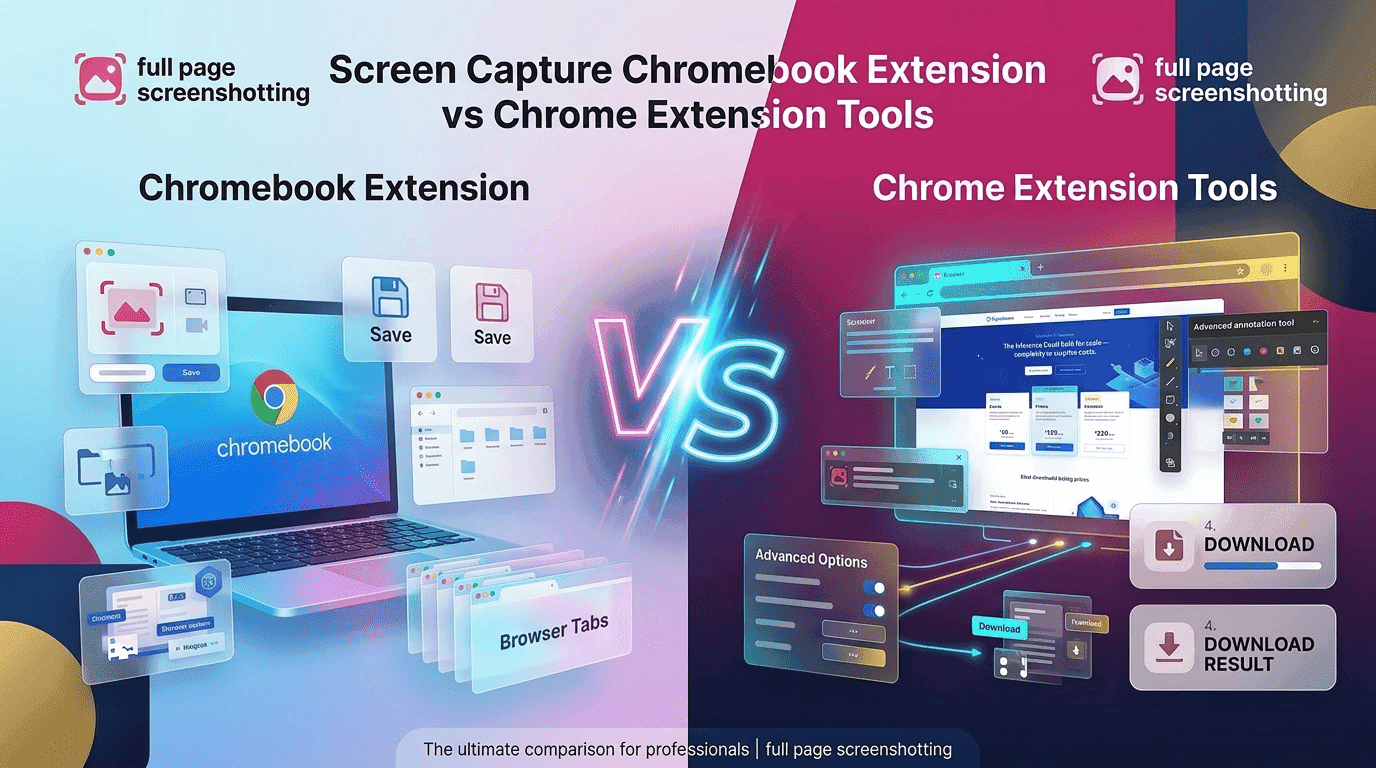
Although Chrome extensions and Chromebook screenshot tools may appear similar, they are often designed with different priorities in mind. Desktop Chrome extensions usually focus on advanced productivity workflows, while Chromebook extensions prioritize speed, simplicity, and resource efficiency.
Desktop systems provide more flexibility because they generally include:
- More RAM
- Faster processors
- Better multitasking capabilities
- Greater extension compatibility
This allows desktop screenshot tools to support:
- Built-in editors
- Advanced annotations
- PDF exporting
- Team collaboration features
- Cloud synchronization
Chromebook extensions, however, are usually designed for:
- Faster browser responsiveness
- Lightweight functionality
- Efficient battery usage
- Smooth ChromeOS compatibility
The quality of screenshot capture depends heavily on how well an extension handles webpage rendering and scrolling technology. Poor screenshot tools may create blurry images, duplicate sections, or incomplete webpage captures.
Major Differences Between Chrome and Chromebook Extensions
- Desktop Chrome supports heavier extensions and advanced workflows
- Chromebook tools prioritize lightweight browser performance
- ChromeOS extensions focus on speed and battery efficiency
- Desktop tools often include more editing features
- Chromebook screenshot tools are optimized for simpler usage
For users who mainly need fast webpage captures without advanced editing, Chromebook-focused tools are often the better choice.
Choosing the Right Screenshot Extension for Your Daily Workflow
Selecting the best screenshot extension depends on how you use your device and what type of workflow you follow every day. Students, professionals, and casual users often have different priorities when choosing browser screenshot tools.
Students usually prefer extensions that are:
- Easy to use
- Lightweight
- Fast-loading
- Reliable for online study materials
Professionals may require more advanced functionality for:
- Client reporting
- Website audits
- SEO documentation
- Design feedback
- Development workflows
Meanwhile, casual users generally want a tool that captures webpages quickly without unnecessary complexity.
Why Lightweight Screenshot Extensions Are Becoming More Popular
Modern internet users increasingly prefer lightweight browser tools because they improve productivity without slowing down devices. Heavy extensions may offer advanced functionality, but they can also consume more RAM, increase browser loading times, and reduce overall responsiveness.
Lightweight screenshot extensions provide several important advantages:
- Faster webpage capture
- Lower memory consumption
- Better browser stability
- Improved battery efficiency
- Simpler user experience
These benefits are especially important for Chromebook users, where performance optimization plays a major role in daily usability.
Tools such as FullPage Screenshotting focus on core screenshot functionality without unnecessary complexity. This helps users capture webpages quickly while maintaining smooth browser performance.For many users, simplicity and speed are more valuable than complicated editing systems they rarely use.
Final Verdict on Screen Capture Chromebook Extension Tools
Both desktop Chrome screenshot extensions and Chromebook screen capture tools offer valuable solutions for capturing online content efficiently. The best option depends on your device type, workflow requirements, and performance expectations.
Desktop Chrome users often benefit from feature-rich screenshot extensions that support editing, exporting, and advanced customization. Chromebook users usually achieve better results with lightweight tools that focus on speed, simplicity, and ChromeOS compatibility.
For users who need reliable full-page webpage capture across different environments, FullPage Screenshotting provides a practical and efficient solution. Its lightweight design, fast screenshot processing, and user-friendly interface make it suitable for students, professionals, bloggers, developers, and casual browser users alike.
Choosing the right screenshot extension ultimately comes down to finding a balance between performance, usability, and reliability. A lightweight and efficient screenshot tool can significantly improve productivity while making webpage capture faster and more convenient for everyday browsing tasks.