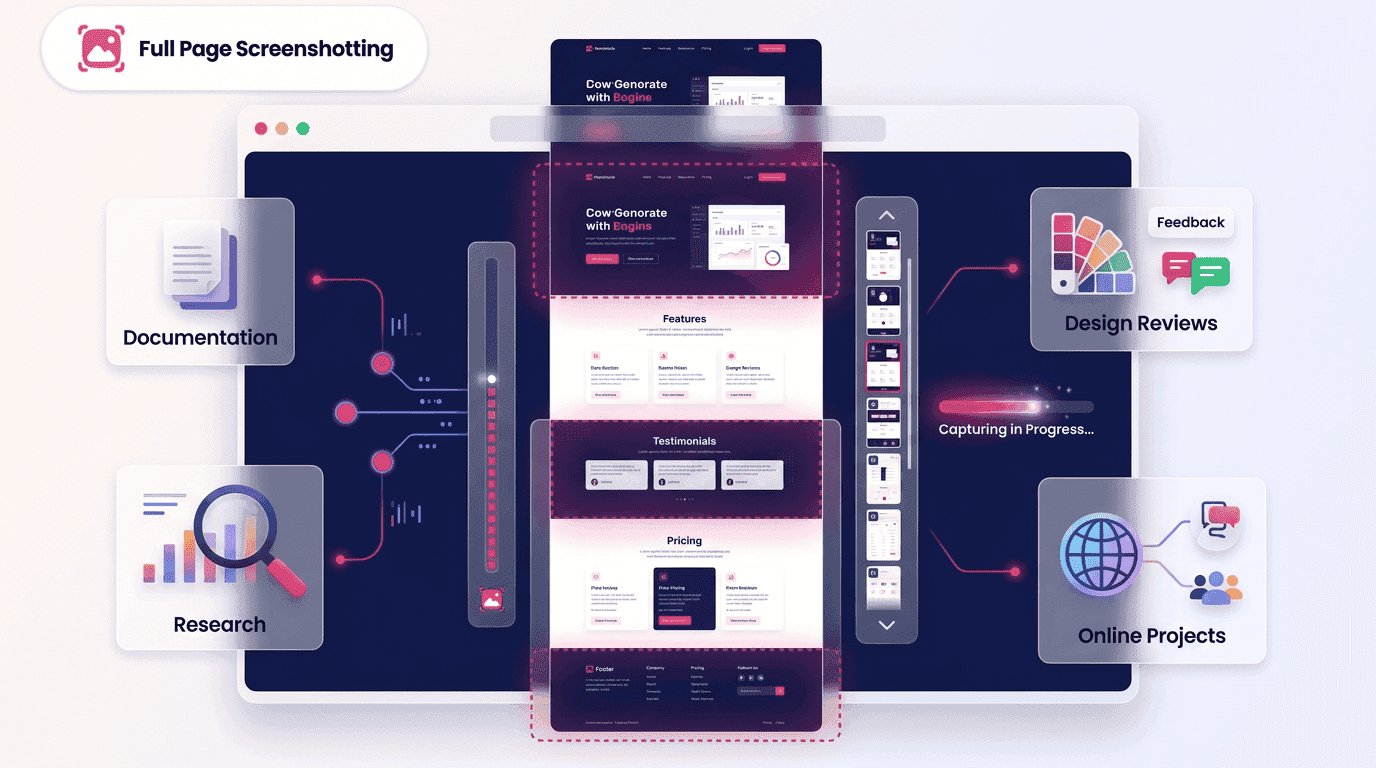
Think about the last time you visited a modern website. Chances are you scrolled through multiple sections, images, forms, testimonials, and calls to action before reaching the bottom. Today’s webpages are built for continuous exploration, yet standard screenshots freeze only what appears on screen at that moment. As a result, important context and information often get lost in the capture process.
The problem is simple: traditional screenshots often miss valuable information located below the fold. Whether you’re an SEO specialist documenting website performance, a developer troubleshooting a design issue, a business owner preparing client reports, or a researcher collecting evidence, incomplete screenshots can create confusion and leave out critical context.
This is why the ability to screen capture entire web page content has become increasingly important. Full-page screenshots provide a complete visual record of a webpage from top to bottom, preserving design elements, content structure, user experience details, and data in a single image.
At Full Page Screenshotting, we understand that professionals need accurate and efficient ways to document web content. This guide explores everything you need to know about capturing complete webpages, including methods, tools, best practices, common challenges, and real-world applications.
Why Traditional Screenshots Leave Critical Information Behind
A standard screenshot captures only the visible portion of your browser window. While this works for small tasks, it quickly becomes limiting when dealing with modern websites.
Most webpages today contain:
- Long-form content
- Product catalogs
- Blog articles
- Interactive landing pages
- Analytics dashboards
- Documentation portals
- E-commerce listings
When only the visible section is captured, important information below the fold disappears from the record.
Imagine sharing a screenshot of a website redesign with a client. The hero section may look perfect, but the conversion form, testimonials, and call-to-action located further down the page remain unseen. This incomplete view can lead to misunderstandings and unnecessary revisions.
For businesses and professionals, missing information can result in:
- Inaccurate reporting
- Lost documentation
- Incomplete audits
- Poor communication
- Reduced productivity
This is where the ability to screen capture entire web page content becomes essential.
What Happens When You Screen Capture Entire Web Pages
When you create a full-page screenshot, the capture process automatically scrolls through the webpage and stitches together every section into a single continuous image.
Instead of capturing only what is visible, the tool records:
- Header sections
- Navigation menus
- Main content
- Images and graphics
- Interactive components
- Footer information
The result is a complete visual snapshot that accurately represents the webpage as users experience it. Organizations increasingly rely on full-page captures for documentation, compliance records, design reviews, competitor analysis, and project management.
Different Methods Used to Capture Long Scrolling Pages
There are multiple approaches available depending on your needs, technical expertise, and workflow requirements.
Browser Built-In Tools
Many modern browsers now include developer-focused screenshot capabilities.
These built-in tools allow users to generate full-page captures without installing additional software.
Advantages include:
No extra installation Fast access Native browser support Accurate rendering
However, these tools may require navigating developer settings that casual users find difficult.
Screenshot Extensions
Browser extensions remain one of the most popular methods for capturing complete webpages.
Extensions typically offer:
- One-click captures
- Annotation features
- Cloud storage integration
- Quick sharing options
For users who regularly screen capture entire web page content, extensions can significantly improve efficiency.
Many professionals prefer extensions because they combine convenience with advanced functionality.
Desktop Applications
Desktop screenshot software often provides more control than browser-based tools.
Common features include:
High-resolution exports Batch processing Editing capabilities Team collaboration Workflow automation
These applications are frequently used by agencies, developers, and enterprise teams handling large volumes of screenshots.
Online Screenshot Tools
Web-based screenshot tools eliminate installation entirely.Users simply enter a URL and receive a downloadable image of the page.
Benefits include:
- Cross-platform accessibility
- Quick usage
- No downloads required
- Easy sharing
Online solutions are especially useful when occasional captures are needed without committing to dedicated software.
When Professionals Need Full Web Page Captures
The demand for complete webpage screenshots extends far beyond casual usage.Professionals across multiple industries depend on full-page captures for accuracy, transparency, and documentation.
SEO Audits
SEO specialists frequently analyze websites to identify optimization opportunities.
A complete webpage screenshot helps document:
- Metadata placement
- Heading structure
- Internal linking
- Content hierarchy
- User experience elements
Rather than collecting multiple partial screenshots, analysts can screen capture entire web page layouts and review everything within a single image.
Website Documentation
Websites constantly evolve through updates, redesigns, and content revisions.Full-page captures create historical records that help teams track changes over time.
Documentation is particularly valuable for:
- Compliance purposes
- Legal records
- Content archiving
- Project handovers
Client Reporting
Agencies often need visual evidence when presenting completed work.
A complete webpage screenshot provides a professional way to showcase:
- Design improvements
- SEO changes
- Content updates
- Performance enhancements
Clients appreciate seeing the entire page rather than disconnected screenshots.
UX Reviews
User experience teams evaluate how visitors interact with webpages.
A complete visual record allows reviewers to examine:
- Information flow
- Design consistency
- Content placement
- Conversion paths
- Accessibility considerations
The ability to screen capture entire web page content ensures every design element is visible during evaluation.
Common Problems Users Face During Full-Page Capture
Although screenshot technology has improved significantly, challenges still exist.
Lazy-Loaded Content
Many websites load images only when users scroll.If the screenshot tool captures the page before content loads, blank sections may appear.
Dynamic Elements
Pop-ups, animations, and interactive widgets can sometimes disrupt captures.Unexpected overlays may block important content.
Extremely Long Pages
Large webpages containing thousands of pixels may exceed certain software limitations.
This can result in:
- Cropped images
- Reduced quality
- Stitching errors
Responsive Design Variations
Websites often display differently across devices.Capturing desktop and mobile versions separately is sometimes necessary for complete documentation.
Login-Protected Content
Some pages require authentication.Tools may struggle to access protected sections unless users are logged in before initiating the capture.Understanding these challenges helps users choose the right solution for their specific requirements.
Best Practices for High-Quality Web Page Screenshots
A great screenshot is more than simply pressing a capture button.Following best practices ensures professional results.
Prepare the Page First Before capturing:
- Close unnecessary pop-ups
- Expand hidden content
- Complete page loading
- Remove distractions
Preparation prevents unwanted elements from appearing in the final image.
Verify Content Loading
Wait for all images, videos, and dynamic components to load completely.This step is especially important for e-commerce and media-rich websites.
Use High Resolution
High-resolution screenshots preserve clarity and improve readability.
They are particularly useful for:
- Presentations
- Reports
- Printed documentation
Review the Final Capture
Always inspect the screenshot before sharing.
Look for:
- Missing sections
- Stitching errors
- Rendering issues
- Cropped content
Organize Files Systematically
Consistent naming conventions improve long-term management.
For example:
- Website_Audit_June_2026
- Landing_Page_Version_3
- Client_Report_Final
Professionals who regularly screen capture entire web page content benefit greatly from organized file management.
Security and Privacy Considerations Before Sharing Captures
Screenshots often contain more information than users realize.Before sharing a full-page capture, review it carefully for sensitive content.
Potential risks include:
- Customer information
- Internal communications
- Account credentials
- Personal data
- Confidential business details
Organizations should establish screenshot-sharing guidelines to prevent accidental exposure.
Best practices include:
- Redacting sensitive information
- Using secure storage platforms
- Restricting access permissions
- Following compliance requirements
Security should always remain a priority when distributing visual records.
Choosing the Right Tool for Different Use Cases
Not every screenshot tool serves the same purpose.The best choice depends on your goals.
For Occasional Users
Simple browser extensions or online tools provide quick and effective solutions.
For Marketers
Marketing professionals often need annotation features and collaborative workflows. Tools that support commenting and sharing can improve productivity
For Developers
Developers benefit from solutions that capture responsive layouts and dynamic content accurately.
For SEO Professionals
SEO experts require detailed documentation capabilities and high-quality exports.The ability to screen capture entire web page content efficiently helps streamline audits and reporting.
For Agencies
Agencies often manage multiple client projects simultaneously.
They should prioritize:
- Team collaboration
- Cloud storage
- Workflow automation
- Bulk capture capabilities
At Full Page Screenshotting, users can select solutions tailored to specific professional requirements rather than relying on one-size-fits-all approaches.
Frequently Asked Questions
What is the difference between a regular screenshot and a full-page screenshot?
A regular screenshot captures only the visible screen area, while a full-page screenshot records the entire webpage from top to bottom.
Can I screen capture entire page content on any website?
Most websites support full-page captures, although dynamic content and protected pages may require additional preparation.
Is it possible to screen grab full web page content on mobile devices?
Yes. Many mobile browsers and applications now support full-page screenshot functionality.
Conclusion
The internet continues to evolve, and webpages are becoming longer, richer, and more interactive than ever before. Traditional screenshots often fail to capture the complete picture, leaving important information hidden below the fold.
Whether you’re conducting SEO audits, documenting website updates, presenting client reports, reviewing user experiences, or archiving digital content, the ability to screen capture entire web page content provides a more accurate and comprehensive solution.
By understanding available methods, following best practices, addressing common challenges, and selecting the right tools, professionals can create reliable visual records that support better communication and decision-making.
As digital workflows become increasingly data-driven, full-page screenshots are no longer just a convenience—they are a necessity. With the right approach and support from Full Page Screenshotting, you can capture every detail, preserve every insight, and ensure that nothing important remains hidden below the fold.