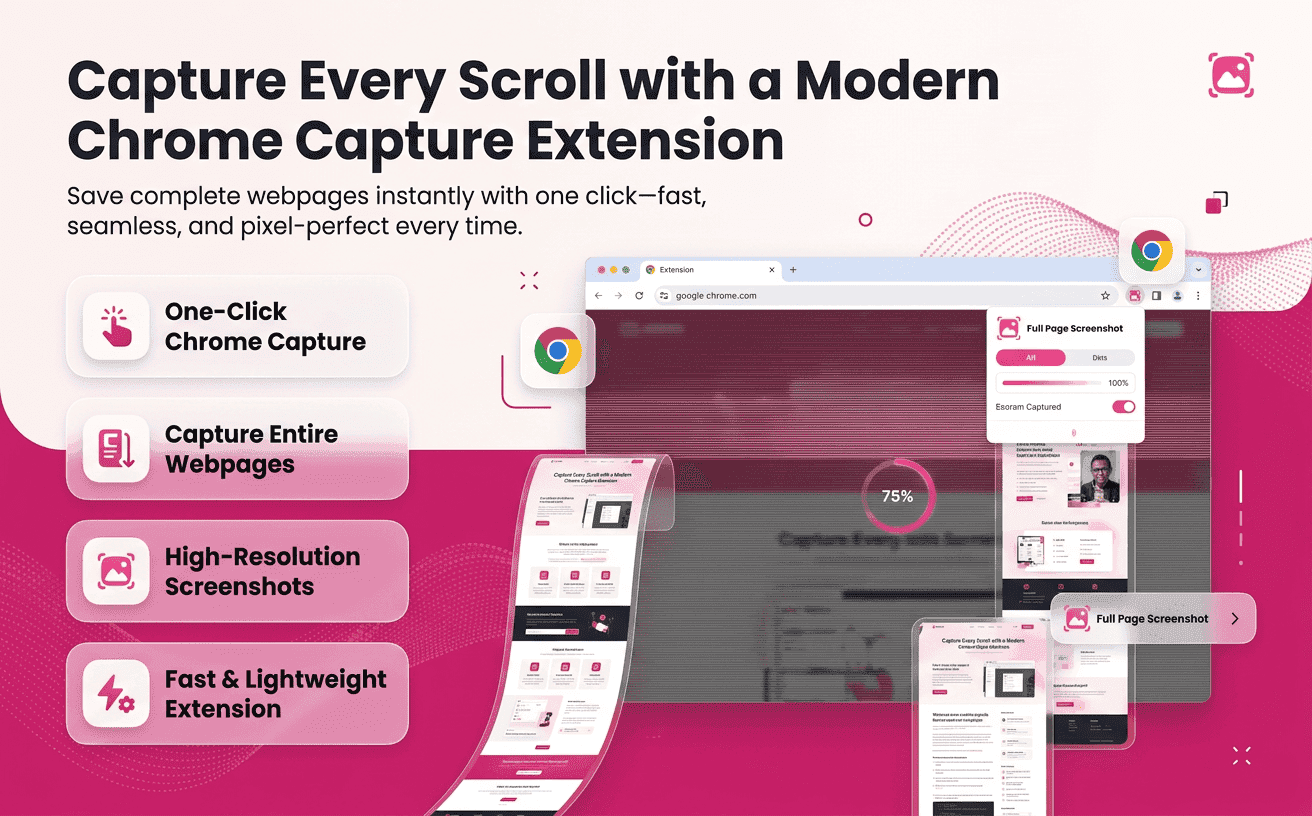
Every day, millions of people browse websites to research products, review competitors, collect inspiration, document bugs, or collaborate with teammates. Yet capturing that information is often more difficult than it should be. Traditional screenshots only capture what appears on the screen, forcing users to take multiple images and manually stitch them together. This process wastes time, increases the chance of missing important details, and creates unnecessary work.
A modern Chrome Capture Extension solves this challenge by allowing users to capture an entire webpage in a single action. Whether the page stretches for a few screens or dozens of scrolls, the extension automatically records every section while preserving the layout and quality. Instead of juggling multiple screenshots, users receive one complete image that accurately represents the webpage.
Full Page Screenshotting is designed specifically for these modern workflows. Rather than simply taking another screenshot, it creates a seamless visual record of an entire webpage, helping individuals and teams work more efficiently while maintaining accuracy.
Why Traditional Screenshots No Longer Meet Modern Needs
The internet has changed dramatically over the past decade. Most websites are no longer short pages with limited content.
Today they include:
- Long-form articles
- Interactive dashboards
- Product catalogs
- Landing pages
- Documentation portals
- Analytics reports
- Infinite-scroll content
- Portfolio websites
Capturing these pages with your operating system’s default screenshot tool often results in fragmented images.
Common problems include:
- Missing important sections
- Repeated scrolling and capturing
- Inconsistent image alignment
- Time-consuming editing
- Difficult collaboration
- Poor documentation quality
This is where a dedicated Chrome Capture Extension transforms the workflow. Instead of capturing only what is visible, it automatically scrolls through the page and combines everything into one complete screenshot.
How a Chrome Capture Extension Changes Everyday Work
Modern professionals spend a significant portion of their day inside the browser. Instead of switching between multiple applications, they research, communicate, collaborate, and document everything online.
Marketing Teams
- Marketers regularly archive landing pages before launching campaigns. They also compare design updates and document competitor websites for analysis.
- Complete webpage captures make campaign reviews much easier.
Designers
- Designers frequently collect inspiration from multiple websites.
- Instead of saving dozens of cropped images, they preserve entire webpages in their original structure.
Developers
- Bug reporting becomes far more accurate when developers can attach a complete webpage instead of several disconnected screenshots.
- Developers can highlight layout problems, responsive issues, and interface inconsistencies with greater clarity.
SEO Professionals
SEO audits often require documenting:
- Search engine results
- Website structure
- Content layouts
- Internal linking
- Technical issues
A single full-page screenshot provides a complete visual reference for future comparisons.
Content Writers
- Writers gather research from multiple sources every day.
- Instead of bookmarking dozens of pages and hoping the content remains unchanged, they can archive complete webpages for later reference.
What Makes Modern Website Capture Different
Earlier browser tools focused only on capturing the visible browser window.
Modern webpage capture technology can:
- Automatically scroll through long pages
- Preserve webpage structure
- Maintain image clarity
- Reduce manual work
- Generate professional documentation
- Simplify collaboration
- Support faster decision-making
Rather than acting as a basic screenshot utility, these extensions become part of an efficient digital workflow.
Key Features That Improve Website Documentation
When choosing a webpage capture solution, it’s important to look beyond basic screenshot functionality.
A high-quality extension should improve both speed and accuracy.
Entire Page Capture
- Instead of stopping at the visible screen, the extension records every scroll from top to bottom.
- This eliminates missing content and creates a single complete image.
High-Quality Output
- Image clarity matters when screenshots are shared with clients, developers, or stakeholders.
- Professional-quality captures preserve text readability and visual details.
Fast Performance
- Large webpages should be captured quickly without interrupting your workflow.
- Efficient processing saves valuable time during repetitive documentation tasks.
Easy Sharing
- Captured webpages become much more useful when they can be shared immediately with colleagues or clients.
- Fast sharing supports smoother collaboration.
Consistent Results
Consistency is especially important for audits, reporting, and long-term documentation. Reliable capture quality ensures every screenshot follows the same standard.
When You Need to Capture an Entire Webpage
Many browser users don’t realize how often they actually need complete webpage screenshots until they begin using them.
Some common scenarios include:
- Website redesign comparisons
- Product page documentation
- Client approval reports
- UX research
- Academic research
- Legal documentation
- Compliance records
- Content archiving
- Online training materials
- Internal knowledge bases
Instead of capturing sections individually, users create one complete visual record that is easier to review and share.
This is especially useful when using a Chrome extension screenshot entire page tool, which captures long webpages automatically without requiring manual scrolling or image stitching.
How Full-Page Capture Technology Works
Most users are familiar with taking a standard screenshot using their operating system, but few understand how a browser extension captures an entire webpage. Instead of recording only what is visible on the screen, modern capture technology intelligently scans the webpage from top to bottom, automatically scrolling through each section and combining the results into one seamless image.
With Full Page Screenshotting, users don’t need to worry about stopping midway, stitching images together, or accidentally missing important content. The extension automates the entire process while maintaining excellent visual quality.
The result is a complete webpage capture that accurately reflects what visitors see when browsing the site.
Why Complete Website Captures Improve Productivity
Time is one of the most valuable resources for any professional. Repeating the same manual task multiple times each day can quickly reduce overall productivity.
Capturing webpages manually often involves:
- Scrolling to a section
- Taking a screenshot
- Repeating the process several times
- Renaming files
- Organizing screenshots
- Combining images later
This repetitive workflow consumes valuable time that could be spent on more meaningful work.
Using a dedicated Chrome Capture Extension removes these repetitive steps. Instead of spending several minutes documenting a webpage, users can create a complete capture within seconds.
Manual Screenshots vs Modern Capture Extensions
The difference between traditional screenshots and dedicated browser extensions becomes clear when comparing everyday workflows.
| Feature | Manual Screenshots | Chrome Capture Extension |
|---|---|---|
| Captures visible screen only | ✔ | ✘ |
| Captures entire webpage | ✘ | ✔ |
| Automatic scrolling | ✘ | ✔ |
| Multiple screenshots required | ✔ | ✘ |
| Image stitching needed | ✔ | ✘ |
| Time required | High | Low |
| Documentation quality | Moderate | Excellent |
| Collaboration | Limited | Easy |
| Consistency | Varies | High |
As websites continue growing in length and complexity, complete webpage capture has become the more practical solution.
Better Collaboration Starts with Better Documentation
Many workplace misunderstandings happen because people are looking at different versions of the same webpage.
Imagine a designer asks a developer to fix a section “near the bottom.”
Everyone can:
- View the same layout
- Reference identical content
- Discuss specific sections
- Mark feedback clearly
- Reduce communication errors
For distributed teams working remotely, visual consistency saves significant time.
Tips for Capturing Better Webpage Screenshots
Even with a powerful extension, following a few best practices can improve your results.
Close Unnecessary Browser Tabs → Reducing browser load helps improve capture speed and stability.
Allow the Page to Fully Load → Wait until images, fonts, and interactive content finish loading before capturing.
Remove Temporary Pop-Ups → Cookie notices, chat widgets, and promotional banners can obstruct important content.
Verify Dynamic Sections → Interactive elements may continue loading while scrolling. A quick review before capturing helps ensure completeness.
Organize Your Captures → Using descriptive filenames and folders makes future retrieval much easier, especially during audits or research projects.
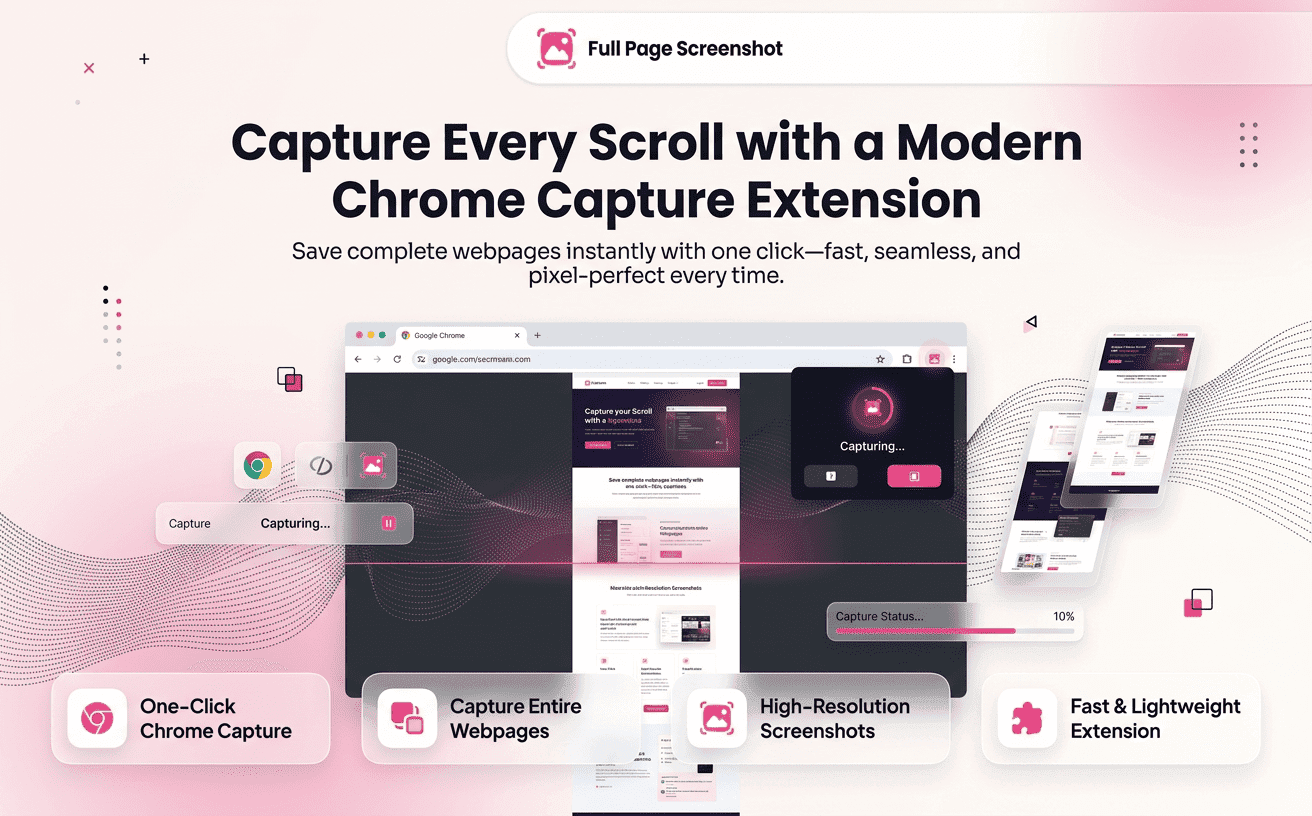
Why More Professionals Are Using a Chrome Full Screen Capture Extension
Modern work is increasingly visual. Teams rely on screenshots to communicate ideas, explain issues, document progress, and preserve important information.
A Chrome full screen capture extension provides far more than convenience; it creates a reliable way to capture complete webpages without sacrificing quality or efficiency.
Whether you’re reviewing a client website, preparing a presentation, conducting competitive research, or documenting a software release, full-page capture simplifies every step of the process.
Instead of spending valuable time managing multiple screenshots, professionals can focus on analysis, collaboration, and decision-making.
Build a Smarter Workflow with Complete Webpage Captures
Productivity isn’t just about working faster it’s about creating repeatable workflows that reduce unnecessary effort. As more work shifts to cloud-based tools and browser applications, having a reliable way to capture entire webpages becomes an essential part of everyday tasks.
Whether you’re reviewing designs, documenting software releases, or collecting online research, a complete webpage capture eliminates repetitive manual work and helps maintain organized records.
Here are a few practical workflows that become easier with Full Page Screenshotting:
Website Audit Workflow
- Open the webpage.
- Capture the entire page in one click.
- Save the image with a descriptive filename.
- Add notes or annotations if needed.
- Share the file with your team or client.
Instead of piecing together several screenshots, you create one accurate visual reference that everyone can understand.
Competitor Research Workflow
Marketing and SEO teams often review competing websites to identify content strategies, design trends, and user experience improvements.
A full-page capture allows you to:
Archive competitor landing pages Compare updates over time Track seasonal campaigns Document pricing changes Review content layouts
Maintaining a visual history helps teams make informed decisions backed by real examples rather than memory.
Design Review Workflow
Design teams can capture complete webpages during every project milestone.
Benefits include:
- Comparing design iterations
- Reviewing responsive layouts
- Recording client approvals
- Tracking visual improvements
- Building design portfolios
With complete webpage captures, every stage of the project is documented clearly.
Common Mistakes to Avoid When Capturing Webpages
Even with advanced tools, a few simple mistakes can affect the quality of your captures.
Capturing Before the Page Loads → Images, fonts, and interactive components may still be loading. Waiting a few extra seconds ensures the final screenshot is complete and accurate.
Ignoring Sticky Headers → Sticky navigation bars can cover important sections while scrolling. Always review the final capture to ensure no content is hidden.
Leaving Pop-Ups Open → Cookie banners, chat widgets, newsletter forms, and promotional pop-ups can block webpage content. Close them before capturing for a clean screenshot.
Saving Generic File Names → Avoid names like Screenshot1 or Image23. Instead, use descriptive filenames such as:
Homepage Audit – July 2026
Product Landing Page – Version 2
Competitor Pricing Page
Blog Layout Review
Clear filenames make screenshots easier to organize and retrieve later.
Skipping Regular Documentation → Don't wait until issues appear. Regular webpage captures create a visual history that helps track updates, compare changes, and simplify audits over time.
Best Practices for Long-Term Documentation
Organizations that consistently document webpages build valuable visual archives.
To keep your records organized:
- Create folders by project or client.
- Use consistent naming conventions.
- Store captures in cloud-based folders for team access.
- Record the capture date.
- Archive important milestones before major website updates.
These small habits make it easier to retrieve information months or even years later.
The Future of Website Capture
Websites continue to evolve with dynamic content, interactive components, AI-powered interfaces, and increasingly personalized user experiences.
As these changes become more common, the need for accurate webpage documentation will only grow.
Modern browser extensions are no longer simple screenshot tools; they have become productivity solutions that support research, collaboration, reporting, and digital record-keeping.
Choosing the right extension today helps prepare individuals and businesses for tomorrow’s increasingly visual workflows.
A dependable Chrome Capture Extension is no longer a convenience; it’s an essential part of efficient online work.
Frequently Asked Questions
What is a Chrome Capture Extension?
A Chrome Capture Extension is a browser tool that captures an entire webpage instead of only the visible screen. It automatically scrolls through the page and creates one complete image.
Can I capture very long webpages?
Yes. Modern capture technology is designed to handle long-scrolling webpages while preserving layout and image quality.
Is a full-page capture better than taking multiple screenshots?
In most situations, yes. A complete capture reduces manual effort, eliminates image stitching, maintains context, and produces more professional documentation.
Final Thoughts
The way we work online has changed dramatically. Websites have become more dynamic, projects involve larger teams, and digital documentation is more important than ever before.
Full Page Screenshotting brings these capabilities together in a simple, reliable solution designed for modern browser users. With accurate captures, streamlined workflows, and effortless sharing, it helps transform everyday website documentation into a faster and more productive experience.