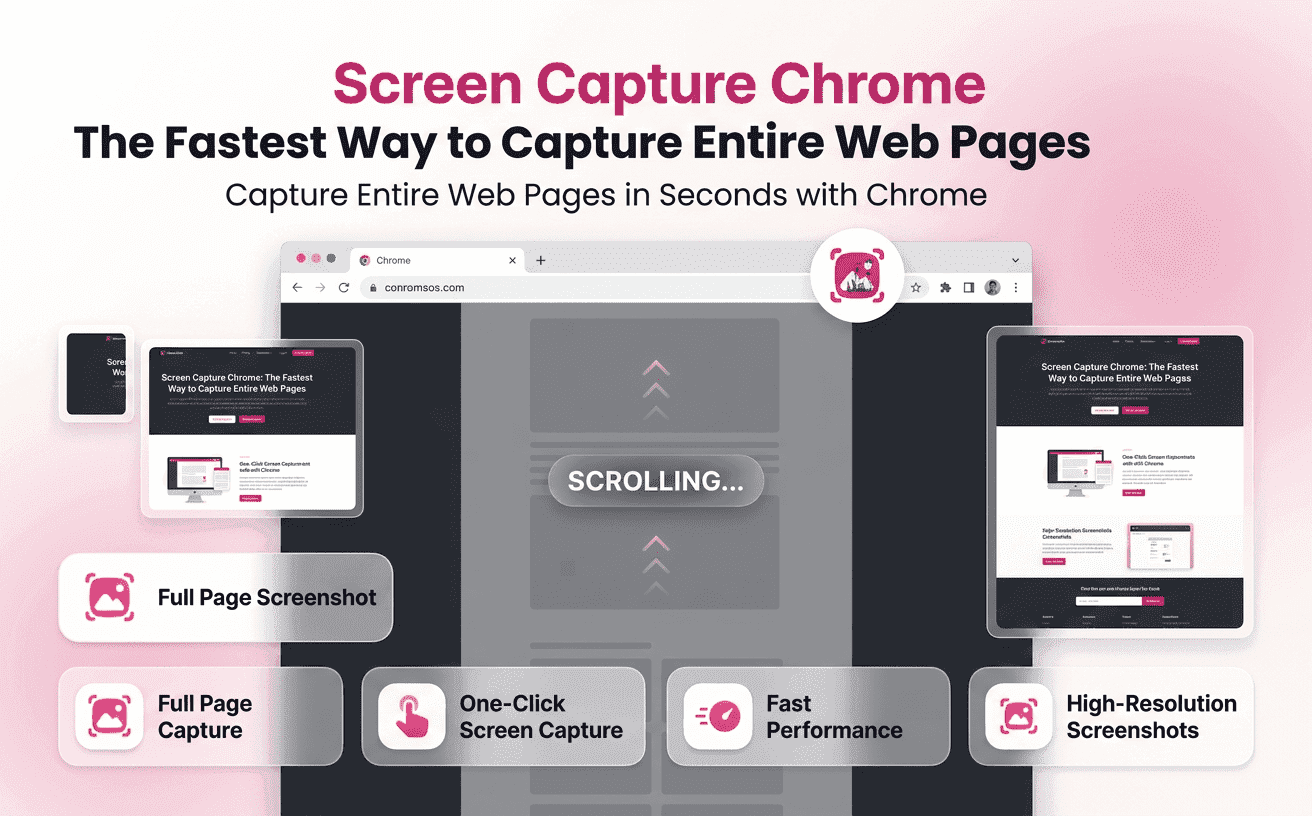
The way people use websites has changed significantly. Modern webpages are no longer limited to simple screens with short content. Today, websites contain detailed product pages, long-form articles, interactive dashboards, online documentation, and complex layouts that extend far beyond the visible browser window.
Because of this change, taking screenshots has become an important part of daily digital work. Designers save website inspiration, developers document technical issues, marketers analyze campaigns, and businesses create visual records of important webpages.
This is where screen capture chrome solutions make a difference. Instead of limiting users to the visible area, modern Chrome tools allow them to capture complete webpages quickly and accurately.
Full Page Screenshotting helps simplify this process by providing an efficient way to save entire webpages without repeated scrolling, manual editing, or complicated workflows.
What Is Screen Capture in Chrome and How Does It Work?
A screen capture chrome solution allows users to save visual information displayed inside their Chrome browser. While basic screenshots capture only what appears on the screen, advanced capture tools can record complete webpage layouts from the top section to the bottom.
This technology is especially useful for webpages that contain more content than can fit within a single browser window.
For example, imagine opening a detailed product page with:
- Product descriptions
- Customer reviews
- Pricing information
- Images
- FAQs
- Technical specifications
A normal screenshot would only capture one small section. A complete webpage records everything together as one organized image.
Modern screenshot extensions simplify this process by automatically handling scrolling, capturing each section, and combining the results into a single image.
This makes screen capture chrome more efficient for professionals who need accurate webpage documentation.
Different Types of Chrome Screen Captures for Various Needs
Not every screenshot serves the same purpose. Different situations require different capture methods.
Visible Screen Capture
This is the most basic type of screenshot. It captures only the content currently visible inside the browser window.
It works well for:
- Quick references
- Error messages
- Short conversations
- Small webpage sections
However, it becomes ineffective when dealing with longer webpages.
Selected Area Capture
Some tools allow users to select a specific portion of the screen. This is useful when only one section of a webpage needs to be shared.
For example, a designer may capture only a navigation menu or a specific design element.
Full Webpage Capture
This is the most advanced option for users working with long webpages.
A full screenshot chrome extension automatically captures the complete page by scrolling through the content and combining every section into one seamless screenshot.
This method is ideal for:
- Website audits
- Content research
- Design reviews
- Documentation
- Client presentations
Choosing the correct capture method depends on the type of information you need to preserve.
Why Capturing Full Webpages Matters for Modern Workflows
A webpage is rarely just one screen anymore.
Important information is often distributed throughout the entire page, including sections below the initial view.
Missing these sections can create problems.
For example, an SEO specialist reviewing a competitor website may need to analyze:
- Page structure
- Content sections
- Internal links
- Calls-to-action
- Footer information
Capturing only the top portion provides incomplete data.
A complete screen capture chrome workflow ensures every important element is preserved in one visual record.
This improves accuracy while making information easier to review and share.
For businesses, full-page screenshots also create valuable documentation. Teams can compare website changes, maintain project records, and communicate ideas more effectively.
How Chrome Extensions Improve Screenshot Productivity
Browser extensions have changed the way users capture and manage webpage information.
Unlike basic screenshot tools, dedicated extensions are designed specifically for browser-based workflows.
With Full Page Screenshotting, users can simplify their capture process through features such as:
- Automatic webpage scrolling
- Complete page screenshots
- High-quality image output
- Faster capture process
- Easy sharing options
These features reduce the time spent on repetitive tasks.
Consider a web development team reviewing a new website design. Instead of collecting multiple screenshots from different sections, the team can share one complete webpage image that provides full context.
This improves communication and reduces unnecessary back-and-forth discussions.
A reliable page screenshot chrome extension gives professionals a practical way to capture, review, and organize website information.
Productivity Tips for Better Chrome Screenshot Results
Using the right extension is important, but following good capture practices can improve results even further.
Prepare the Webpage Before Capturing
Make sure the page has fully loaded before taking a screenshot. Images, animations, and interactive elements should appear correctly to avoid incomplete captures.
Remove Visual Distractions
Pop-ups, cookie messages, and floating banners can hide important information. Closing unnecessary overlays creates cleaner screenshots.
Keep Browser Performance Stable
Too many open tabs can affect Chrome performance. Closing unused tabs helps the capture process run smoothly.
Review Dynamic Content
Some websites load additional information while scrolling. Check that all sections are visible before completing the capture.
Organize Screenshots Properly
Use clear file names based on the project, website, or purpose. This makes future access easier.
These simple habits help users create professional-quality captures while maintaining an organized workflow.
Choosing the Right Extension for Professional Screen Capture
With many screenshot tools available, choosing the right option requires more than looking at basic features.
A good Chrome screenshot extension should provide:
- Accurate full-page capture
- Simple user experience
- Fast processing
- Clear image quality
- Reliable performance
- Easy file management
The right tool should save time rather than create additional steps.
Full Page Screenshotting focuses on providing a smooth experience for users who need consistent webpage captures for professional and personal projects.
Whether you are a designer collecting inspiration, a developer documenting issues, or a marketer analyzing online campaigns, having a dependable capture solution makes everyday tasks easier.
A powerful screen capture chrome tool should work naturally with your workflow and help you focus on the information that matters.
Real-World Examples Where Chrome Capture Helps
Screenshot tools are useful across many industries.
Digital Marketing
Marketing teams capture landing pages, advertisements, and campaign materials for analysis.
Web Development
Developers document website changes, report bugs, and compare different versions.
Design Projects
Designers collect references and review layouts during creative processes.
Education
Teachers and students save online resources for presentations and learning materials.
Business Documentation
Companies maintain records of important webpages, announcements, and online information.
In each case, complete webpage capture provides more context than traditional screenshots.
Final Thoughts on Faster Webpage Capture
As websites continue becoming longer and more complex, traditional screenshot methods are no longer enough. Capturing separate sections manually takes time and often creates incomplete results.
A modern screen capture chrome solution provides a smarter way to preserve entire webpages quickly and accurately.
With features designed for speed, convenience, and professional workflows, Chrome screenshot extensions help users save valuable time while improving documentation quality.
Full Page Screenshotting makes webpage capture simple by allowing users to capture complete pages without complicated steps. From research and design to development and marketing, the ability to save full webpages in one image creates a faster and more organized digital workflow.