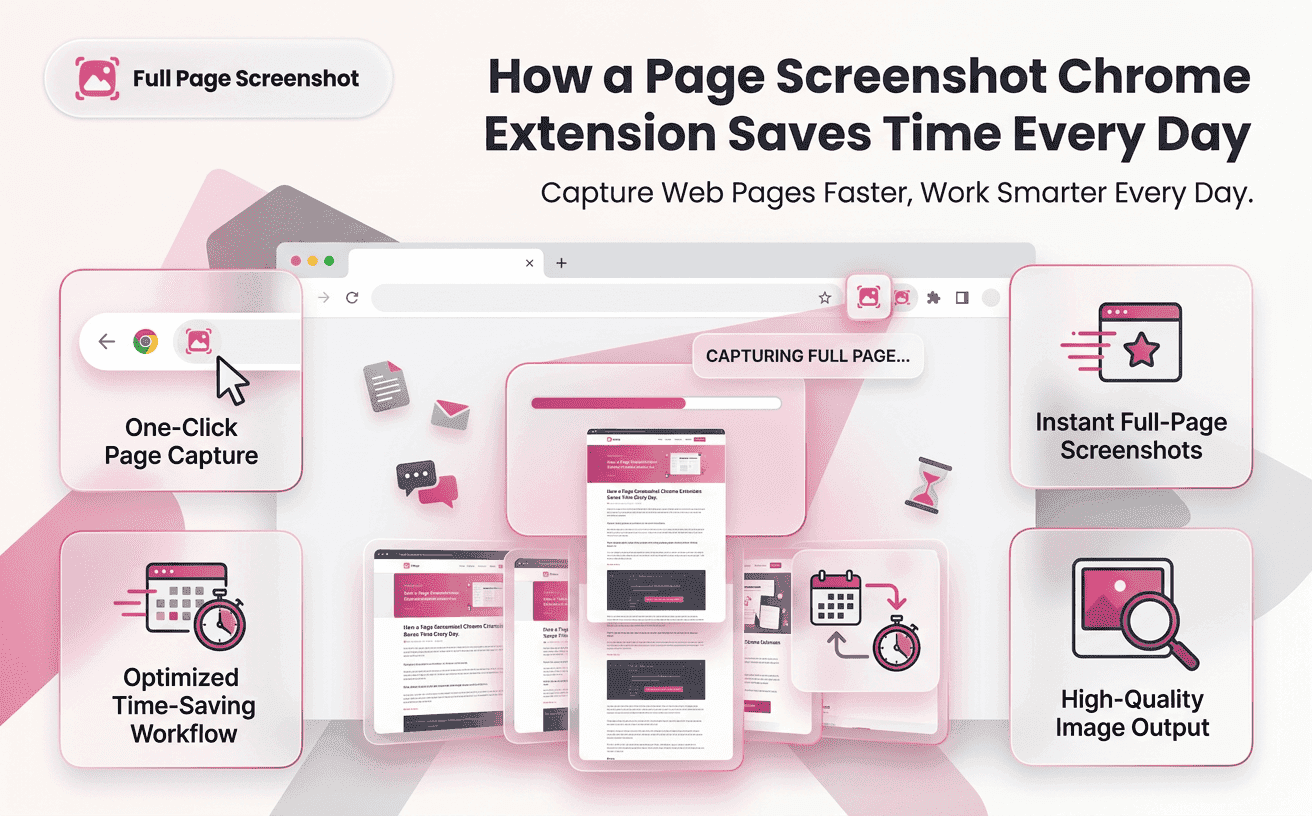
Every day, professionals spend hours working inside their web browsers. Designers review layouts, marketers analyze landing pages, developers test websites, SEO specialists audit competitors, and students save online resources for future reference. One task they all have in common is taking screenshots.
This is where a page screenshot chrome extension becomes invaluable. Instead of capturing one screen at a time, it automatically captures the entire webpage in a single image. Whether you’re documenting research, reporting bugs, or creating presentations, this simple tool can dramatically improve your daily workflow.
Full Page Screenshotting is designed to make webpage capture effortless. With a single click, users can create accurate, high-quality screenshots without manually scrolling or stitching images together, helping them work faster while maintaining professional results.
Why Traditional Browser Screenshots Slow Down Your Workflow
Most browsers provide basic screenshot options, but they are designed primarily for visible content rather than complete webpages.
When you’re working with long pages, built-in tools create several common challenges:
- Multiple screenshots are required.
- Important sections may be missed.
- Images become difficult to organize.
- Extra editing is needed to combine screenshots.
- Sharing complete webpages becomes inconvenient.
Imagine reviewing a competitor’s landing page for SEO research. Instead of receiving one complete visual reference, you end up with six or seven separate screenshots that must be viewed individually.
A page screenshot chrome extension removes these unnecessary steps by capturing the webpage from top to bottom automatically.
Capture Complete Webpages with Just One Click
One of the biggest advantages of modern screenshot extensions is simplicity.
Instead of scrolling manually through a webpage, Full Page Screenshotting automates the entire process.
Here’s what happens:
- The extension scans the webpage.
- It determines the page length.
- It scrolls automatically.
- Every visible section is captured.
- All sections are stitched together into one seamless image.
The result is a complete webpage screenshot without any manual effort.
This workflow is especially valuable for users who capture webpages every day. A page screenshot chrome extension eliminates repetitive tasks, allowing you to focus on your actual work rather than spending time creating screenshots.
Save, Share, and Organize Screenshots More Efficiently
Capturing a webpage is only the first step. The real value comes from how easily screenshots can be shared and managed afterward.
Professionals often collaborate with remote teams, clients, or stakeholders who need a visual reference rather than a written explanation.
Instead of saying:
“Scroll halfway down the page and look beneath the pricing section.”
You can simply share one complete screenshot.
This improves communication while reducing confusion.
With Full Page Screenshotting, screenshots can be stored as high-quality image files that are easy to organize, archive, and retrieve whenever needed.
Common uses include:
- Website documentation
- Client presentations
- Design approvals
- Marketing reports
- SEO audits
- Competitor analysis
- Product documentation
Having everything contained in a single image keeps projects more organized and professional.
Best Practices for Capturing Better Webpage Screenshots
Before capturing a webpage, make sure you:
✓ Wait until the webpage has completely loaded. ✓ Close cookie banners and promotional pop-ups. ✓ Keep Chrome at its default zoom level. ✓ Verify that dynamic content has fully loaded. ✓ Save screenshots using descriptive filenames. ✓ Capture important webpages before they’re updated.
These simple checks help you produce cleaner screenshots while making them easier to organize and share.
Common Mistakes That Reduce Screenshot Quality
Before capturing a webpage, avoid these common mistakes:
- Don’t capture pages before they’re fully loaded. Missing images and incomplete sections can reduce screenshot quality.
- Don’t overload Chrome with too many open tabs. This may slow down the browser and affect capture performance.
- Don’t rely on multiple manual screenshots. They often lead to inconsistent alignment and extra editing work.
- Don’t leave cookie banners or chat widgets on the page. These overlays can hide important information.
- Don’t save files with names like “Screenshot1.” Use descriptive filenames to keep your screenshots organized.
By avoiding these issues, you’ll create more accurate screenshots and maintain a smoother workflow.
How Different Professionals Benefit from Better Screenshot Tools
A webpage capture extension isn’t limited to one profession.
Different industries rely on complete webpage screenshots every day.
Designers
Designers capture creative inspiration, compare interfaces, and document layouts before revisions.
Developers
Developers use webpage screenshots to report frontend issues, verify fixes, and compare design implementations.
SEO Professionals
SEO specialists archive competitor pages, monitor content updates, and record search optimization changes over time.
Digital Marketers
Marketing teams document campaign landing pages, advertisements, and promotional content for future analysis.
Content Creators
Writers and editors preserve online references and examples before websites update or remove content.
Educators
Teachers save tutorials, online learning resources, and educational materials for presentations and classroom discussions.
Because every profession depends on visual documentation, having a dependable screenshot solution improves daily productivity.
A full screenshot chrome extension becomes especially valuable when working with long webpages that cannot be captured manually in one image.
Why Automation Makes Everyday Work More Productive
Time is one of the most valuable resources in any business.
Saving just a few minutes on repetitive tasks can create significant productivity gains over weeks and months.
Automated webpage capture removes several unnecessary activities, including:
- Repeated scrolling
- Multiple screenshot creation
- Manual image stitching
- Editing screenshots together
- Searching for missing sections
Instead of focusing on capturing webpages, professionals can focus on design, development, research, reporting, or decision-making.
Modern automation isn’t about replacing work, it's about removing repetitive steps that don’t create value.
This is why more professionals now rely on a screen capture chrome solution as part of their daily browser toolkit.
Why Full Page Screenshotting Is the Better Choice
Choosing a screenshot extension isn’t simply about finding one that works.
It’s about selecting one that consistently produces accurate, high-quality results while remaining easy to use.
Full Page Screenshotting is designed for users who need reliable webpage captures without unnecessary complexity.
Some advantages include:
- One-click webpage capture
- Automatic scrolling technology
- Accurate page stitching
- High-resolution screenshots
- Lightweight Chrome performance
- Fast processing
- Easy image downloads
- Beginner-friendly interface
Whether you’re capturing one webpage each week or dozens every day, the extension delivers a smooth and dependable experience.
A reliable page screenshot chrome extension should simplify your workflow rather than adding more steps, and that’s exactly what Full Page Screenshotting is built to do.
Conclusion
As websites become longer and more interactive, traditional screenshot methods are no longer enough. Capturing multiple images, stitching them together, and organizing separate files wastes valuable time and often leads to inconsistent results.
A page screenshot chrome extension provides a faster, smarter, and more professional solution by capturing complete webpages in a single click. From designers and developers to marketers, SEO professionals, educators, and business teams, everyone benefits from clearer visual documentation and more efficient collaboration.
With Full Page Screenshotting, you can save complete webpages accurately, share them effortlessly, and streamline your daily workflow without the frustration of manual screenshots. If you’re looking for a dependable way to capture full webpages while improving productivity, it’s a practical tool that delivers consistent results every time.