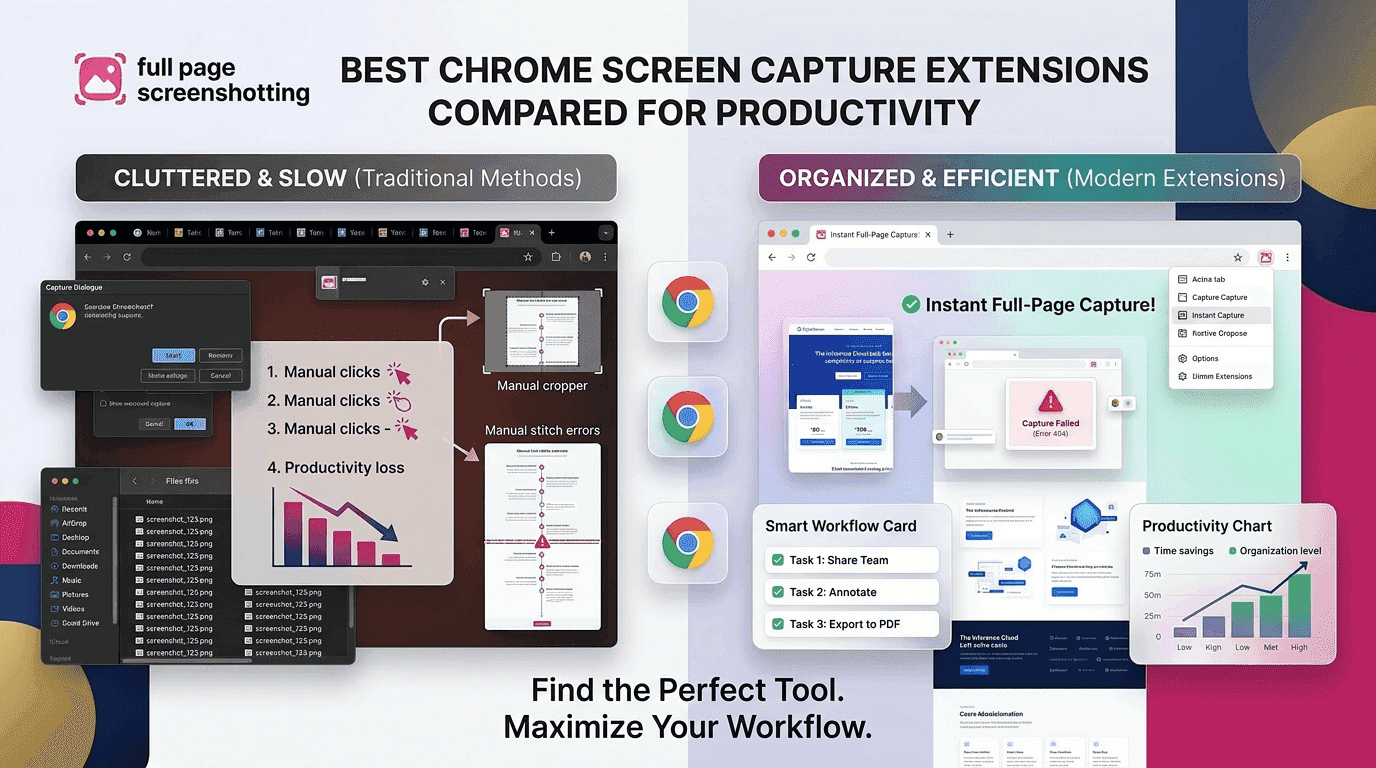
In today’s digital workflow, screenshots are no longer just casual images; they are essential tools for communication, documentation, design analysis, and technical reporting. From developers reporting bugs to marketers preparing presentations, Chrome screen capture extensions have become a daily necessity.
However, the Chrome Web Store is filled with dozens of screen capture extensions, each claiming to be the best. Some focus on speed, others on editing features, while a few emphasize full-page capture accuracy. Without proper comparison, users often end up installing tools that are either too slow, too limited, or too complex for their needs.
This is where a structured chrome screen capture extension comparison becomes important. By evaluating tools based on speed, quality, usability, and features, users can choose the right extension that truly improves productivity instead of slowing it down.
One of the most notable tools in this space is FullPageScreenshotting, which focuses on delivering fast, accurate, and high-quality full-page screenshots directly within the browser.
Top Chrome Screen Capture Extensions Feature Breakdown
Chrome screen capture extensions vary significantly in their capabilities. Some are designed for basic screenshots, while others offer advanced workflows including annotation, cloud storage, and full-page capture.
Basic extensions usually allow only visible screen capture, which limits their usefulness for documentation or detailed analysis. Advanced tools, however, enable users to capture entire scrolling pages, making them far more effective for professional use.
FullPageScreenshotting stands out in this category due to its simplicity and performance balance. It does not overwhelm users with unnecessary complexity but still provides essential features required for productivity workflows.
Common feature differences include:
- Full-page scrolling capture for complete webpage saving
- Visible area capture for quick screenshots
- Annotation tools such as text, arrows, and highlights
- Export formats including PNG, JPG, and PDF
- Lightweight design for faster browser performance
These features help users avoid switching between multiple tools, making the workflow smoother and more efficient.
Speed & Performance Comparison: Lightweight vs Heavy Tools
Speed is one of the most critical factors in any chrome screen capture extension comparison. A tool that takes too long to process screenshots can interrupt workflow and reduce productivity.
Lightweight extensions are designed to execute quickly without consuming much system memory. These tools load instantly, capture screenshots in seconds, and do not affect browser performance. FullPageScreenshotting falls into this category, offering fast execution even when capturing long webpages.
On the other hand, heavy extensions often come with additional features like advanced editing suites, cloud integrations, or built-in file managers. While these features may be useful, they often increase loading time and slow down the capture process.
Speed comparison insights:
- Lightweight tools → fast capture, smooth browsing experience
- Heavy tools → feature-rich but slower performance
- Balanced tools → ideal for daily productivity use
For users who prioritize efficiency and quick results, lightweight tools like FullPageScreenshotting offer a better overall experience.
Image Quality Comparison: Resolution and Clarity Differences
Image quality is another major factor when comparing Chrome screen capture extensions. A screenshot is only useful if it clearly represents the original webpage content.
Some extensions compress images heavily, resulting in blurry text and reduced clarity. This becomes a major issue when screenshots are used for presentations, documentation, or client communication.
High-quality tools ensure that every element of the webpage is captured accurately without distortion. FullPageScreenshotting maintains sharp resolution even when capturing long or complex pages, making it suitable for professional use cases.
Key differences in image quality include:
- High-resolution output preserves text clarity and layout accuracy
- Poor compression leads to pixelated or blurry screenshots
- Proper full-page stitching ensures no missing content
- Color accuracy is maintained for design-related tasks
For professionals such as designers, developers, and marketers, high-quality screenshots are essential for effective communication and visual documentation.
Best Chrome Screen Capture Tool for Different Users
Different users have different expectations from a screen capture tool, which makes comparison even more important. A developer’s needs are very different from a student’s or a marketer’s.
Developers typically require tools that support full-page capture, annotation, and quick sharing for bug reporting. Marketers focus more on visual quality, presentation readiness, and export flexibility. Students and general users prefer simple tools that are easy to use without learning complex features.
In this category, FullPageScreenshotting performs well because it offers a balanced feature set that suits multiple user types without unnecessary complexity.
User-based breakdown:
Developers → need accuracy, annotations, and full-page capture Marketers → prioritize visuals, export options, and presentation quality Students → prefer simple interface and fast screenshot generation
By offering a clean interface and fast processing, FullPageScreenshotting becomes a practical choice for a wide range of users.
Final Recommendation: Best Overall Chrome Screen Capture Tool
After analyzing speed, features, image quality, and usability, it becomes clear that not all Chrome screen capture extensions are created equal. Some tools are powerful but too complex, while others are simple but lack essential features.
The best tool is one that balances all these aspects effectively. FullPageScreenshotting achieves this balance by offering fast performance, high-quality output, and an intuitive interface that works for both beginners and professionals.
It eliminates unnecessary complexity while still providing essential features like full-page capture, annotation, and multiple export formats. This makes it one of the most reliable options in any chrome screen capture extension comparison.
In conclusion, choosing the right extension depends on your workflow, but tools like FullPageScreenshotting provide the most consistent and productivity-friendly experience overall.