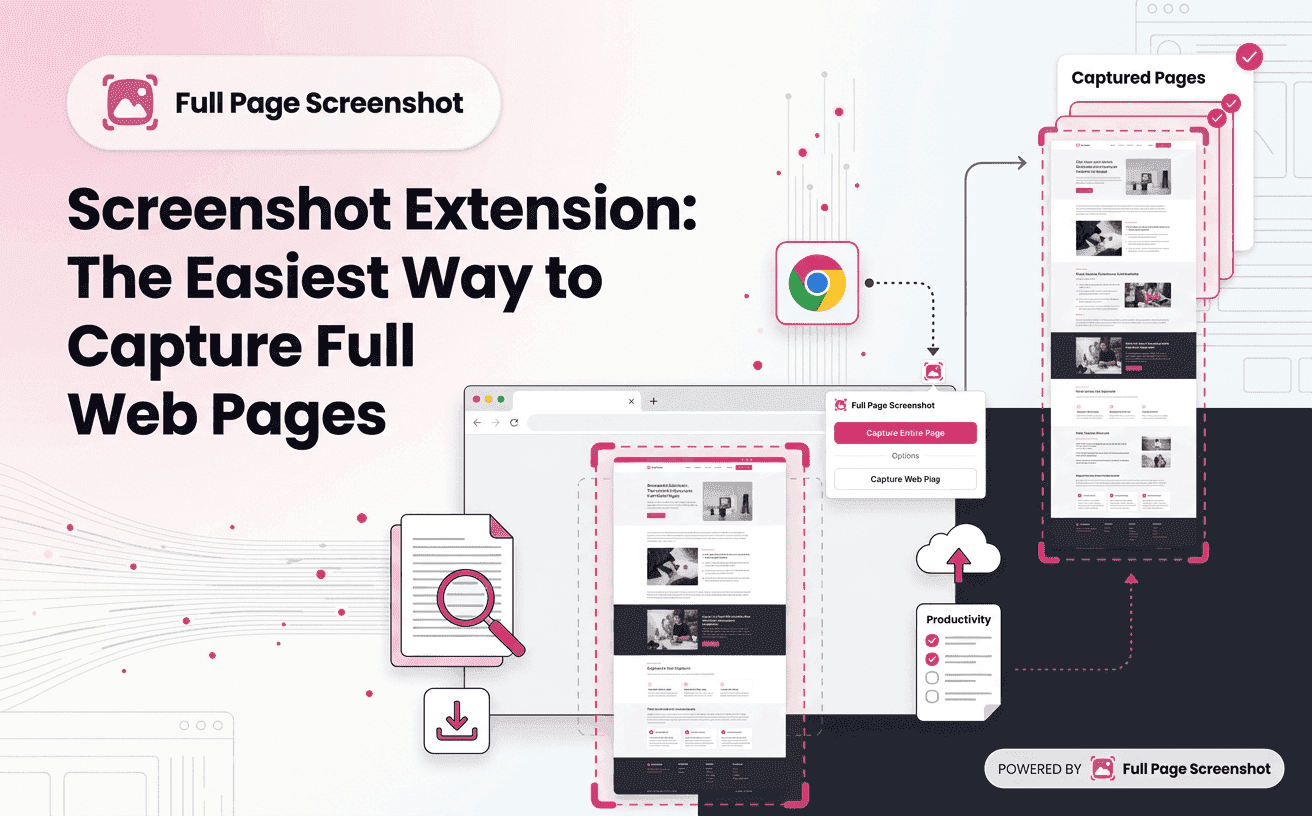
Webpages today contain more information than ever before, from detailed articles and interactive dashboards to product catalogs and business reports. Capturing all of this content with traditional screenshot tools can be time-consuming because they only record the visible portion of the screen. A Screenshot Extension simplifies the process by allowing you to capture an entire webpage in one seamless image, making it easier to save, share, and document online content with confidence.
Full Page Screenshotting is designed to simplify this process. With just a few clicks, users can capture, save, and share complete webpages without compromising image quality. Whether you’re a student, marketer, developer, designer, business owner, or casual internet user, the extension helps streamline your daily workflow.
What Is a Screenshot Extension and Why Does It Matter Today?
A Screenshot Extension is a browser-based tool that enables users to capture screenshots directly from their web browser. Unlike traditional operating system screenshot tools that only capture the visible screen, browser extensions are specifically built to work with web content, offering advanced capabilities such as full-page capture, scrolling screenshots, instant downloads, and easy sharing.
Instead of scrolling manually and taking multiple images, a browser extension automatically scans the webpage, captures every section, and combines everything into one seamless screenshot. The result is a clean, professional image that accurately represents the entire webpage.
Why More People Are Choosing a Screenshot Extension Every Day
The way we work online has changed dramatically over the last few years. Businesses collaborate remotely, students attend online classes, developers test websites across multiple devices, and marketers analyze competitor landing pages. Nearly every profession requires visual documentation at some point.
Traditional screenshot tools often create unnecessary work because users must capture multiple images and manually organize them. This process becomes frustrating when working with long webpages.
A dedicated browser extension solves this problem by providing a faster and more organized workflow.
Capture Entire Pages Without Missing Information
One of the biggest advantages is the ability to create a Screenshot of a full webpage without breaking the content into several images. Every section from the header to the footer is captured automatically, preserving the complete structure of the page.
Instead of managing multiple screenshots, users receive one high-quality image that is easy to review and share.
Save Time During Daily Tasks: Full Page Screenshotting captures complete webpages in seconds, eliminating repetitive scrolling, cropping, and stitching to boost productivity.
Improve Collaboration Across Teams: Share complete webpage screenshots with your team to provide clear visual context and reduce miscommunication during projects.
Preserve Website Layouts Accurately: Capture and archive entire webpages to maintain an accurate record of website content, designs, and updates for future reference.
Key Benefits of Using a Screenshot Extension for Everyday Work
Using a browser extension offers far more than simple screen capturing. It becomes an essential productivity tool that supports faster communication, better documentation, and improved collaboration across different industries.
SIMPLIFIES WEBSITE DOCUMENTATION
Instead of collecting multiple images from one webpage, users can save everything in one organized screenshot. This makes documentation cleaner and easier to manage.
SUPPORTS BETTER PROJECT COMMUNICATION
Sharing a complete webpage helps colleagues understand the full context without asking for additional screenshots or explanations.
IMPROVES RESEARCH EFFICIENCY
Researchers, students, and marketers frequently collect online information from multiple sources. Saving entire webpages reduces the risk of overlooking important sections during analysis.
CREATES PROFESSIONAL REPORTS
High-quality webpage captures can be included in presentations, client reports, training manuals, and internal documentation while maintaining the original appearance of the website.
Features That Make a Screenshot Extension Worth Using
Not every browser tool delivers the same experience. While many extensions can capture the visible screen, the best ones are designed to simplify your workflow with features that save time and improve the quality of every capture. Choosing the right Screenshot Extension means looking beyond basic functionality and focusing on capabilities that support your daily tasks.
MAINTAIN HIGH IMAGE QUALITY
Enjoy sharp, high-resolution screenshots that preserve text, images, charts, and graphics, making every capture suitable for presentations, reports, and documentation.
FAST & SIMPLE USER EXPERIENCE
Capture an entire webpage in just a few clicks with an intuitive interface, instant previews, and quick downloads no technical expertise required.
LIGHTWEIGHT PERFORMANCE
Experience smooth browsing while capturing long webpages, thanks to an optimized extension that uses minimal system resources.
SECURE BROWSING & PRIVACY
Capture webpages with confidence using a trusted extension that values your privacy through secure permissions, transparent practices, and regular updates.
How to Capture a Full Web Page in Just a Few Steps
Capturing an entire webpage is much easier than many people expect. Modern browser extensions automate the entire process, eliminating the need for manual scrolling or editing.
Here’s how you can do it using Full Page Screenshotting.
Step 1: Open the Webpage
Navigate to the webpage you want to capture. This could be:
- A blog article
- An online report
- A product page
- Documentation
- A landing page
- A dashboard
Allow the page to finish loading completely before capturing it.
Step 2: Launch Full Page Screenshotting
Click the Full Page Screenshotting extension icon in your browser toolbar.
The extension immediately begins scanning the webpage and automatically scrolls through every section behind the scenes.
You don’t need to manually scroll or take multiple screenshots.
Step 3: Generate the Complete Screenshot
Within a few moments, the extension combines every section into one continuous image.
Instead of dozens of individual screenshots, you receive one organized image containing the complete webpage.
This process is significantly faster than traditional screenshot methods and ensures nothing is left out.
Step 4: Review the Screenshot
Before downloading, review the captured image to confirm that every section has been included correctly.
Modern screenshot extensions maintain the original webpage layout, making the final image suitable for documentation, presentations, and collaboration.
Step 5: Download and Share
Once satisfied, save the screenshot to your device.
You can then:
- Share it with colleagues
- Add it to reports
- Include it in presentations
- Store it for future reference
- Upload it to project management platforms
The entire process takes only a few seconds, even for long webpages.
Best Use Cases for a Screenshot Extension Across Different Professions
A Screenshot Extension helps professionals capture, save, and share complete webpages efficiently, improving productivity across various industries.
Digital Marketers → Analyze competitor websites, landing pages, and ad campaigns with complete webpage captures for faster reporting and better campaign insights.
Web Designers & UI/UX Professionals → Save full webpage layouts to review typography, spacing, navigation, and design elements without revisiting the website.
Web Developers → Capture entire webpages to document bugs, test UI changes, and share clear visual references for quicker issue resolution.
Students & Researchers → Store online articles, journals, and educational resources as complete webpage screenshots for organized learning and future reference.
Content Writers & SEO Specialists → Capture competitor content, page structures, and website layouts with a Web page full screenshot to support content planning and SEO audits.
Business Owners & Consultants → Archive webpages, reports, and competitor information to create accurate documentation for presentations, business reviews, and strategic decisions.
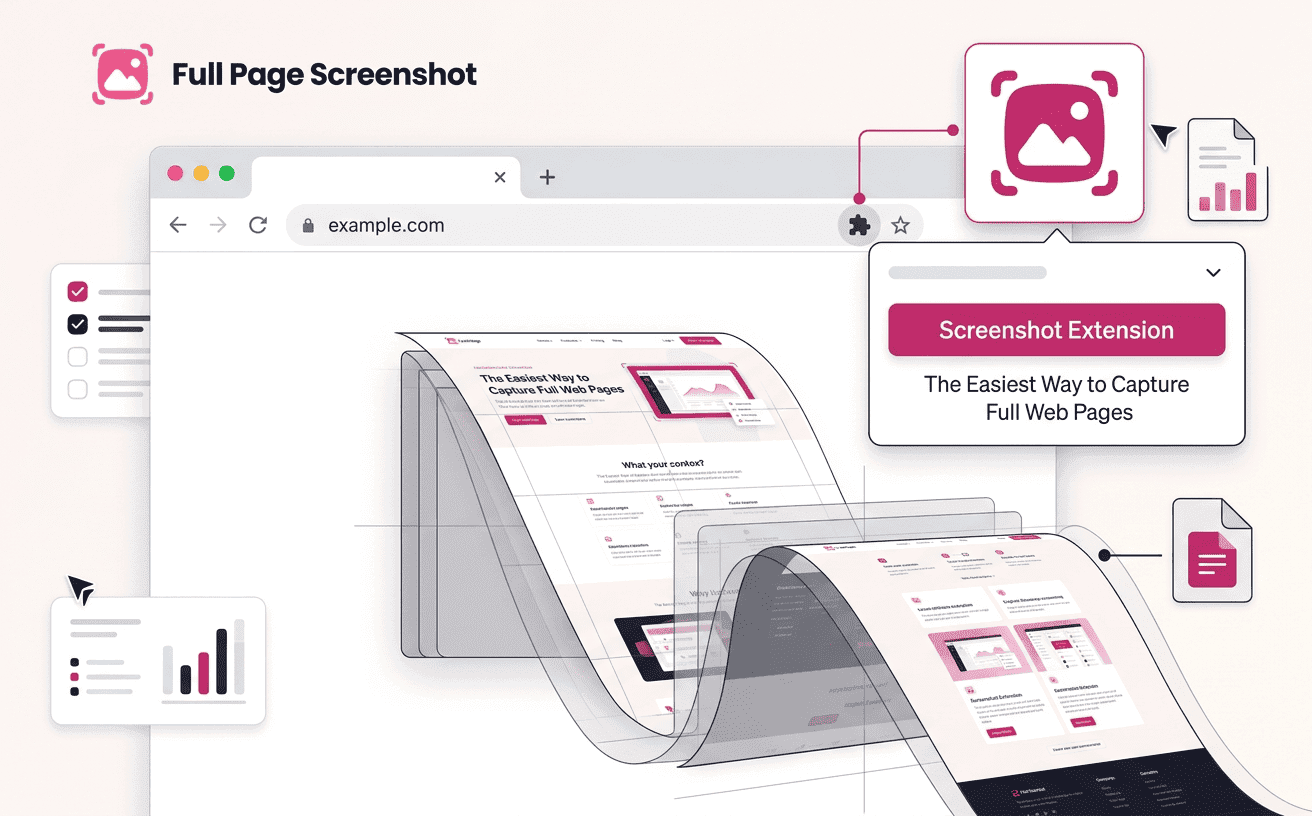
Screenshot Extension vs Built-In Screenshot Tools
Most computers and smartphones include basic screenshot functionality. While these tools work well for capturing the visible screen, they often fall short when users need to save long webpages or detailed online documents.
| Feature | Built-In Screenshot Tool | Screenshot Extension |
|---|---|---|
| Capture visible screen | ✔ Yes | ✔ Yes |
| Capture entire webpage | ✘ No | ✔ Yes |
| Automatic scrolling | ✘ No | ✔ Yes |
| Single-image webpage capture | ✘ No | ✔ Yes |
| Faster workflow | Limited | Excellent |
| Ideal for browser tasks | Limited | ✔ Optimized |
| Professional documentation | Basic | Advanced |
For occasional screenshots, built-in tools may be sufficient. However, if you regularly work with websites, reports, or online documentation, a dedicated browser extension offers a far more efficient experience.
Using Full Page Screenshotting, users can eliminate repetitive scrolling and manual image stitching while creating accurate webpage captures in just a few clicks.
Expert Tips for Capturing Better Webpage Screenshots
Creating a high-quality screenshot involves more than clicking a button. A few simple practices can improve the clarity, readability, and usefulness of every capture.
✔ Load the Entire Webpage
Wait for all page elements to load before capturing.
✔ Remove Distractions
Close pop-ups and banners for a clean screenshot.
✔ Ensure a Stable Connection
Prevent missing content while capturing long webpages.
✔ Verify Before Saving
Review the captured image for completeness.
✔ Keep Screenshots Organized
Sort files into folders for easy access.
✔ Stay Updated
Use the latest version of Full Page Screenshotting for the best experience.
Why Full Page Screenshotting Is the Smart Choice
There are countless browser tools available, but selecting one that combines simplicity, speed, and reliability is essential. Full Page Screenshotting is built for users who need a dependable solution for capturing complete webpages without unnecessary complexity.
Whether you’re documenting website changes, sharing designs with a client, saving educational resources, or reporting technical issues, the extension helps you complete the task quickly and accurately.
By reducing manual work and improving the way information is captured, it supports better collaboration, clearer communication, and more efficient workflows. Instead of juggling multiple screenshots, you can focus on what matters most to your work.
Frequently Asked Questions About Screenshot Extensions
1. What is a Screenshot Extension?
A Screenshot Extension is a browser tool that allows you to capture screenshots directly from your browser. Unlike traditional screenshot tools, it can capture entire webpages, including content that extends beyond the visible screen, making it ideal for documentation, collaboration, and research.
2. Can I capture an entire webpage with a screenshot extension?
Yes. A browser extension such as Full Page Screenshotting automatically scrolls through the webpage and combines every section into one continuous image. This allows you to capture a complete webpage without taking multiple screenshots manually.
3. Why should I use a screenshot extension instead of built-in tools?
Built-in screenshot tools are useful for capturing only the visible screen. A dedicated browser extension offers additional features such as automatic scrolling, full-page capture, higher efficiency, and a smoother workflow, making it a better choice for users who frequently work with websites.
Conclusion
As websites continue to grow in size and complexity, capturing complete webpages has become an essential part of modern browsing. Whether you’re documenting research, reviewing website designs, preparing business reports, or collaborating with your team, using the right Screenshot Extension can significantly improve both speed and accuracy.
Full Page Screenshotting is built for users who want a fast, reliable, and user-friendly way to capture webpages. From students and professionals to developers and marketers, it offers a practical solution for everyday browsing tasks. Whether you need to archive online content, create tutorials, or maintain accurate website records, the extension helps you work smarter with less effort.